How to Make a Training Presentation: Structure and Examples
A training presentation teaches people to do something they could not do before. That might be a new process, a tool, a policy, or a safety routine. It differs from other presentations in one way: success is measured by what learners can do afterward, not by what they heard.
This guide covers how to set learning objectives, and a training presentation structure based on Gagné's nine events of instruction. It also walks through an AI method in three steps and a worked example. The last sections cover slide rules, ways to make the session interactive, and how to check that the training worked.
What a training presentation is
A training presentation is a deck built to teach a skill or a procedure. A sales deck aims for a decision and a report deck aims to inform. A training deck aims for a change in what people do.
That changes how you build it. Each section should lead to something the learner practices. Slides carry the steps, the examples, and the practice tasks. The presenter carries the explanation.
Training presentations show up in many settings:
- Onboarding. New hires learn tools, policies, and who to ask.
- Process changes. A team learns a new workflow or system.
- Compliance and safety. Staff learn rules they must follow.
- Product training. Sales or support teams learn a new product.
- Skills workshops. Managers learn to give feedback or run reviews.
In each case, the source material usually exists already. It sits in a policy document, a standard operating procedure (SOP), a manual, or a spreadsheet of past cases. Much of the work is turning that material into something people can learn from.
Before you start: write the learning objectives
Start with what learners should be able to do at the end. Northern Illinois University's teaching center puts it plainly: "Ideally, you should prepare course goals and learning objectives before implementing the nine events." Those goals then drive every slide.
Write objectives with verbs you can observe. The University of Arkansas teaching guide uses Bloom's Taxonomy for this. It warns against "verbs that cannot be quantified, like: understand, learn, appreciate, or enjoy."
Bloom's Taxonomy orders skills from simple to complex: remembering, understanding, applying, analyzing, evaluating, and creating. The Arkansas guide notes that "Before you can understand a concept, you must remember it." For a procedure, the applying level fits, which the guide defines as "Carrying out or using a procedure for executing or implementing."
Compare two objectives for the same session:
| Weak objective | Stronger objective |
|---|---|
| Understand the new returns process | Process a standard return in the new system in under five minutes |
| Learn the expense policy | Identify which of five sample expenses need manager approval |
| Know the safety rules | Demonstrate the lockout steps on the training machine |
Keep the list short enough that each objective gets practice time. Put the objectives on a slide near the start, so learners know what they will practice.
Training presentation structure
A reliable structure comes from Gagné's nine events of instruction. NIU explains that "In 1965, Robert Gagné proposed a series of events that are associated with and address the mental conditions for learning." Each event maps to one or more slides.
| Event | What it does | Typical slides |
|---|---|---|
| 1. Gain attention | Gives a reason to care | A short scenario, a question, or a surprising number |
| 2. Inform learners of the objectives | Sets expectations | Objectives slide |
| 3. Stimulate recall of prior learning | Links to what they already know | "What we do today" slide |
| 4. Present the content | Teaches the steps | One slide per step, with visuals |
| 5. Provide learning guidance | Shows how to apply it | Worked examples and non-examples |
| 6. Elicit performance (practice) | Lets learners try it | Practice task slides |
| 7. Provide feedback | Corrects and confirms | Answer slides, discussion prompts |
| 8. Assess performance | Checks the objectives | Knowledge check or short task |
| 9. Enhance retention and transfer | Moves it into daily work | Job aid, next steps, where to get help |
A few events deserve more detail.
Inform learners of the objectives. NIU says "Provide objectives before instruction begins." A stated objective tells learners what they will be asked to do later.
Stimulate recall. NIU advises helping learners "make sense of new information by relating it to something they already know or something they have already experienced." In a process change, the old process is the obvious anchor.
Present the content. NIU suggests you "Organize and group content in meaningful ways, and provide explanations after demonstrations." Show the step first, then explain why it works that way.
Enhance retention and transfer. NIU says to "Help learners retain more information by providing them opportunities to connect course concepts to potential real-world applications." A one-page job aid often does this better than a final slide.
How to make a training presentation with AI
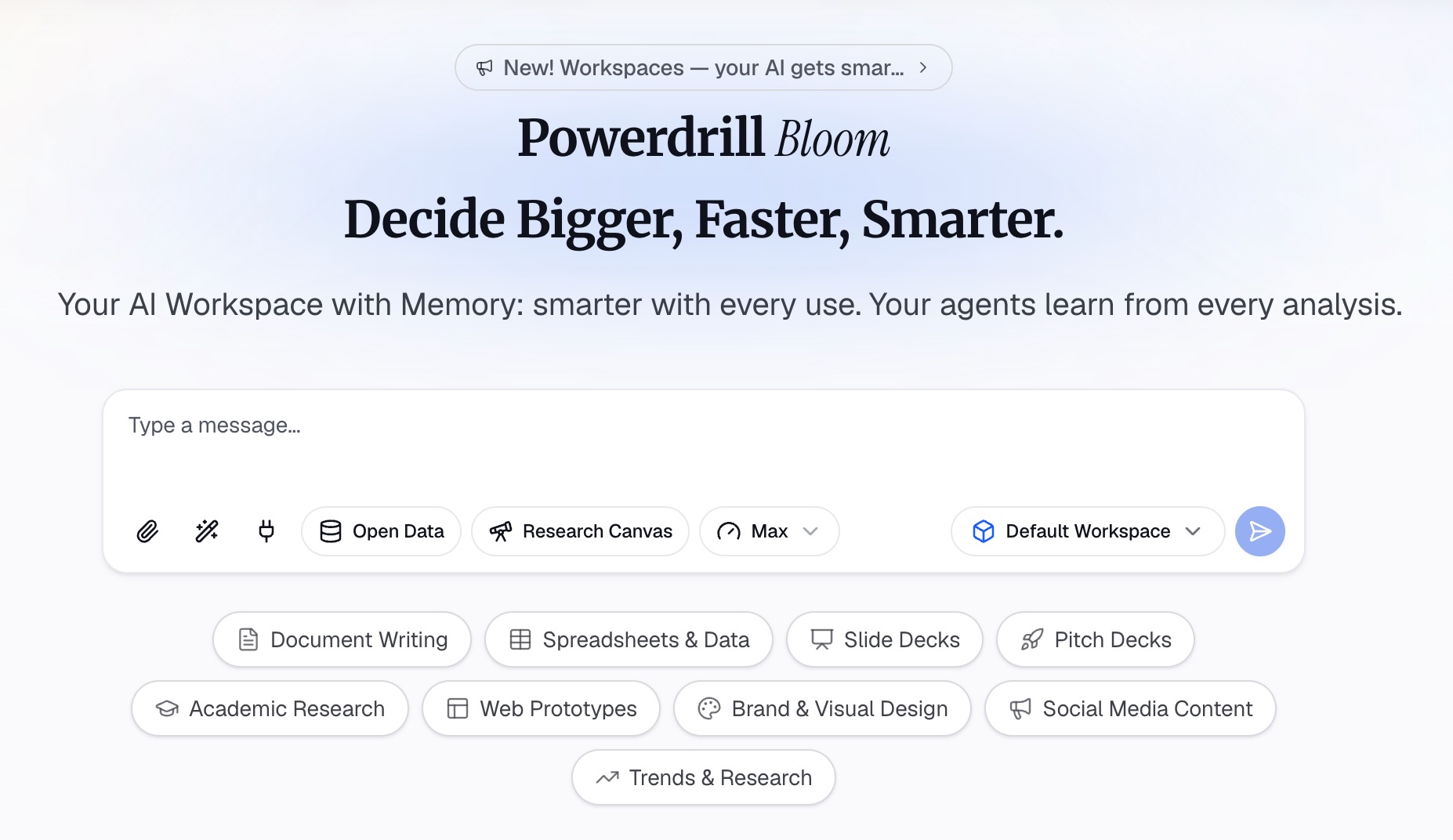
AI can do the slow parts: reading long policy documents, pulling the steps out of an SOP, and drafting a first deck. Your job is to set the objectives and check every rule against the source. Here is the method in three steps, using Powerdrill Bloom.
Step 1: Gather your source documents and set the objectives
Collect the material the training is based on: the SOP, the policy, the manual, and any data on past mistakes. A spreadsheet of support tickets or audit findings shows where people actually go wrong. Powerdrill Bloom's Free plan lists "Upload Excel, CSV, PDF, and docs."
Put the audience, the length, and your objectives in the first prompt. For example: "This is a 45-minute training presentation for new support agents. Use the attached returns SOP as the only source for the steps. By the end, agents should process a standard return and spot the three exceptions."
Some policies live in a Word file. For those, the Word to slides page says Powerdrill Bloom can "Convert your Docs into sleek, fully editable PowerPoint presentations in seconds." Upload the current version, not a draft that has since changed.
Step 2: Draft the outline around what learners will do
Ask for an outline that follows the nine events. A useful prompt is: "Draft a 14-slide training outline using Gagné's nine events. Give each objective its own content slide, one worked example, and one practice task."
Then ask the data questions. "Which three return reasons caused the most rework last quarter?" turns a spreadsheet into the examples learners will see. Ask for one chart for each answer, labeled with the step it supports.
Check every rule and number against the source. The Powerdrill Bloom homepage says "Every number comes back with the page, the row and the figure behind it." That makes the check faster, but the trainer still signs off on every rule.
Step 3: Build the slides, practice tasks, and knowledge check
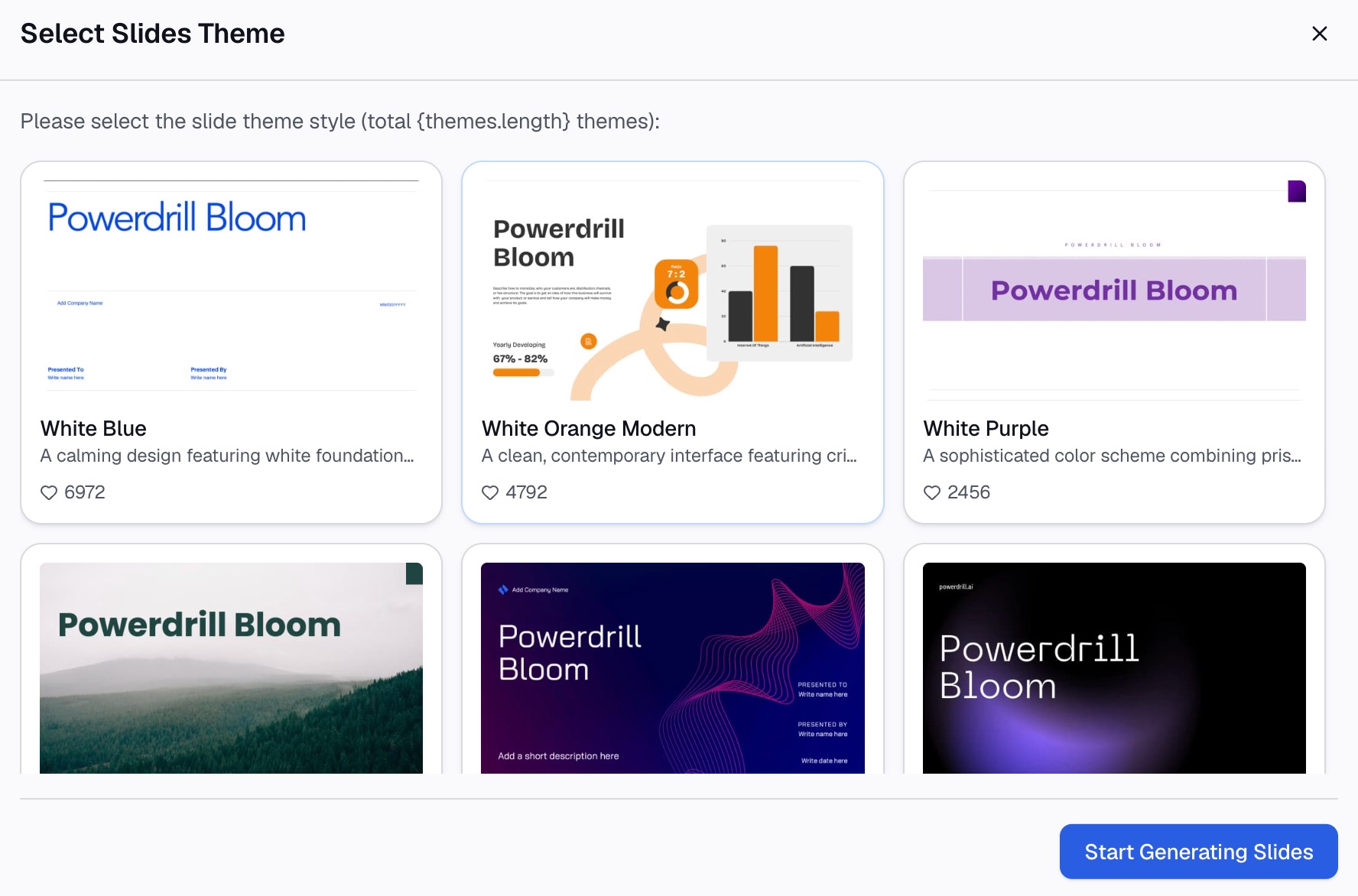
Once the outline is right, ask for the deck. For PDFs, the PDF to PPT page says Powerdrill Bloom "reads your document, researches related data online, and generates a brand-new PowerPoint." For a training deck, tell it to stay with your source and leave outside data out.
Next, ask for three extra pieces:
- Practice tasks. Short scenarios learners solve during the session.
- A knowledge check. Five questions tied to the objectives, with an answer key.
- Speaker notes. A few lines per slide on what to say and what to ask. Our guide to speaker notes covers how to keep them brief.
Finish with a one-page job aid. Our guide to presentation handouts shows a format learners can keep at their desk.
A training presentation example
Here is an illustrative example. The company and numbers are invented.
An outdoor gear retailer, Lakeside Outfitters, is changing how its support team handles returns. The new process moves approvals into the order system and adds three exceptions. The trainer has the new SOP as a PDF and a spreadsheet of last quarter's returns.
The objectives are: process a standard return in the new system, spot the three exceptions, and know when to escalate.
| Slide | Title | Content |
|---|---|---|
| 1 | Returns are changing on November 3 | Title, date, trainer |
| 2 | One in five returns needed rework last quarter | Chart from the returns spreadsheet |
| 3 | By the end of this session, you will… | The three objectives |
| 4 | How returns work today | The old process, briefly |
| 5 | Step 1: Find the order and check eligibility | Screenshot and the eligibility rule |
| 6 | Step 2: Choose the return reason | Reason codes, with the top three charted |
| 7 | Step 3: Approve or route the return | Approval rules from the SOP |
| 8 | Worked example: a damaged tent | A standard return, start to finish |
| 9 | Non-example: a used sleeping bag | Why it is an exception |
| 10 | The three exceptions | Rule, example, and who decides |
| 11 | Practice: three returns to process | Scenarios for pairs |
| 12 | Answers and discussion | Correct steps for each scenario |
| 13 | Knowledge check | Five questions tied to the objectives |
| 14 | Where to get help | Job aid, escalation contact, next review |
Notice the order. The data slide comes early, because it gives a reason to care. Each step gets its own slide. Practice comes before the check, and the last slide moves the learning back to daily work.
Slide design rules for training decks
Training slides get read twice: once in the session and again later as a reference. Microsoft's presentation tips give a solid base.
- Keep text short. Microsoft advises "Keep your text simple and minimize the amount of text on your slides." Put the detail in the job aid instead.
- Make it readable. Microsoft says "Try to avoid using font sizes smaller than 18 pt." Go larger if people sit far from the screen.
- Show the step. Microsoft says "Use graphics to help tell your story." For a process, a screenshot with one highlighted area shows learners where to look.
- Keep backgrounds quiet. Microsoft says "Make slide backgrounds subtle and keep them consistent."
- Title slides with the point. "Step 2: Choose the return reason" tells learners where they are. Our guide to takeaway slide titles explains the idea.
For charts from your data, keep one message per chart. Our guide on making data slides easy to read covers labels and color.
Plan the pace too, and give practice its own block of time. Our guide to a slide timing plan shows how to budget the session.
How to make a training presentation interactive
Search suggestions for this topic often ask how to make a training presentation interactive or fun. The nine events answer that directly, because three of them are about the learner doing something.
Ask before you tell. NIU suggests you "Pose thought-provoking questions to students" to gain attention. Open with a real case and ask what the group would do.
Practice during the session, not after. NIU says to "Have students apply what they have learned to reinforce new skills and knowledge and to confirm correct understanding of course concepts." Learners can work through short scenarios in pairs.
Use examples and non-examples. NIU notes that examples show what to do, while non-examples show what not to do. For a process with exceptions, show one case that breaks the rule.
Give specific feedback. NIU describes several kinds. One is descriptive feedback, which "provides the student with suggestions, directives, and information to help them improve their performance."
Microsoft's general tips suggest you "Ask your audience to hold questions until the end." That suits a talk. In training, practice tasks raise questions of their own, so plan time for them.
How to check that the training worked
A training presentation is only done when you know whether people can do the task. Plan the check before the session.
- Test against the objectives. Each objective should have at least one question or task.
- Use a before-and-after check. NIU suggests you "Administer pre- and post-tests to check for progression of competency in content or skills."
- Watch the work, not just the quiz. For a process, a short observed task tells you more than a multiple-choice score.
- Look at the data a month later. If the training was about returns, check whether rework went down.
Keep the results with the deck. A short note on which questions most learners missed tells you which slides to fix before the next session.
That last check closes the loop. The same spreadsheet that gave you slide 2 can tell you whether the training changed anything. Feed the new month's data into the same analysis and compare.
Common mistakes
Watch for these mistakes as you build the deck.
- Copying the manual onto slides. A training deck is not a policy document. Keep the full rules in the job aid.
- Objectives that cannot be checked. "Understand the process" gives you nothing to test.
- No practice. If learners only listen, you cannot tell whether they can do the task.
- Too much at once. If an objective gets no practice time, move it to another session.
- Rules that drift from the source. Check every step against the current SOP before the session.
- No follow-up. Give learners a job aid, and plan a check a few weeks later.
Before the session, run through the deck with one person from the target group. Note every question you could not answer. Want a faster first draft? Try Powerdrill Bloom with your SOP and one spreadsheet of past cases.
Frequently asked questions
What should a training presentation include?
A training presentation should include clear learning objectives, the content in short steps, and worked examples. Add practice tasks, feedback, and a knowledge check tied to the objectives. End with a job aid or next steps so learners can apply it at work.
How do you structure a training presentation?
A common structure follows Gagné's nine events of instruction. Gain attention, state the objectives, and recall prior learning. Present the content, guide learners with examples, and let them practice. Then give feedback, assess performance, and help them apply it on the job.
How long should a training presentation be?
It depends on the objectives and how much practice each one needs. Plan the content, practice, and check for each objective, then add them up. For longer topics, split the training into shorter sessions with a check at the end of each.
How do I make a training presentation interactive?
Open with a real scenario and ask what learners would do. Add practice tasks during the session, show examples and non-examples, and give specific feedback. Leave time for questions during practice, not only at the end.
Can AI help make a training presentation?
Yes. AI can read SOPs, policies, and manuals, pull out the steps, and draft an outline and slides. It can also chart past mistakes from your data and write practice tasks and quiz questions. You still need to check every rule against the source.
Sources: Northern Illinois University, Gagné's Nine Events of Instruction · University of Arkansas, Using Bloom's Taxonomy to Write Effective Learning Objectives · Microsoft Support, Tips for creating and delivering an effective presentation.