How to Create a Presentation Handout with AI: 5 Easy Steps in 2026
A presentation handout is the document your audience keeps after you stop talking. The fastest way to build one is to generate it from the data behind the deck, not from the slides themselves. This guide covers what PowerPoint gives you natively, where that stops, and five steps to produce one with AI.
What a handout is actually for
Printing your slides is not the same thing as writing a leave-behind. A deck is built to be read while someone explains it. This document is read alone, days later, by someone who may not have been in the room.
That gap is why so many printed decks fail. The slide that worked on screen had four words and a chart. On paper, with no narration, those four words say nothing.
A good one carries three things a deck deliberately leaves out. The numbers behind each chart, the assumptions you stated out loud, and the decision you are asking for. Everything else is optional.
These pages also outlive the meeting in a way recordings do not. They get forwarded, annotated, and pasted into other documents.
What PowerPoint gives you natively
Microsoft ships two separate handout paths, and they solve different problems.
The first is the Handout Master. According to Microsoft's documentation, you reach it from the View tab by clicking Handout Master in the Master Views group. Microsoft notes that "changes made to the handout master appear on all pages of the printed handout."
Inside that view, the Page Setup group holds three controls: Handout Orientation, Slide Size, and Slides Per Page. One layout detail is worth knowing before you pick: "The 3 Slides option includes lines that your audience can use to take notes."
The second path is the print dialog. Microsoft's printing guide describes Print Layout as the place to choose "just the slides, just the speaker notes, an outline, or handouts."
The same page explains what each option produces. "The Outline prints only the text in the slides, without images." Notes pages "show the slide and the related speaker notes below it." Handouts "print several slides on one page using a variety of layouts, some with space for note-taking."
There is one default that catches people out. Microsoft states that "by default, in PowerPoint for Microsoft 365 printed handouts include a slide number below each slide image." You clear it under the Handouts section of the print layout dropdown.
Where the native route stops
None of those controls write anything. They arrange what is already on your slides.
That is the honest limit of those two features specifically. The Handout Master decides how many thumbnails fit on a page. It does not add the table you cut for space. It does not restate the assumption you said aloud, or spell out the number a bar chart implies.
Microsoft 365 does ship Copilot alongside these controls, and both support pages carry Copilot prompts at the top. The point here is narrower: layout and print settings are not an authoring step.
So the manual workflow becomes a second authoring job. You export the deck, open a document, and retype the figures from the source spreadsheet. Then you write the context back in and keep two files in sync until the meeting.
That sync is where the effort usually dies. The deck gets a last-minute number change and the document does not. A stale leave-behind is worse than none at all.
How to create a handout with AI in 5 easy steps
The shortcut is to build it from the same source file the deck came from, rather than from the deck. Then both artifacts agree by construction.
Step 1: Upload the file the deck was built from
Sign in to Powerdrill Bloom and upload the source data, not the presentation. Excel, CSV, PDF, and docs are listed on the free plan.
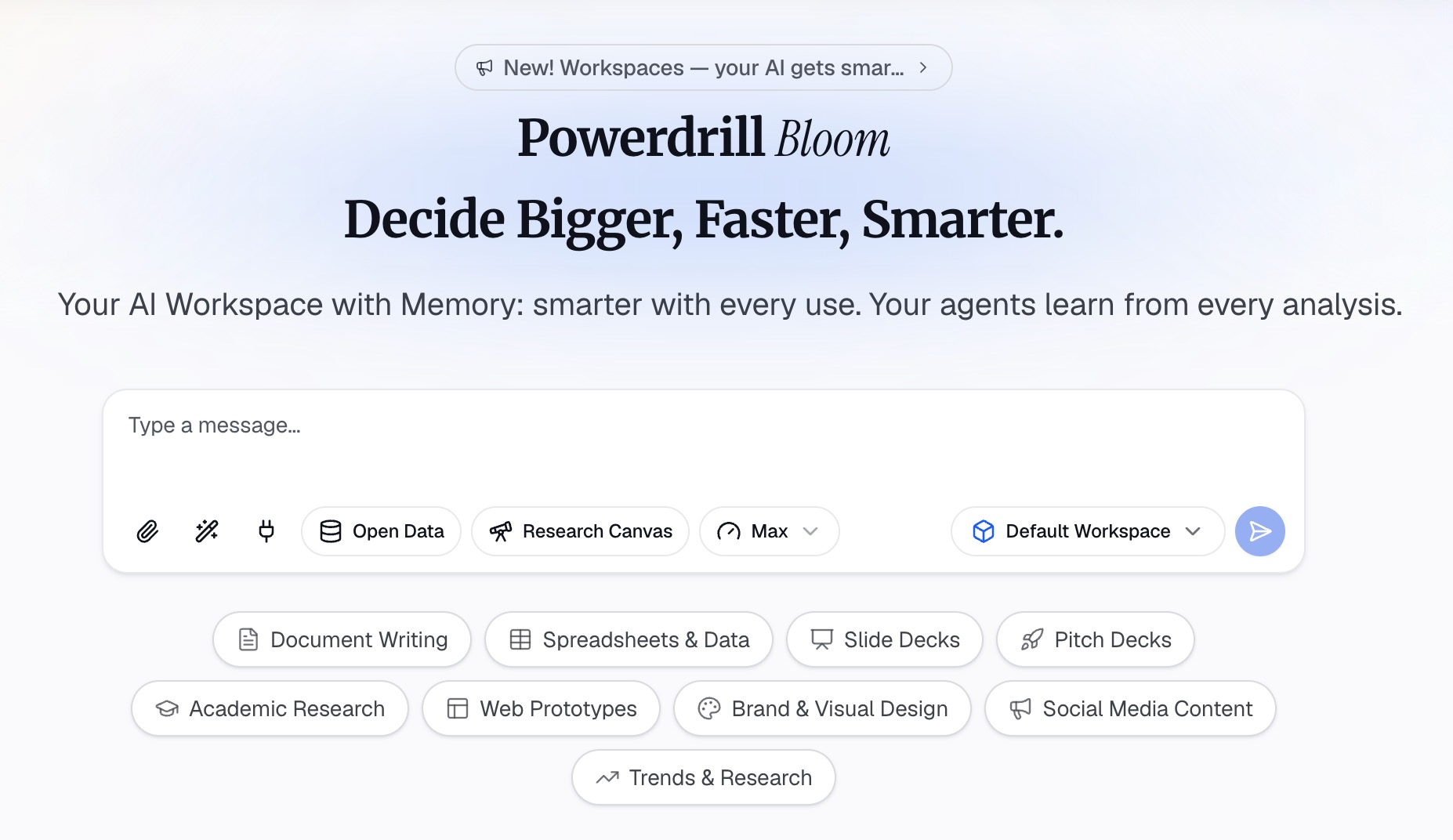
Use the exact export the charts came from. If two versions are floating around, pick the one whose totals match the slides.
Step 2: Say who the document is for
Describe the audience in natural language. A board that sees this quarterly, a client who missed the call, a team that has to act on Monday. Audience decides what gets explained and what can be assumed.
Name the decision too. A page written to support a budget request looks nothing like one written to report status.
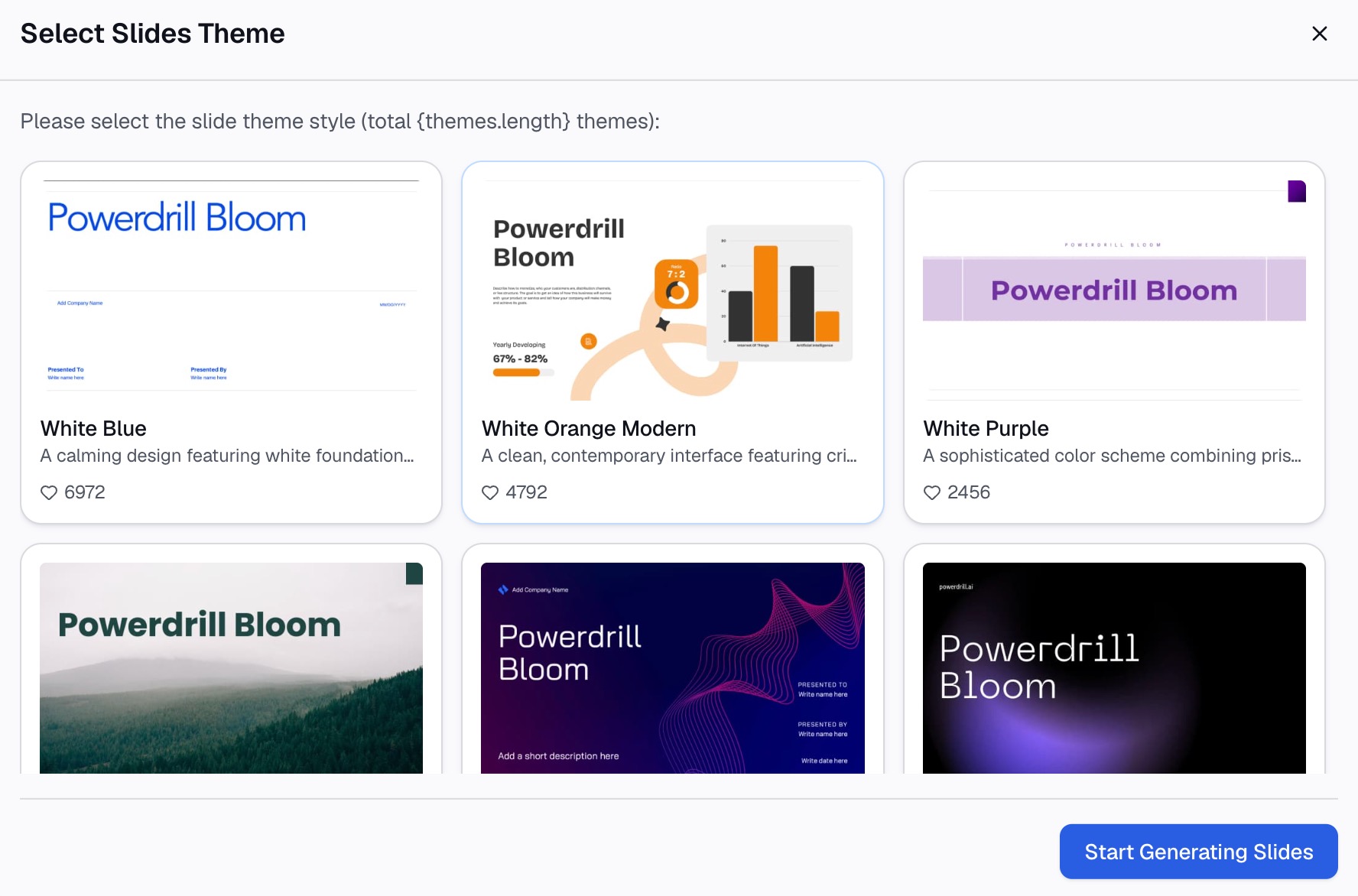
Step 3: Ask for the one-page version
Request a single-page summary that carries the figures, not a slide-by-slide recap. Ask it to state each number with its source column so a reader can trace it.
Two additions earn their space here. Ask for the assumptions to be written out as sentences, and ask for the open questions to be listed rather than implied.
Step 4: Add back what the slides had to cut
Every deck drops detail for legibility, and this page is where that detail belongs. Ask for the supporting table behind the headline chart, the segment breakdown, or the method note.
This is also the natural home for the material you would otherwise hide in backup slides. On paper, nobody has to ask you to bring it up.
Step 5: Export and pair it with the deck
Export the document and check three things against the deck. Totals, date range, and any figure that appears in both. On Pro, output includes Office documents and Excel analysis.
Then send them together. A leave-behind that arrives separately, a day later, gets read by nobody.
What belongs on the page
| Element | Include it? | Why |
|---|---|---|
| Headline chart | Yes | It anchors everything else |
| Underlying table | Yes | Readers check numbers when you are not there |
| Stated assumptions | Yes | These usually live only in the narration |
| The ask or decision | Yes | The reason the meeting happened |
| Full slide thumbnails | Only if short | Pages of tiny slides read as filler |
| Speaker notes verbatim | No | They are written for you, not the audience |
Speaker notes are the most common mistake here. They are drafted as prompts for the presenter. That is exactly why writing them well is a separate job from this one.
Common mistakes worth avoiding
Printing nine slides per page. It technically fits. It is also unreadable, and it signals that nobody thought about the reader.
Handing it out at the start. People read ahead instead of listening. Unless you want them working through it during the session, send it after.
Letting it drift from the deck. If the deck changes, regenerate from the same source file rather than patching the copy you already printed.
Assuming legibility carries over. A chart tuned for a projector may not survive grayscale printing. That is the same discipline behind making data slides easy to read.
Start from the data, not the deck
The reason this feels like extra work is that most people do it last, from the slides, under time pressure. Working from the source file instead removes the retyping and the sync problem in one move.
The free plan covers the whole loop described above. It lists uploads, insights, charts, summaries, and creation of basic slides, docs, sheets, and images.
Two boundaries are worth knowing before you plan around it. Office document creation and Excel analysis are listed on Pro. The free plan includes one scheduled task, so a recurring monthly version needs a paid tier.
If the deck itself is also still to be built, our Excel to PPT page covers that half. The AI report generator page covers longer written versions. To build your next leave-behind from a file you already have, try Powerdrill Bloom.
Frequently asked questions
What is the difference between a handout and printed slides?
Printed slides reproduce what was on screen. A handout is written to be read without you, so it carries the numbers, assumptions, and the ask that the slides only implied.
How many slides per page should a handout use?
Microsoft offers several layouts through Slides Per Page in the Handout Master. The 3 Slides option is the practical default because it includes lines your audience can use for notes.
Can I remove slide numbers from PowerPoint handouts?
Yes. Microsoft documents clearing "Print slide numbers on handouts" under the Handouts section of the print layout dropdown, for Microsoft 365 subscribers on Windows desktop.
Should a handout include speaker notes?
Usually not verbatim. Speaker notes are written as prompts for the presenter, so rewrite the useful parts as sentences an outside reader can follow.
When should I send the handout?
After the session, in the same message as the deck. Sending it first pulls attention away from the presentation, and sending it a day later means it rarely gets opened.