How to Create Backup Slides with AI: Step by Step
The question that sinks a review is rarely about your main point. It is the follow-up: "what does that look like by region?"
Backup slides are the answer you prepared in advance. They sit in the file, stay out of the running order, and come up only when someone asks.
This guide covers what to build, how PowerPoint handles hidden slides, and how to generate the underlying charts from a file you already have.
What a backup slide is for
A deck has one job in the room: carry the argument. Every extra chart competes with that job.
An appendix solves the tension. The detail exists, it is one click away, and it is not in anyone's way until it is needed.
Three situations make backup slides pay off.
A number will get challenged. If one figure carries the decision, someone will want the breakdown behind it.
Your audience is mixed. A finance reviewer and a product lead will ask for different cuts of the same data.
The meeting has a hard stop. Cutting depth from the main flow is easier when the depth still exists somewhere.
What PowerPoint calls this, and what it actually does
Microsoft's own term is a hidden slide, and its documentation is precise about the mechanics.
The support page states the purpose directly. It says that a slide "should be included in the presentation file" while not appearing in the slide show, and that you can hide it.
The next line is the one that makes appendices safe to use. Microsoft writes: "A hidden slide remains in the file; it is merely hidden when you run Slide Show view."
You can also see at a glance which slides are hidden. On Windows, the page notes that a hidden slide "shows a slash through the slide number." On macOS, it says a "no" symbol appears on the slide instead.
Microsoft lists this behaviour for PowerPoint for Microsoft 365, PowerPoint 2024, 2021, 2019, and 2016, on both Windows and Mac.
One consequence is easy to miss. Because the slide stays in the file, it travels with the deck when you send it. Anyone who opens the file in editing view will see the appendix, slash mark and all.
That is usually what you want. It does mean the appendix should be readable on its own, without you standing next to it.
The four backup slides worth building
Most appendices fail by being a dumping ground. These four earn their place.
| Backup slide | What it answers | Build it from |
|---|---|---|
| The breakdown | "How does that split by segment, region, or channel?" | The same source column you grouped in the headline chart |
| The method | "How did you calculate that?" | Your filters, date range, and any excluded rows |
| The trend | "Is this new, or has it always been like this?" | The same metric over a longer window |
| The exception list | "Which specific accounts drove that?" | The top and bottom rows, named |
Notice that all four come from data you already touched, which is what makes them cheap to produce. None of them requires a second round of analysis.
The method slide is the one people skip and later wish they had. When a number is questioned, the fastest way out is showing exactly which rows you counted and which you excluded. That turns a challenge into a five-second confirmation.
Skip anything that would take new analysis to build. If a backup slide needs a fresh data pull, it belongs in a follow-up email instead.
Getting started with Powerdrill Bloom
Step 1: Upload the file behind your headline chart
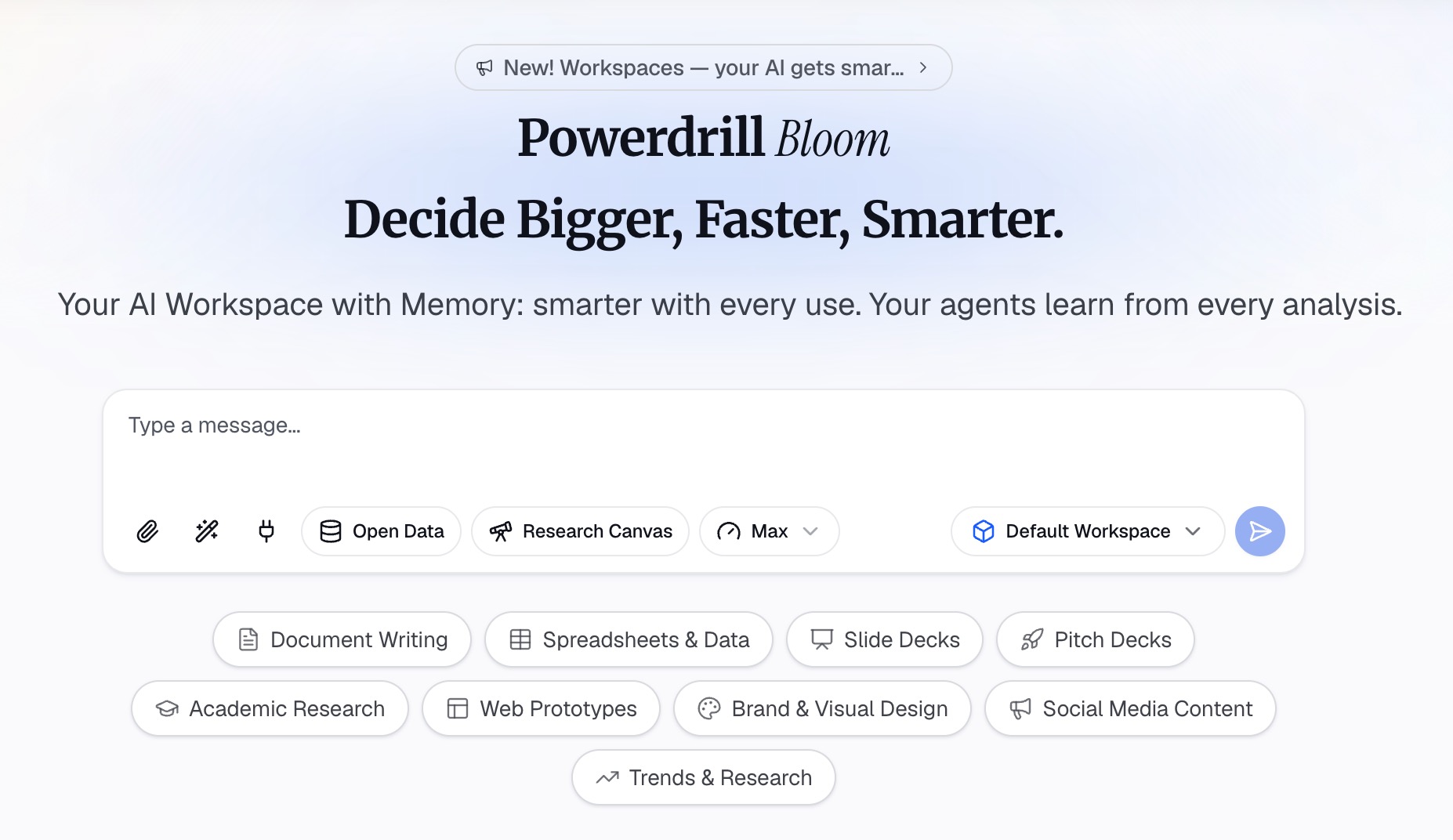
Sign in and upload the export you built the main deck from. Excel, CSV, PDF, and docs are listed on the free plan.
Using the same file for both matters. If the appendix comes from a different pull, the numbers will not tie out, and that is exactly the discrepancy someone will catch live.
Step 2: Ask for the four cuts in natural language
Describe each backup slide as its own request. Ask for the segment breakdown of the metric already on your title slide, then the longer trend, then the named outliers.
Keep the ask specific about the axis and the window. "Same metric, by region, last eight quarters" produces something usable. "More detail" does not.
Step 3: Export the slides and hide them
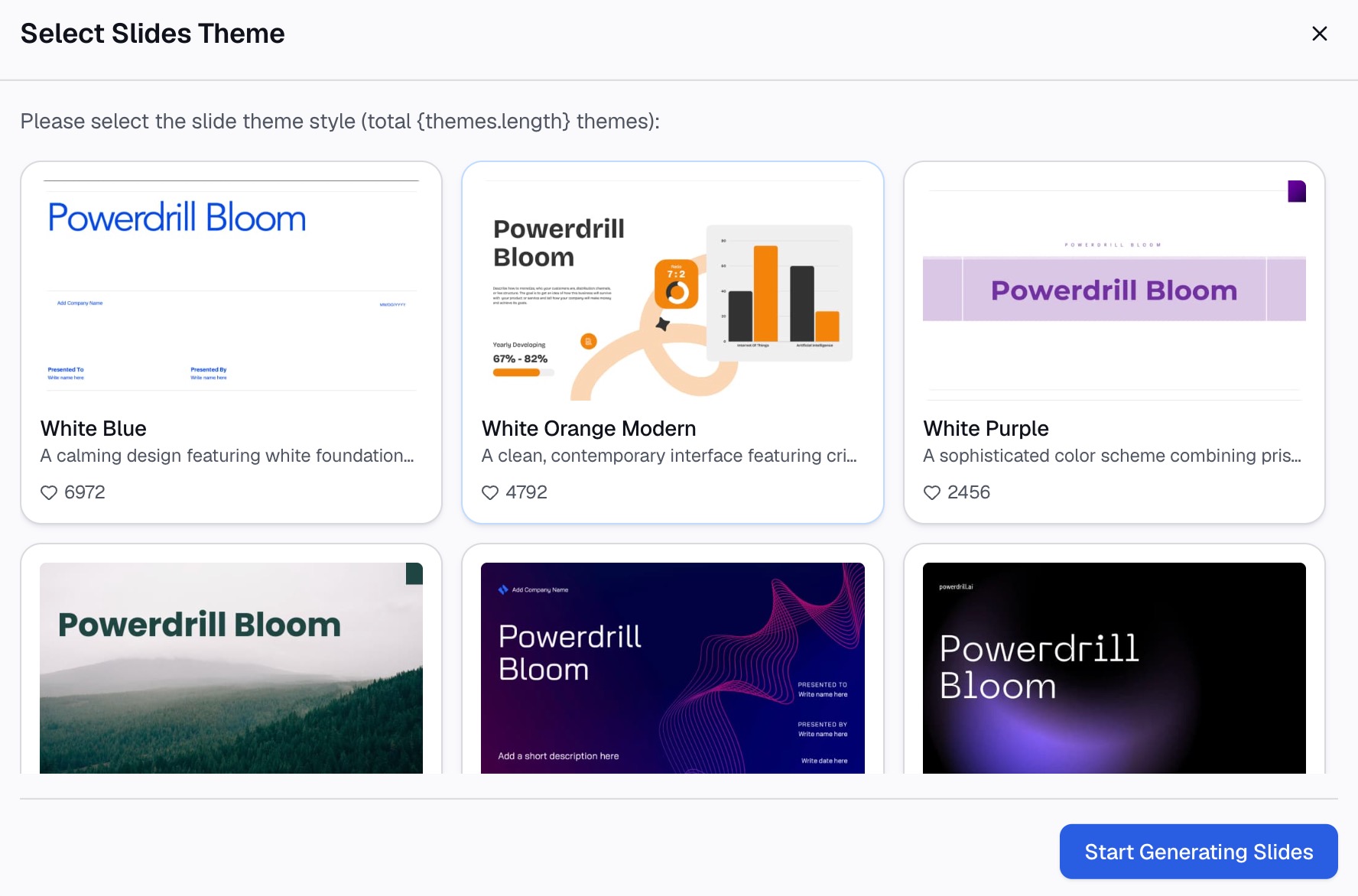
Export the generated slides, move them to the end of your deck, then right-click each one and select Hide Slide. Pro plans list slides, Office documents, and Excel analysis as outputs.
Leave the main flow untouched. The appendix should change nothing about the story you rehearsed.
Give each one a title that answers a question. "Revenue by region, last eight quarters" is findable under pressure. "Appendix 3" is not.
Our AI report generator page covers the longer written version of the same material, and the Excel to PPT page covers the deck side.
How to keep them findable during the meeting
A backup slide nobody can reach is decoration. Microsoft documents two ways in.
In Slide Show view on Windows, the page says to "Right-click the current slide and select See All Slides." The screen then "switches to a thumbnail list of all the slides in the presentation," and picking one resumes the show from there.
On the web, the route is different. Microsoft says to move the mouse to the bottom left corner of the slide show screen and click the grid view icon in the toolbar.
There is one detail worth rehearsing. Microsoft notes that in presenter view, "your audience won't see the steps you take to select the slide." They only see the slide you land on.
Rehearse the jump, not just the content
Most appendix failures are mechanical. The chart was fine, but the presenter spent forty seconds hunting for it while the room watched.
Three minutes of rehearsal fixes that.
Practise the route twice. Open Slide Show view, jump to one backup slide, and come back to where you were. Do it on the machine you will actually present from.
Say the handoff out loud. A short line buys you the time to navigate: "there is a breakdown behind this, let me pull it up." Silence while you click feels much longer than it is.
Know your two most likely questions. If you can name them, put those two backup slides first in the appendix. Order matters more than count.
The fumble is almost always in the navigation, not in the content.
What not to put in the appendix
An appendix is not storage. Three things do not belong there.
Slides you could not make work. If a chart was unclear enough to cut, it will be worse under pressure. Our guide to making data slides easy to read covers fixing them instead.
Raw exports. A pasted table of 400 rows answers nothing. Pull the specific rows that would be asked about.
Anything you have not checked. A hidden slide is still your slide. Run the same pass you would run on the main deck before sending it, which our review checklist covers.
Two companion pieces cover the rest of this stretch. Speaker notes are where you write down how you will say it. Answering data questions live is what happens when the appendix runs out.
To build the underlying cuts from a real export, see the pricing page and try Powerdrill Bloom.
Frequently asked questions
How many backup slides should a deck have?
Fewer than the main deck. Four to six covers most reviews, and each one should map to a question you can name in advance.
Do hidden slides still print or export?
Hiding affects Slide Show view. Microsoft describes the slide as remaining in the file, so check your print and export settings separately before handing anything out.
Where should backup slides sit in the file?
At the end, after your closing slide. That keeps the running order intact and makes them easy to find in the thumbnail list.
Can I generate backup slides from the same file as my main deck?
Yes, and you should. Using one source file is what keeps the appendix numbers consistent with the headline numbers.
What if someone asks something I do not have a backup slide for?
Say what you would need to answer it and when you will send it. A named follow-up beats an improvised number every time.