How to Write Speaker Notes for Your Deck: A Full Guide
Most people write speaker notes twice. Once badly, the night before, and once properly, in their head, while presenting.
The second version is the one that works. This guide is about capturing it the first time.
Speaker notes are the only part of a deck that nobody reviews and everybody needs. They also happen to be the cheapest insurance a data presentation can buy.
What speaker notes are for, and what they are not
Microsoft defines the purpose narrowly, and the narrowness is useful. The Notes pane is "the place to store talking points that you want to mention when you give your presentation."
The privacy guarantee is explicit. During your presentation, the speaker notes are "visible on your monitor, but aren't visible to the audience."
That single fact sets the whole brief. Notes are not a second slide, not a script to read aloud, and not documentation for people who were not in the room.
Notes are also editable live. Microsoft states that you can add notes "either while you're presenting, directly from Presenter view, or as you're editing your presentation."
What you need before you start
Three things, and none of them is the deck.
The question each slide answers. If you cannot say it in one sentence, the note will not save the slide.
The source of every number on the slide. File name, sheet, period, and any filter you applied.
The one follow-up you expect. Most slides attract exactly one predictable question, and that is what the note should pre-empt.
Do this pass before you open the Notes pane. Writing notes while staring at a slide produces descriptions of the slide, which is the failure mode.
Where the notes pane lives
The mechanics are quick, and knowing them keeps you out of the wrong view.
The Notes pane is "a box that appears below each slide" in Normal view. An empty one prompts you with the words "Click to add notes."
If it is not visible, Microsoft's fix is one click. You "click Notes on the task bar across the bottom of the PowerPoint window."
Long notes are handled two ways. A vertical scroll bar appears when notes exceed the pane, and you can enlarge the pane by dragging its top line upward.
Presenter view is where the notes earn their keep. Microsoft describes it plainly: "In Presenter view, you can see your notes as you present, while the audience sees only your slides."
The layout is fixed and worth picturing in advance. Microsoft notes that "The notes appear in a pane on the right," and that the text wraps automatically with a scroll bar when needed.
Presenter view also appears on its own. Connect a projector and start the slide show, and Presenter View opens on your computer.
The audience sees something different. Microsoft states that "only the slides appear on the projector screen."
Guidance on adding speaker notes and on Presenter view covers Windows, macOS, and the web.
The four lines every note should have
Structure beats prose here. A note you can scan under pressure is worth more than a note that reads well.
| Line | What goes in it | Why it exists |
|---|---|---|
| Claim | The one sentence you say out loud | Keeps you from narrating the chart |
| Number | The figure, its period, and its unit | Stops you improvising a wrong value |
| Source | File, sheet, and filter | Answers "where is this from" instantly |
| Next | The question you expect, and your answer | Turns an ambush into a beat you planned |
Four lines is not arbitrary. It fits the pane without scrolling, which is the practical constraint that matters at the podium.
Write the note from the data, not from the slide
The instinct is to describe what the audience can already see. Resist it.
A chart showing revenue by region does not need a note saying revenue varies by region. It needs the reason one region moved and what you did about it.
Three rewrites illustrate the difference.
Weak: "Revenue by region, Q2." That is a title, not a note.
Better: "West is up 14 percent quarter over quarter." That is a fact, but it is on the slide already.
Useful: "West is up 14 percent, and two enterprise renewals landed in June. Strip those out and growth is 3 percent."
The third version survives the follow-up. It also tells you what to say if someone asks whether the trend is real.
What changes when the deck has numbers in it
Data decks fail differently from pitch decks. The failure is almost never the visual, and almost always a number you cannot defend.
Note the denominator. Anything expressed as a rate needs its base spelled out in the note, because that is the first thing a careful reader asks.
Note what you excluded. Refunds, test accounts, internal orders, and partial periods are the usual suspects, and forgetting one changes the story.
Note the as-of date. A figure pulled on Monday and presented on Thursday may no longer match the live system.
Our guide to answering data questions in a presentation covers the live half of this. The checklist in reviewing a data deck before you send it covers the pass before it.
Notes for you versus notes for a handout
These are two documents, and treating them as one is why handouts read strangely.
Your notes are fragments. Four lines, no full sentences, written to be glanced at.
A handout has to stand alone. Microsoft supports this directly, stating that you can print speaker notes "with or without thumbnail images of the corresponding slides."
The intended use is spelled out too. Microsoft describes handing them to your audience "to view after your presentation," which is a different job from prompting you during it.
The print path is short. Select File then Print, and under Settings, next to Full Page Slides, choose Notes Pages under Print Layout.
One constraint is worth knowing before you design the note. Microsoft states that "You can only have one slide and accompanying notes per printed page."
Removing the thumbnails is manual work. Microsoft's guidance on printing speaker notes explains that you delete the thumbnail from each notes page in Notes Page view.
That step is safe, and the documentation says so. Deleting a thumbnail does not delete the slide from your presentation.
There is one more export route worth knowing. Microsoft documents opening a copy of your notes pages in Word, which is useful when the handout needs editing rather than printing.
So write the fragments for yourself first. Expand them into sentences only if a handout is actually required.
Getting started with Powerdrill Bloom
Step 1: Upload the file the deck was built from
Drop in the export behind the charts. Powerdrill Bloom profiles the columns on arrival, so filters, blanks, and duplicate keys surface before you write a single note.

Step 2: Ask for the claim, the number, and the caveat
Describe what you need in natural language. Ask for the one-sentence takeaway per cut, the figure with its period, and the rows that were excluded.
Then push on it. Ask what the totals reconcile to, and ask which comparison would most likely be challenged.
Step 3: Paste the four lines into the notes pane
Take the output and drop it under each slide. Our walkthrough on building a monthly business review deck from a spreadsheet shows where the notes fit in that workflow.
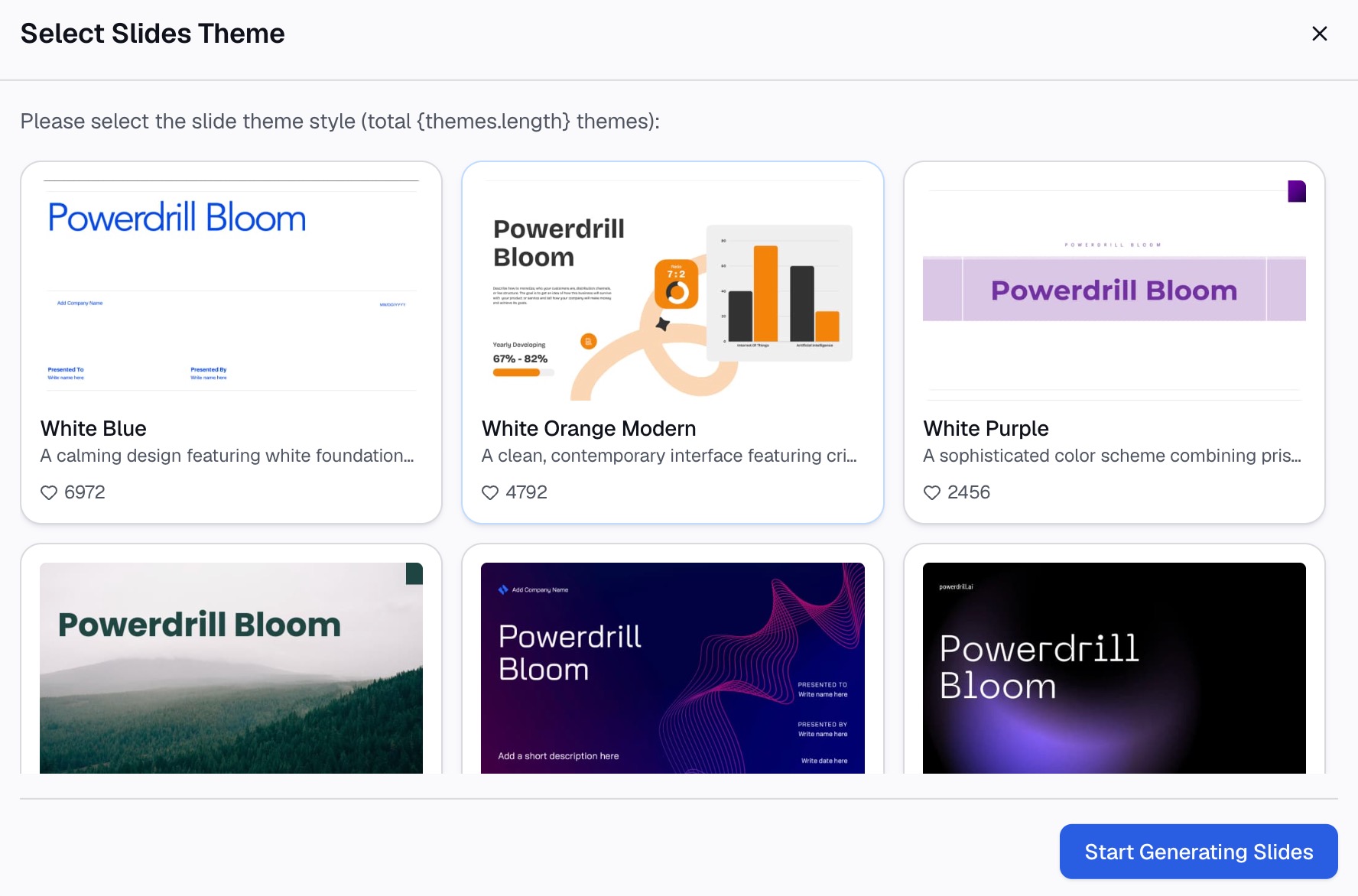
Start on the free tier before comparing plans on the pricing page. If it fits, try Powerdrill Bloom on the export behind your next deck.
Conclusion
Speaker notes are not a writing task. They are a defensibility task that happens to use words.
Write four lines per slide: the claim, the number, the source, and the question you expect. Keep them as fragments for yourself, and expand them only when a handout is genuinely needed.
The deck gets reviewed by other people. The notes are the part only you can write, so write them from the data rather than from the slide. Our explainer on data storytelling covers the wider craft, and the Excel to PPT page covers getting the deck built in the first place.
Frequently asked questions
Can the audience see my speaker notes?
No. Microsoft states that during your presentation the speaker notes are visible on your monitor but are not visible to the audience.
How long should a speaker note be?
Short enough to fit the pane without scrolling. Four lines covering the claim, the number, its source, and the expected follow-up is a reliable shape.
Can I add notes while I am presenting?
Yes. Microsoft states you can add notes either while presenting, directly from Presenter view, or while editing your presentation.
Can I print the notes for the audience?
Yes. Microsoft documents printing notes with or without slide thumbnails, and notes that only one slide plus its notes fits per printed page.
Should the notes repeat what is on the slide?
No. A note that restates the visible chart adds nothing under pressure. Use it for the reason behind the number and the answer to the likely question.