How to Create a Slide Timing Plan with AI: Step by Step
A slide timing plan assigns minutes to sections of a finished deck so you land the ending instead of rushing it. Build it by grouping slides into sections, giving each section a single point and a minute budget, and reserving time for questions. The plan is what you rehearse against, not something you discover while presenting.
Why decks run over
A deck that runs long is rarely too long. It is unbudgeted.
Most presenters plan content and then discover time. Slide seven turns out to need three minutes of explanation, so slides eighteen through twenty-two get flipped past in silence. The audience remembers the flipping.
Microsoft's own guidance gives a starting number. Its documentation on outline view tells you to consider how long each slide should stay on screen. It adds that "a good standard estimate is from two to five minutes per slide." That range is usefully wide, and the width is the point. A title slide and a variance chart are not the same job.
So a timing plan does two things a slide count cannot. It says which slides deserve the five minutes. And it says out loud what gets cut when you are eight minutes in and two minutes behind.
What belongs in the plan
Keep it to one table. A timing plan that needs a page of prose will not survive contact with a real meeting.
| Column | What goes in it | Example |
|---|---|---|
| Section | A group of slides, not a single slide | Q3 revenue, slides 4–7 |
| The one point | What the audience must leave knowing | Growth came from two regions, not the whole book |
| Minutes | The budget, not the estimate | 6 |
| Cut first | What you drop if you are behind | The channel breakdown on slide 6 |
| Handoff | Who speaks next, if anyone | Priya, from slide 8 |
The Cut first column is the one people skip and the one that saves the presentation. Deciding in advance beats deciding at speed.
Two arithmetic rules keep the plan honest. Budget only about 80% of the slot, because meetings start late. And take questions out of the total before you allocate anything, rather than hoping they fit at the end.
Those two rules together usually reclaim four or five minutes on a half-hour slot. That is the difference between landing a conclusion and reading it off a slide nobody is looking at any more.
What you need before you start
Three things, and two of them already exist. The third is a decision nobody usually writes down, which is why it gets rediscovered live.
- The finished deck, or at least its outline. If the structure is still moving, plan the structure first — see writing a data deck outline.
- The real slot length, and whether questions are inside it or after it. These are different meetings.
- The audience, because a board and a working team need different amounts of setup on the same chart.
How to build the plan manually
Option 1: Divide the slot by the slide count. Fast, and it produces a plan you will ignore within four minutes. Equal time per slide assumes equal weight, which is never true in a data deck.
Option 2: Estimate each slide, then reconcile. Walk the deck, write a guess next to each slide, total it, and cut until it fits. This is the honest version and the slow one. The reconciliation step is where an hour disappears, because every cut changes the narrative and the narrative changes the next estimate.
Option 3: Rehearse first, then write down what happened. Present it once against a clock, record the actual per-section times, and build the plan from measurement instead of guesswork.
Option 3 is the most accurate, and PowerPoint has tooling for it. Microsoft documents Speaker Coach under Rehearse with Coach on the Slide Show tab. As you speak, it gives on-screen guidance about "pacing, inclusive language, use of profanity, filler words, and whether you're reading the slide text." When you exit, it "opens a Rehearsal Report that summarizes what it observed and offers recommendations."
Note what that gives you and what it does not. Coach tells you how you sounded on the run you just did. It is a check on delivery, not a budget set in advance. You still need to decide, before rehearsing, how many minutes section three deserves.
How to create a slide timing plan with AI
Step 1: Upload the deck and the data behind it
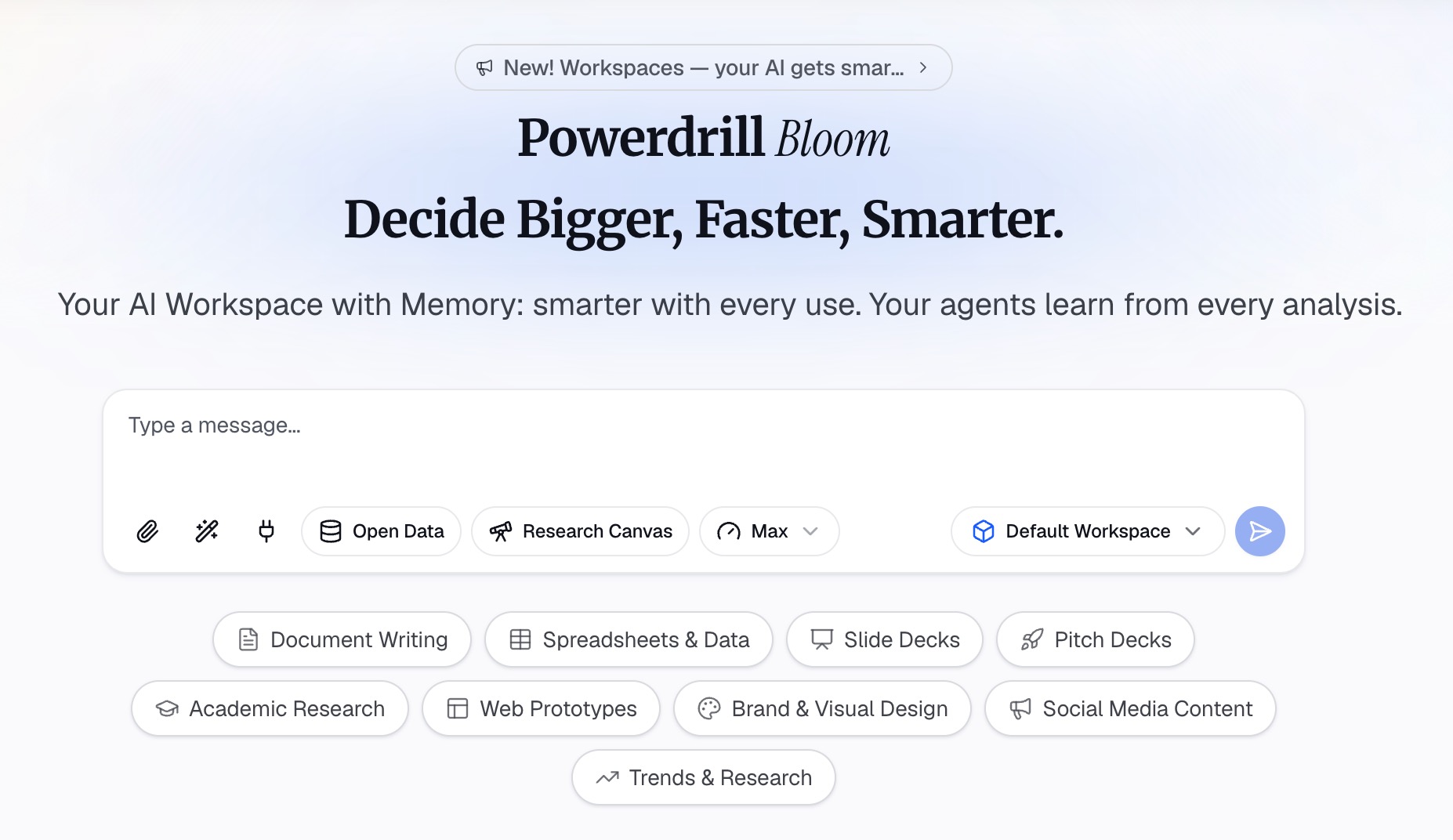
Drop the deck and the underlying export into Powerdrill Bloom together. Documents, Excel, CSV, and PDF are all accepted. Handing over the data as well as the slides matters, because density is what drives time. A slide carrying one number needs less air than one carrying a twelve-row table.
Step 2: Ask for the plan in natural language
Describe the constraint, not the format. For example: "Group these slides into sections. The slot is 25 minutes with 5 minutes of questions inside it. Budget each section at 80% of the available time. Give me the single point each section must land, and what to cut first if I am behind."
The 80% clause is the part worth keeping. A plan that fills the whole slot is a plan that fails when the meeting starts four minutes late.
Step 3: Rehearse against it, then correct the numbers
Present once with a clock and mark where you actually landed. Move the minutes, not the content, on the first pass. Then export the plan as a sheet or a document so co-presenters have the handoffs in writing.
Common mistakes
Budgeting 100% of the slot. The meeting will start late, someone will join late, and the projector will need a moment. Plan for 80%.
Putting questions at the end. If questions are inside your slot, subtract them first. If they are after it, say so on the plan, because that changes every other number.
Timing by slide instead of by section. Slides are not the unit an audience experiences. Sections are, and sections are what you can actually cut.
Writing the plan and never rehearsing. A budget you have not tested is a guess with a table around it. One timed run-through is enough to catch the worst error.
Leaving handoffs implicit. In a multi-presenter deck, the silent five seconds while two people decide who speaks is the most expensive time in the meeting.
A timing plan sits alongside the rest of the deck work rather than replacing it. If your slides are dense before anyone times them, fix readability first, and put the provenance on a data sources slide.
Conclusion
Running over is a planning failure that looks like a speaking failure. Sections, minutes, and a pre-agreed cut list fix most of it, and the whole plan fits in one table.
Build it from the deck you already have rather than from a stopwatch and a feeling. Try Powerdrill Bloom free and get the sections, the budgets, and the cut list in one pass. For the deck itself, Excel to PPT and the AI report generator work from the same files.
Microsoft guidance quoted here was retrieved on September 3, 2026.
Frequently asked questions
What is a slide timing plan?
It is a one-table plan that groups a finished deck into sections. Each section gets a minute budget, a single point to land, and a first thing to cut. You rehearse against it rather than improvising the pacing.
How many minutes should each slide get?
Microsoft's guidance calls two to five minutes per slide a good standard estimate. Treat that as a range to allocate rather than an average to apply, because a title slide and a variance chart are not equal work.
Should questions be inside the time budget?
Subtract them before you allocate anything if they fall inside your slot. If questions come after the slot, note that on the plan, because it changes every section budget.
What is the difference between a timing plan and Speaker Coach?
Speaker Coach reports on the run you just did, covering pacing, filler words, and whether you read the slides. A timing plan is the budget you set beforehand and rehearse against.
Can AI build a timing plan from my deck?
Yes. Upload the deck with the data behind it, then state the slot length, whether questions are included, and the target fill rate in natural language. The section grouping, the budgets, and the cut list come out of one run.