How to Make a Timeline in PowerPoint: Step by Step
To make a timeline in PowerPoint, go to Insert > SmartArt, choose Process, and double-click a timeline layout. Type one milestone per shape, then use Add Shape to add dates and Move Up or Move Down to reorder them. Finish with Change Colors and a SmartArt style. For full control, draw the timeline with a line and shapes instead.
This guide walks through both methods with the exact PowerPoint menus. It also covers an example and the common mistakes. The last part shows how to build a timeline in PowerPoint with AI when your dates sit in a project plan.
What a timeline in PowerPoint shows
A timeline shows events in date order. Microsoft describes it as "a graphical representation of a sequence of events." Its examples are "the milestones in a project or the main events of a person's life."
Most business timelines fall into one of four types:
- Project milestones. Kickoff, design, build, test, and launch dates.
- Roadmaps. Planned releases by month or quarter.
- History. A company story or a product's past versions.
- Process stages. Steps that happen in order, with or without dates.
A timeline answers one question: what happens when. If your audience also needs to see how long each task runs, a Gantt chart may suit better. Our guide on how to create a Gantt chart with AI covers that format.
Before you start: what you need
Gather these before you begin:
- A list of milestones. Write each one as a date and a short label, such as "Mar 3: Beta launch."
- One purpose. Decide what the slide should prove, such as "The launch is on track for June."
- A date range. Pick the start and end dates the slide will cover.
- Brand colors. Use the colors your audience already knows.
- PowerPoint for Microsoft 365, 2024, 2021, 2019, or 2016. Microsoft's timeline steps apply to all of these.
Keep the list short. Five to eight milestones fit on one slide. If you have twenty, split them across phases or slides.
Method 1: Make a timeline in PowerPoint with SmartArt
SmartArt is the fastest route. Microsoft's support page gives the core steps.
- On the Insert tab, select SmartArt.
- In the Choose a SmartArt Graphic gallery, select Process.
- Double-click a timeline layout.
- Select [Text] and type or paste your milestones.
Microsoft adds a tip about layouts: "There are two timeline SmartArt graphics: Basic timeline and Circle Accent Timeline." It also says "you can also use almost any process-related SmartArt graphic."
You can type in the Text Pane instead of the shapes. If you do not see it, Microsoft says to select Text Pane on the SmartArt Design tab.
If your milestones are already in a bulleted list, convert them instead. Microsoft's steps are: "Select your text. On the Home tab, select Convert to SmartArt Graphic." Then choose a timeline or process layout.
Add, move, and restyle the dates
Timelines change. Dates slip, and new milestones appear. SmartArt handles both without redrawing.
To add a date, select a shape in the timeline. On the SmartArt Design tab, select Add Shape. Microsoft says to choose Add Shape Before for an earlier date or Add Shape After for a later one. Then type the new date.
To move a date, select it on the timeline. On the SmartArt Design tab, select Move Up to make it sooner or Move Down to make it later.
To change the layout, select the timeline and open the Layouts group on the SmartArt Design tab. Microsoft suggests two options. "To show progression in a timeline, select Accent Process." For photos, choose Continuous Picture List, whose circles are "designed to contain pictures."
To change the colors, select the timeline. On the SmartArt Design tab, select Change Colors and pick a combination. Microsoft notes you can hover over a combination to preview it.
To apply a style, select the timeline and choose a SmartArt style on the SmartArt Design tab. Microsoft says a style applies effects "such as line style, bevel, or 3-D perspective, in one click."
Method 2: Build a timeline with shapes and lines
SmartArt spaces shapes evenly. Real projects are not even. If three milestones fall in March and one in October, a hand-built timeline in PowerPoint shows the gaps honestly.
- Draw the axis. Go to Insert > Shapes and choose a line. Hold Shift while you drag to keep it straight.
- Mark the time scale. Add small tick marks or labels for each month or quarter. Space them evenly along the line.
- Place the milestones. Add a circle or diamond for each milestone at its real date.
- Add labels. Put a text box above or below each marker with the date and a short label.
- Align and group. Select the markers and use Arrange > Align to line them up. Then group the timeline so it moves as one piece.
Alternate labels above and below the line when milestones sit close together. That keeps the text from overlapping.
This method takes longer. In return, the distance between markers reflects the time between events, which a reader takes in at a glance.
Which method should you pick? Use SmartArt when the dates are roughly evenly spaced, or when you need a slide in five minutes. Use shapes and lines when gaps between dates carry meaning, such as a long build phase before launch. Many teams start with SmartArt for a first draft. They switch to shapes once the timeline in PowerPoint goes to a client or the board.
To keep a hand-built timeline tidy, turn on the guides from the View tab. Snap each marker to a guide so the spacing stays consistent when you add dates later.
Show phases and current status
A timeline gets more useful when it shows where the project stands today.
Add a today marker. Draw a thin vertical line at today's date and label it with the date. Readers see at once which milestones are past and which are ahead.
Color by status. Use one color for completed milestones and another for upcoming ones. A third color can flag items at risk. Keep a small legend in the corner.
Group phases. Draw a light rectangle behind milestones that belong to one phase, such as "Design" or "Testing." Add the phase name inside the rectangle.
Keep the timeline in PowerPoint readable on a projector. Use labels of no more than five or six words. Use at least 18-point text for dates.
Polish with Designer and save as an image
PowerPoint's Designer can suggest layouts for the slide. Microsoft says "Designer improves slides for Microsoft 365 subscribers by automatically generating design ideas to choose from."
To use it, go to the Design tab and select Design Suggestions. Pick an idea from the pane on the right. If you prefer your original, close the pane or undo.
To use the timeline in a report or email, save the slide as an image. Select the slide in the thumbnail pane. Microsoft's steps say: "Select File > Save As (or Save a Copy if your presentation is saved on OneDrive or SharePoint)." Then choose an image format and save just that slide.
Make the timeline easy to update
Most timelines get updated every week or month. A little setup saves time later.
Keep the dates in one source. Store the milestones in a spreadsheet or project plan. Update the source first, then the slide.
Save a template slide. Keep a clean copy of the timeline with placeholder dates. Duplicate it for each new project.
Add a last-updated note. A small footer with the date tells readers how current the timeline is.
Add alternative text. Screen readers cannot read a timeline drawn as shapes. Add a short description that lists the key dates in order.
Archive old versions. Save each version with the date in the file name. When someone asks why a date moved, you can show the history.
How to make a timeline in PowerPoint with AI
Building a timeline by hand is quick when the dates are ready. It is slow when they sit in a long project plan, a status report, or a spreadsheet with hundreds of tasks. An AI tool can pull out the milestones and lay out the slides for you.
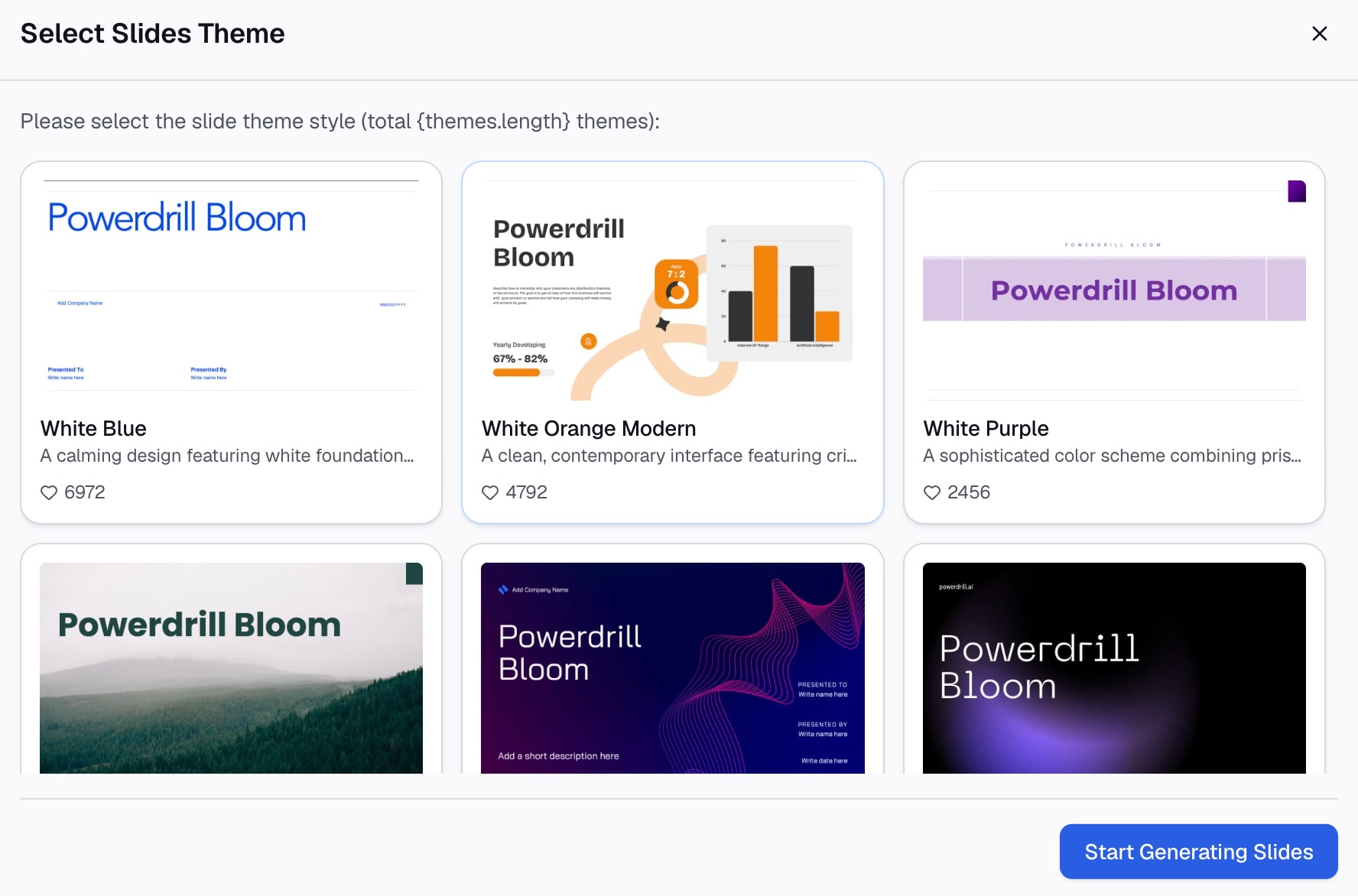
Here is the method in three steps, using Powerdrill Bloom.
Step 1: Upload the project plan or status data
Start with the file that holds your dates. That might be a task list in Excel, a CSV export from a project tool, or a status report in PDF.
The Free plan on the pricing page lists "Upload Excel, CSV, PDF, and docs." The Excel to PPT tool says it can "generate presentation-ready slides automatically" from Excel, CSV, or PDF files.

Step 2: Ask for the milestones and the slides
Describe the output you need. For example: "List the project milestones in date order, mark which are complete, and build a recap slide with the timeline."
Powerdrill Bloom's pages list outputs with a timeline built in. The AI One-Page Summary Generator lists a "Project recap one-pager with timeline, status and key decisions." The AI Proposal Generator lists a "Slide partnership pitch deck with mutual value and timeline."
Step 3: Check the dates and export to PowerPoint
Check every date against the source file. The homepage says "Every number comes back with the page, the row and the figure behind it," so you can trace each one.
Then export. The Excel to PPT page says you can "export to PowerPoint in one click." Open the file in PowerPoint to adjust colors or add your logo. If you want the SmartArt style, select the milestone list and use Convert to SmartArt Graphic.
A timeline example
Here is a short example for an invented product launch at Harbor Kitchen Supply. All dates below are invented.
| Date | Milestone | Status |
|---|---|---|
| Jan 12 | Project kickoff | Complete |
| Feb 20 | Design approved | Complete |
| Mar 30 | Supplier contracts signed | Complete |
| May 15 | Beta in 10 stores | In progress |
| Jun 30 | Staff training | Upcoming |
| Aug 1 | Launch in all stores | Upcoming |
Now apply the steps.
Pick the method. The milestones are spread unevenly, with a long gap before launch. A hand-built timeline with a line and shapes shows that gap better than SmartArt.
Show the status. Color the first three milestones gray as complete. Color the beta blue as in progress. Leave the last two in the brand color.
Add a today marker. If the review is on May 20, a thin line just after the beta marker shows the project is on schedule.
Write the headline. State the finding: "Launch on track for August 1; beta live in 10 stores." The timeline then supports that message.
Common timeline mistakes in PowerPoint
Too many milestones. More than eight crowds the slide. Group minor tasks into phases.
Even spacing for uneven dates. SmartArt spaces shapes evenly, which can hide long gaps. Use shapes when gaps matter.
Missing dates. A label without a date is a list, not a timeline. Put the date on every marker.
No current status. Readers want to know where the project stands. Add a today marker or status colors.
Long labels. Full sentences shrink the text. Keep labels to a few words and put details in the speaker notes.
Stale dates. A timeline that does not match the plan loses trust. Update the source first, then the slide.
For more slide design help, see our guides on how to make data slides easy to read and how to make a project kickoff presentation.
Want to turn a project plan into slides faster? Try Powerdrill Bloom with your current task list, and ask for a recap slide with the milestones in date order.
Frequently asked questions
How do I make a timeline in PowerPoint?
On the Insert tab, select SmartArt. In the gallery, select Process and double-click a timeline layout. Select [Text] and type your milestones. Then use Add Shape to add dates and Move Up or Move Down to reorder them.
Does PowerPoint have a timeline template?
PowerPoint has two timeline SmartArt graphics: Basic Timeline and Circle Accent Timeline. Microsoft says almost any process-related SmartArt graphic also works. Microsoft also offers timeline templates, which you can find from the support page's See Also links.
How do I add dates to a timeline in PowerPoint?
Select a shape in the SmartArt timeline. On the SmartArt Design tab, select Add Shape, then Add Shape Before for an earlier date or Add Shape After for a later one. Type the new date in the box that appears.
Can I make a timeline in PowerPoint with pictures?
Yes. Microsoft suggests the Continuous Picture List layout, whose circular shapes are designed to contain pictures. You can also start from a picture SmartArt by selecting Picture in the Choose a SmartArt Graphic dialog box.
Can AI make a timeline for PowerPoint?
Yes. AI tools can read a project plan or spreadsheet, pull out the milestones, and build slides. Powerdrill Bloom lists a project recap one-pager with timeline, status, and key decisions, and it exports slides to PowerPoint. Check every date before you share it.
Sources: Microsoft Support, Create a timeline in PowerPoint · Microsoft Support, Create a timeline · Microsoft Support, Create a SmartArt graphic from a list in PowerPoint · Microsoft Support, Create professional slide layouts with Designer · Microsoft Support, Save a slide as an image. Details read on October 30, 2026.