How to Create Section Divider Slides with AI: A Full Guide

Section divider slides are full slides that mark where one part of a deck ends and the next begins. They give the audience a place to reset. This guide covers what belongs on one and how to build them by hand. It then shows how to generate a consistent set from your data in three steps.
What a section divider slide actually does
A long data deck fails in a predictable way. Somewhere around slide twelve, people stop tracking where they are. They are still reading charts, but they have lost the shape of the argument.
A divider fixes that with almost no cost. It is one slide, usually a section number, a short title, and enough white space to signal a break. The audience gets three seconds to file away what just happened and prepare for what is next.
It is worth separating two things that sound alike.
PowerPoint has a built-in sections feature. Microsoft's documentation explains that "much like you use folders to organize your files, you can use sections to organize your slides into meaningful groups." You can collapse them by clicking "the triangle next to the section name." Microsoft adds that "the numeral by the section name shows the number of slides in that section." The page also describes assigning "each colleague a section to make slide ownership clear during collaboration."
That is an authoring and collaboration tool. Microsoft's page describes it in terms of organising, collaborating, and outlining, and does not describe it as something your audience encounters while you present. The audience-facing counterpart is a real slide, sitting in the running order, that people actually see.
Most good decks use both. Sections keep the file navigable for the people building it. The slides keep the story navigable for the people watching it.
What you need before you start
- A deck that already has its content, or at least an outline. This is a structural pass, not a first draft.
- A sense of how many parts the argument has. Three to five is typical; more than six usually means the sections are too thin.
- Your template, so the dividers inherit the same fonts and colours as the rest of the deck.
- The underlying data file if you want each divider to carry a headline number.
How to do it manually
Option 1: Duplicate a title slide and strip it back
The fastest manual route. Copy your title slide, delete everything except the title placeholder, retype the section name, and move it into position.
This works and costs nothing. The catch is drift. By the fourth one, the text box has usually drifted a few pixels. One of them ends up at a different font size than the rest.
Option 2: Build a layout in the Slide Master
The disciplined route. Create a dedicated divider layout once, with the title placeholder fixed in position, then apply it to each divider slide.
Every divider is then identical by construction, and changing the design later means changing one layout. It takes fifteen minutes to set up and requires knowing where the Slide Master lives.
Option 3: Use PowerPoint sections to plan, then add the slides
Use the built-in feature first to group what you already have. Microsoft's instructions are to work in Normal view and select the slide that will start the section. Then use Section on the Home tab, click Add Section, and name it in the Section Name box. Moving and deleting happens in Slide Sorter view.
Once the groups are named, you know exactly how many dividers you need and what each should say. You still have to create the slides themselves.
Where the manual route slows down
None of the three options are hard. They are just repetitive in a way that scales badly.
The real cost shows up on the second version of the deck. Someone adds two slides to the middle, the sections shift, and now the divider that said "Part 3 of 5" is wrong. Renumbering by hand is the kind of task people skip when the meeting is in an hour.
The other cost is content. One that only says "Revenue" wastes the slide. One that says "Revenue — up 12% on Q2, driven by two accounts" gives the audience the section's conclusion before the detail arrives. Writing those requires knowing what each section concluded, which means going back through the charts.
How to create section divider slides with Powerdrill Bloom
Step 1: Upload the deck and the data behind it
Drop the deck and the underlying export into Powerdrill Bloom together. The Free plan covers uploads for Excel, CSV, PDF, and documents, so both files can go in without a paid plan.

Giving it both matters. The deck supplies the running order and the template; the data supplies the numbers that make a divider useful rather than decorative.
Step 2: Ask for the section breaks in natural language
Describe the structure you want rather than specifying slides. Something like: group these slides into four sections, name each one, and give each a one-line takeaway with the figure that supports it.
The agent reads the deck, proposes where the breaks fall, and writes the section titles. You will usually move one break. That is a thirty-second edit, not a rebuild.
Step 3: Generate the dividers and place them
Ask for the divider slides and let them generate against your template. Powerdrill Bloom's Free plan lists creating basic slides, docs, sheets, and images, and the Pro plan extends this to full slide and Office document output.
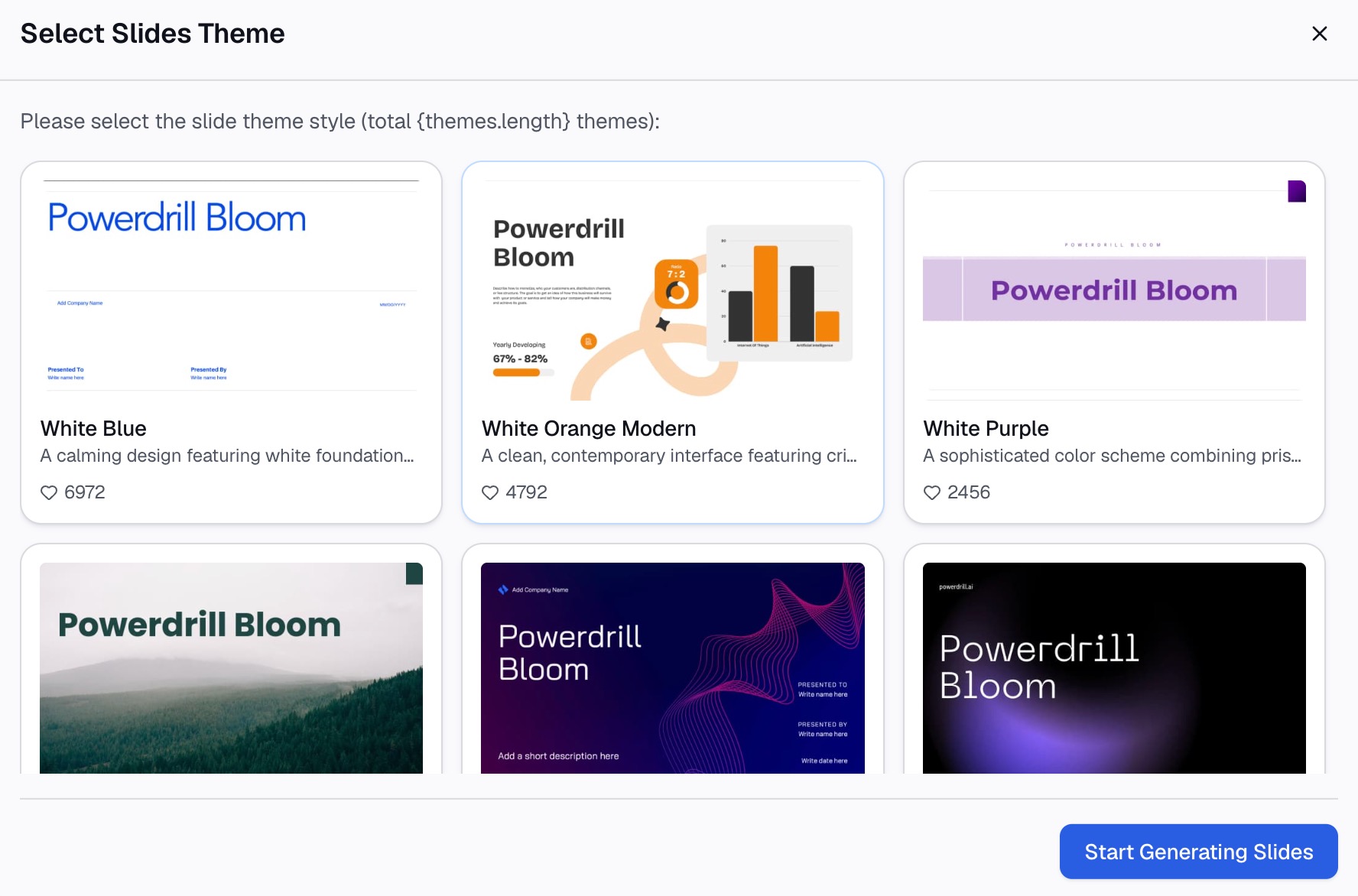
The numbering comes from the structure rather than from typing. Add a slide later, regenerate, and you get a corrected set instead of a manual renumbering pass.
What this saves
| Task | By hand | With the deck and data in one pass |
|---|---|---|
| Deciding where four sections break | Read the deck twice, 10–15 minutes | Proposed on the first pass, adjust one |
| Writing four takeaway lines with figures | Look up each number, 15–20 minutes | Pulled from the file you uploaded |
| Keeping the design identical | Slide Master setup, 15 minutes once | Inherited from the template |
| Renumbering after a late edit | 5–10 minutes, often skipped | Regenerate |
The saving is not the first build. It is the third revision, which is where dividers normally rot.
Best practices
Give each one a conclusion, not a label. "Pipeline" is a filing category. "Pipeline — coverage fell to 2.1x" is information.
Keep them visually quiet. A divider that competes with the charts around it defeats the purpose. Large type, one line, plenty of space.
Number them only if the count is stable. "Part 2 of 5" is helpful right up until the deck becomes six parts.
Match the titles to your agenda slide. If the agenda says "Retention" and the divider says "Churn," the audience assumes it missed something.
Do not break up a short deck. Under ten slides, the breaks add length without adding orientation. Spend the effort on making the data slides readable instead.
Conclusion
Section dividers are among the cheapest structural improvements available to a data deck. The work is not creating one slide; it is keeping a set of them consistent and accurate while the deck keeps changing.
If your deck already exists and the structure is the missing piece, try Powerdrill Bloom with the file and the data together. It also pairs well with a deck outline built before you start and a timing plan once the running order is settled.
Frequently asked questions
What is a section divider slide?
It is a full slide placed between parts of a presentation to mark a transition. It typically carries a section name and sometimes a one-line takeaway, and it gives the audience a moment to reset before new material.
Is a section divider the same as a PowerPoint section?
No. Microsoft describes sections as a way to "organize your slides into meaningful groups," much like folders organise files, and frames them around authoring and collaboration. A divider slide is a real slide in the running order that the audience sees.
How many section dividers should a deck have?
Three to five sections suits most business decks. Fewer than three rarely needs dividers at all, and more than six usually signals that the sections should be merged.
What should go on a section divider slide?
A short section title and, where possible, the section's headline finding with its supporting number. Keep the design quiet so it reads as a pause rather than as another content slide.
Can I generate section dividers from an existing deck?
Yes. Upload the deck alongside the data behind it, describe the sections you want in natural language, and generate the dividers against your template. Regenerating after an edit avoids manual renumbering. See the Excel to PPT route if the deck itself starts from a spreadsheet.