How to Store PDF, Excel and Research Memory So AI Doesn’t Start Over Every Time

Introduction
If you use AI for document review, financial analysis, or academic research, you are likely familiar with a frustrating cycle: uploading the same PDFs and Excel spreadsheets to your AI assistant over and over again. Every time you start a new session, the AI suffers from "amnesia." It forgets the 50-page research paper you uploaded yesterday, loses the context of your financial models, and requires you to explain your project goals from scratch.
Why does this happen? Most AI tools treat file uploads as temporary context rather than persistent knowledge. While these systems are great at processing information in the moment, they lack a dedicated infrastructure for long-term retention.
To build truly intelligent workflows, you need to transition from one-off file uploads to a persistent memory layer. This guide will explain why standard AI chatbots keep starting over with your files, and how to use MemoryLake—a persistent AI memory infrastructure—to build a reusable, searchable, and durable memory workflow for your documents, spreadsheets, and research materials.
Quick Answer
What does it mean to store PDF, Excel, and research memory for AI?
It means moving away from temporary file uploads and establishing a persistent memory infrastructure where your documents are continuously stored, vectorized, and structured for ongoing AI retrieval across multiple sessions and tools.
Why does AI usually start over?
AI models operate within strict context window limits. When a session ends or the context window fills up, the temporary memory of your uploaded files is wiped. Standard chat history retains text but does not durably index complex files for robust future retrieval.
How does MemoryLake solve this?
MemoryLake acts as a persistent AI memory infrastructure layer. Instead of re-uploading files, you upload them once to a MemoryLake project. The platform automatically processes PDFs, Excel files, and research data into a durable memory layer that can be connected directly to your workflows, agents, and chatbots via API or MCP, ensuring your AI never has to start over.
Why AI Keeps Starting Over With PDFs, Excel Files, and Research
To fix the AI amnesia problem, we first need to understand the limitations of how most AI platforms currently handle files and memory.
Chat History ≠ Durable Memory
Many users assume that because an AI remembers what was said three prompts ago, it is "learning." However, chat history is just a linear log of text. Once a conversation thread gets too long, the earliest context is pushed out of the AI’s active memory. It is not a structured, searchable database for your complex files.
One-Off File Uploads ≠ Reusable Memory System
When you drag and drop a PDF or an Excel file into a standard chatbot interface, the system reads it temporarily for that specific conversation. The moment you open a new chat window, that file is gone. This forces research-heavy workflows into a repetitive loop of uploading, waiting for processing, and re-prompting.
Standard RAG ≠ Project Memory Layer
Retrieval-Augmented Generation (RAG) is excellent for finding relevant text snippets in a large database. However, a basic RAG setup is often isolated and highly technical. It provides searchability, but it doesn't automatically translate to a holistic project memory layer where files, conversational context, and structured data live together cohesively across multiple user sessions and AI agents.
What a Better Memory Workflow Looks Like
If you want to stop your AI from starting over, you need a workflow that treats memory as infrastructure. A better, persistent memory workflow should feature:
Project-Level Memory: Information is grouped by project, meaning all related PDFs, spreadsheets, and research context live in one dedicated space.
Reusable Context: You upload and process a file exactly once. After that, any AI tool connected to the project can instantly access its insights.
Support for File-Heavy Knowledge: The system must accurately parse complex formats, including the tabular data in Excel and the complex layouts of academic PDFs.
Tool Agnosticism: Your memory shouldn't be locked inside one specific chatbot. It should connect via API or MCP to whatever tools you use (ChatGPT, Claude, custom agents, etc.).
Step-by-Step: How to Use MemoryLake to Store PDF, Excel, and Research Memory
MemoryLake positions itself as a persistent memory infrastructure designed specifically for files, conversations, and project context. It bridges the gap between your raw knowledge inputs and your ongoing AI workflows.
Here is a step-by-step guide to establishing a persistent memory workflow using MemoryLake.
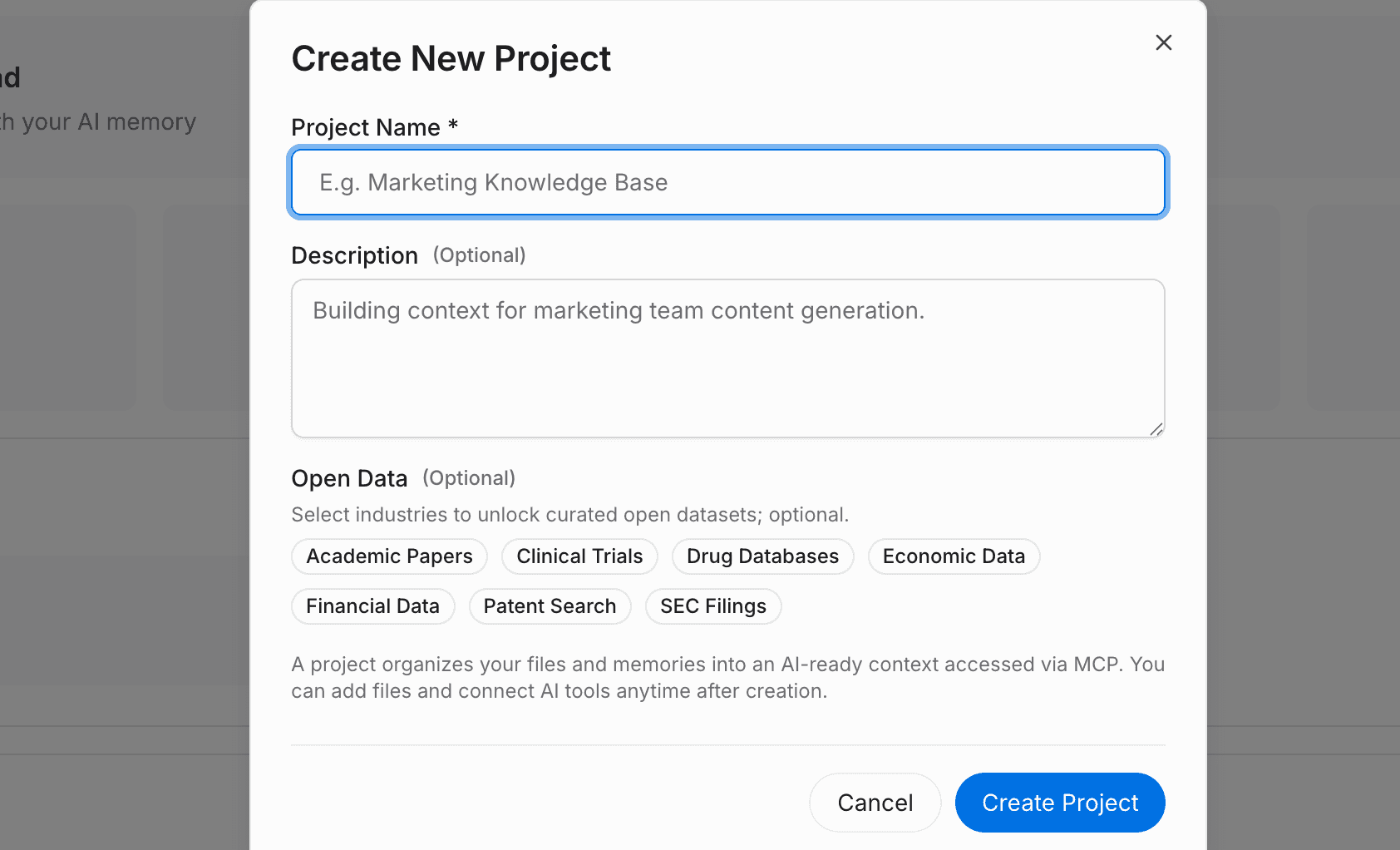
Step 1: Create a Project and Upload Your Files and Data
To stop repeating yourself, you first need to establish a dedicated memory container.
Log into MemoryLake and create a new project (e.g., "Q3 Market Research").
Click the attachment button to upload your local files. MemoryLake automatically analyzes, chunks, and records the content.
The platform supports a wide range of document types, including PDF, Word, Excel, and Markdown.
If your data lives elsewhere, you can also navigate to the files section to connect external data sources, ensuring all your research materials stream into one unified project memory.
Step 2: Search and Chat With Your Project in the Playground
Before integrating this memory into external tools, you should verify that the AI properly understands the context of your files.
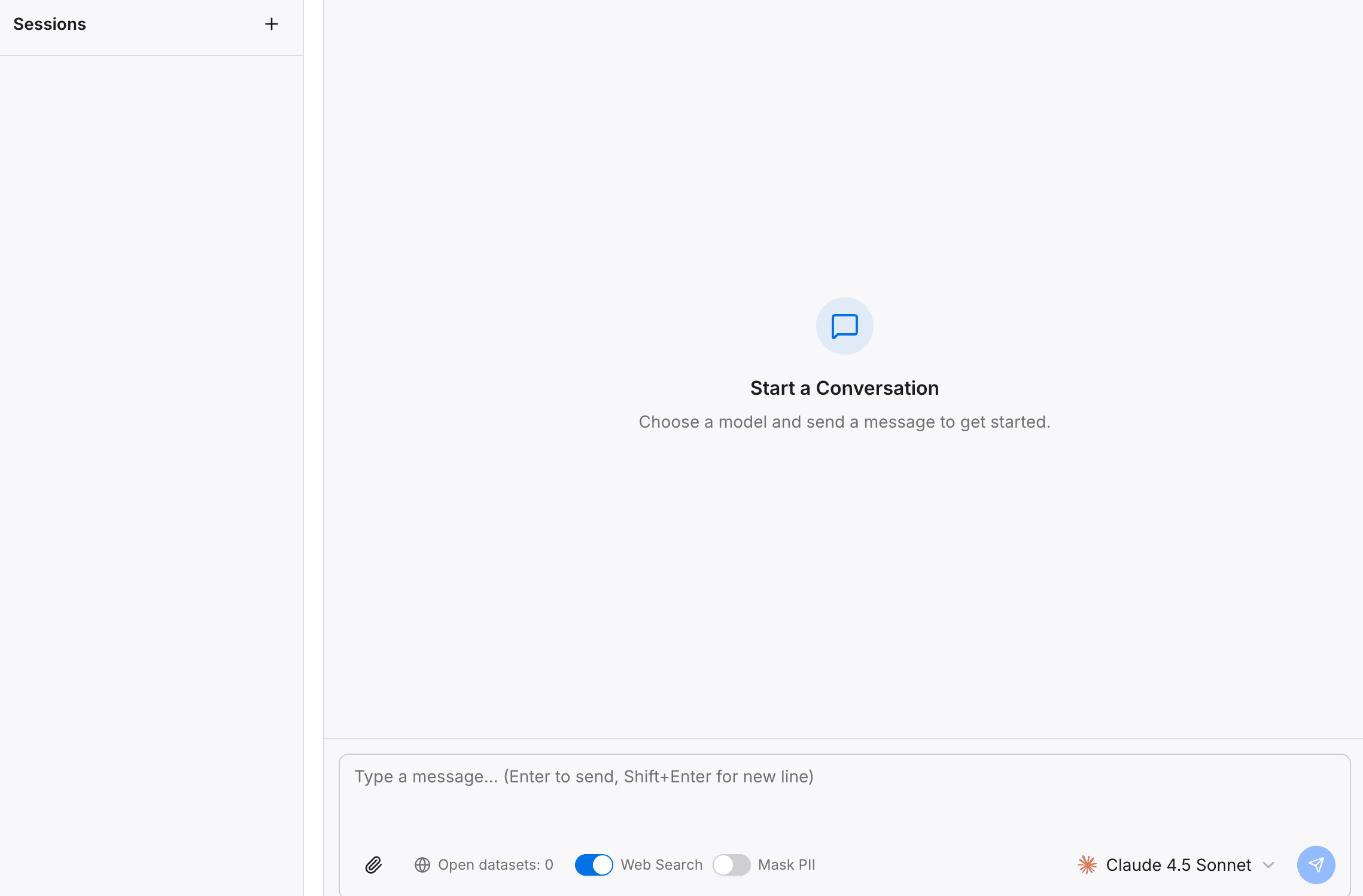
Open the built-in Playground within your MemoryLake project.
Ask direct questions about the complex data you just uploaded (e.g., "Summarize the financial risks mentioned in the uploaded Excel model").
Test the retrieval, chat capabilities, and contextual understanding.
By doing this, you are proving the core concept: your project's knowledge is now actively being reused, rather than requiring you to re-upload the spreadsheet for a new query.
Step 3: Add Open Data to Enrich Domain Knowledge
A powerful memory layer doesn't just store your private files; it contextualizes them with broader industry knowledge. MemoryLake allows you to enhance your project memory with open data rather than manually hunting down and uploading public datasets.
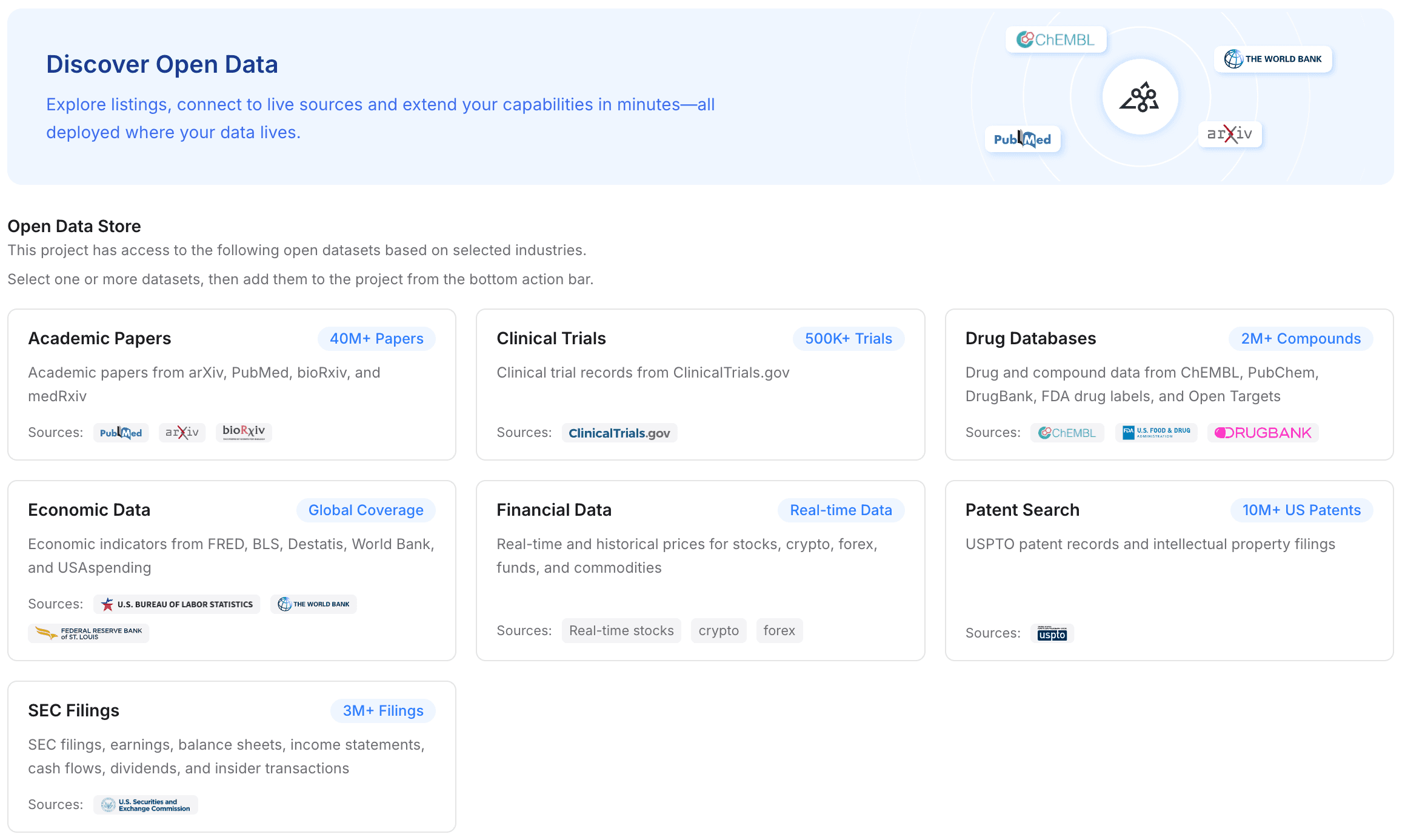
Navigate to the datasets section in your project.
With one click, add free, high-quality industry datasets directly into your project's memory.
Available data types include academic papers, clinical trials, drug databases, economic data, financial data, patent searches, and SEC filings.
By merging your private PDFs/Excel files with these open datasets, your AI assistant instantly gains deep, specialized domain knowledge without you ever having to download and upload a public SEC filing yourself.
Step 4: Connect MemoryLake to Your Tools and Workflows
Memory is only useful if it connects to the tools you actually use. MemoryLake is designed to plug directly into your daily AI workflows.
Go to your project settings to choose or create your own API Key.
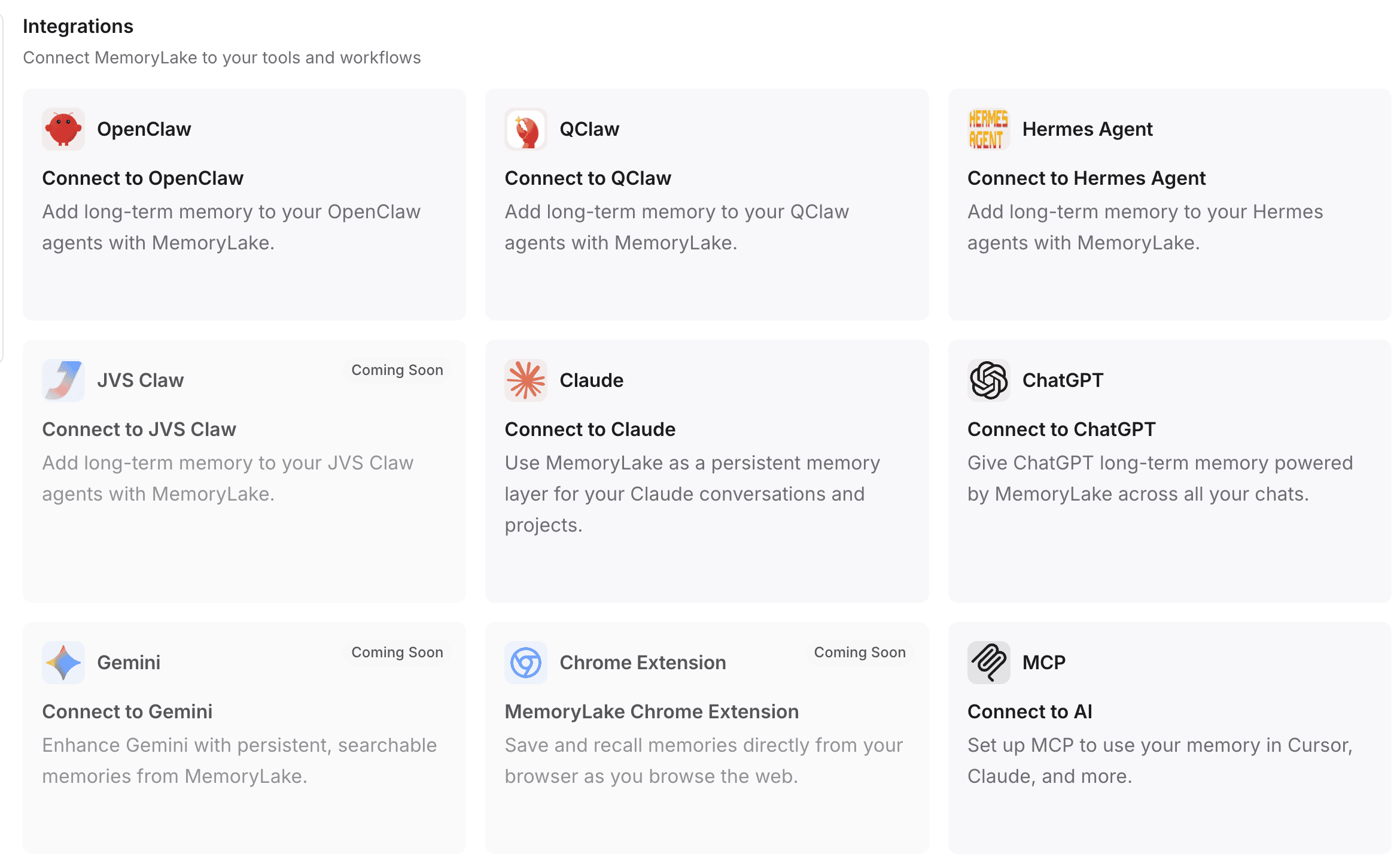
One-Command Installation: For many integrations, MemoryLake supports a one-command installation flow to get your plugins up and running instantly.
Automatic Configuration (e.g., OpenClaw): If you are using platforms like OpenClaw, you can simply copy the provided setup instructions and paste them directly into the OpenClaw interface. OpenClaw will automatically install the necessary plugin, configure your project settings, and seamlessly restart the gateway for you.
Broad Compatibility: You can route this persistent memory directly into popular interfaces like ChatGPT, Claude, OpenClaw, and Hermes Agent.
Programmatic Access: For developers and AI agent builders, MemoryLake can be integrated deeply into backend systems via MCP (Model Context Protocol) and APIs, ensuring your custom bots have a durable, long-term memory layer.
Best Practices for Building Reusable AI Memory From Files
Organize by project, not just by file: Don't throw all your documents into one massive global memory pool. Keep contexts distinct (e.g., "Competitor Analysis" vs. "HR Policies") to ensure high-quality retrieval.
Treat memory as reusable context, not just cloud storage: Your goal isn't just to back up PDFs; it’s to make them conversable. Ensure the files you upload are relevant to the queries you plan to ask.
Combine private files with domain datasets carefully: Use open data (like SEC filings or academic papers) to complement your internal Excel files, giving the AI a holistic view of the subject matter.
Keep workflow integration in mind from the beginning: Don't build memory in a silo. From day one, plan how this memory will be surfaced—whether that is inside Claude, ChatGPT, or a custom internal agent.
Decide what should be long-term memory vs. temporary context: If a document is only needed for a quick formatting fix, a standard chat upload is fine. If it’s a foundational research paper you will reference for months, it belongs in MemoryLake.
Common Mistakes to Avoid
Relying only on chat history: Assuming that keeping a ChatGPT thread open for six months is a viable way to store research. (It will eventually break, lag, or forget).
Uploading the same files repeatedly: Wasting tokens, compute limits, and your own time by dragging and dropping the same PDF every Monday morning.
Confusing RAG with durable memory: Thinking that building a basic Python RAG script solves the user-experience problem of persistent, multi-agent project memory.
Treating spreadsheets and PDFs like plain text blobs: Excel files have rows, columns, and relationships. Standard chatbots often scramble this data upon upload. A dedicated memory layer parses tabular and structured data accurately.
Never operationalizing memory into actual tools: Setting up a great database but failing to connect it via API or MCP to the tools where your team actually works.
Who Should Use This Workflow
This persistent memory workflow is highly recommended for:
Researchers and Academics: Who need to query dozens of dense academic papers across a multi-month project.
Financial Analysts: Who need their AI to remember complex Excel models and historical SEC filings without losing context.
AI Agent Builders: Who are developing long-running, autonomous assistants that require reliable, durable context.
Knowledge-Heavy Teams: Legal, medical, and consulting teams whose daily work revolves around large volumes of interconnected files.
Developers: Who want an out-of-the-box memory infrastructure to connect via API/MCP rather than building complex RAG pipelines from scratch.
Conclusion
If you are constantly fighting against context window limits, token restrictions, and AI amnesia, the solution is not to write better prompts. The solution is to change how your AI handles files.
Expecting an AI to remember complex PDFs, Excel spreadsheets, and deep research materials through basic chat history or one-off uploads will always result in the AI starting over. To build truly intelligent, long-running workflows, you need to implement a persistent memory layer.
By utilizing MemoryLake, you can transform temporary file uploads into durable, reusable project memory. Whether you are enriching your internal documents with open datasets like academic papers and SEC filings, or seamlessly connecting this memory to tools like Claude, ChatGPT, and OpenClaw, MemoryLake ensures your AI retains its knowledge. Stop starting over every session, and start building AI workflows with a memory that lasts.
Frequently Asked Questions
How do you make AI remember PDF files across sessions?
To make AI remember PDFs across sessions, you must move away from standard chat interfaces and use a persistent memory layer like MemoryLake. By uploading the PDF to a dedicated project, the file is processed and stored permanently, allowing any connected AI tool to retrieve its context in future sessions without re-uploading.
Can AI remember Excel spreadsheets without re-uploading them?
Yes, but not through standard chat history. By utilizing an AI memory infrastructure, your Excel files are parsed and stored as structured project memory. This allows the AI to reference specific cells, trends, and tabular data at any point in the future.
Is RAG enough for research memory workflows?
While RAG (Retrieval-Augmented Generation) provides the technical ability to search documents, basic RAG is often not enough for a seamless research workflow. Users need a complete project memory layer that combines document parsing, conversational context, open dataset integrations, and easy API/MCP connectivity to actual chat interfaces.
What is the best way to store research memory for AI?
The best way is to use a persistent memory infrastructure that organizes data by project, supports multimodal file types (PDFs, Markdown, Excel), and allows you to enrich private research with open datasets (like clinical trials or academic papers).
How does MemoryLake work with tools like OpenClaw or Claude?
MemoryLake acts as the external "brain" for these tools. By configuring an API key or pasting setup instructions directly into tools like OpenClaw (which can automatically install the plugin, configure it, and restart the gateway), you grant your LLMs direct access to your durable project memory.
Can you connect MemoryLake through API or MCP?
Yes. MemoryLake supports programmatic integration through both traditional APIs and the Model Context Protocol (MCP), making it highly flexible for developers building custom AI agents or enterprise applications.
Why does AI keep starting over with documents?
Standard AI models do not possess localized long-term memory; they rely on temporary context windows. Once a chat ends or the token limit is reached, the uploaded documents are flushed from active memory to make room for new inputs.