How to Convert Your Topic to PPT with Claude Skills (2026 Guide)

Introduction
Creating a presentation from scratch is rarely just about writing content; it is about structuring ideas, mapping out a logical flow, and formatting everything into a digestible format. If you frequently need to turn a raw idea, a research document, or a business topic into a structured slide deck, staring at a blank prompt box can be just as frustrating as staring at a blank PowerPoint canvas.
In 2026, the most efficient way to handle this isn't by writing a 500-word mega-prompt every single time. Instead, professionals are moving toward skill-based workflows.
Quick Answer
To convert your topic to a PPT with Claude Skills, use a workflow-oriented AI workspace like Powerdrill Bloom. Navigate to the "Start from Skills" tab, select a presentation-focused skill like "ppt-master," and enter a natural language prompt describing your topic, length, and style. The system will automatically process your request and generate a structured, previewable, and downloadable slide deck.
This guide explores how to move away from blank-canvas prompting and use a structured, reusable AI workflow to generate business presentations efficiently.
What “Start from Skills” Changes for PPT Workflows
For a long time, the standard AI workflow was simple but flawed: open a chatbot, paste a massive block of text, and ask it to "act as an expert presentation designer." This blank-prompt approach works fine for one-off creative experiments, but it fails when you need repeatability.
Powerdrill Bloom has introduced a new paradigm called Start from Skills. Instead of forcing users to build their workflow from the ground up every time they log in, this feature allows you to launch pre-configured, reusable AI skills designed for specific tasks.
By starting from a skill, you are tapping into a system that already understands the rules of good slide creation—such as maintaining a logical narrative flow, balancing text density, and structuring content for a deck format. Powerdrill Bloom acts as a workflow-oriented AI agent workspace, shifting the focus from prompt engineering to task execution.
Why Use Claude Skills to Turn a Topic into a PPT
Using underlying Claude Skills within a skill-based platform offers distinct advantages over standard chat interfaces when generating a PowerPoint from a prompt:
Consistency: Skills apply predefined logical frameworks to your input, ensuring your output actually looks like a presentation outline rather than a generic essay.
Speed: You skip the setup phase. There is no need to define what a "slide," "title," or "bullet point" is.
Structured Output: A dedicated topic-to-PPT AI skill doesn't just give you text; it moves your raw input toward a presentation-ready output format.
Repeatability: Once you find a workflow that fits your corporate style, you can trigger that same skill week after week with reliable results.
What You Need Before You Start
Before diving into the AI presentation workflow, gather the following:
A defined topic or raw input: This could be an idea, a set of bullet points, or a summary of a document.
Your parameters: Know your desired page count, target audience, and visual tone (e.g., corporate, creative, minimalist).
Access to Powerdrill Bloom: You will need an active workspace to utilize the Start from Skills architecture.
Step-by-Step: How to Convert Your Topic to PPT with ppt-master in Powerdrill Bloom
The ppt-master skill in Powerdrill Bloom is a prime example of a document-to-deck workflow. It isn't just a "make slides" button; it is an AI agent designed to ingest your natural language instructions and output a structured presentation. Here is how to use it.
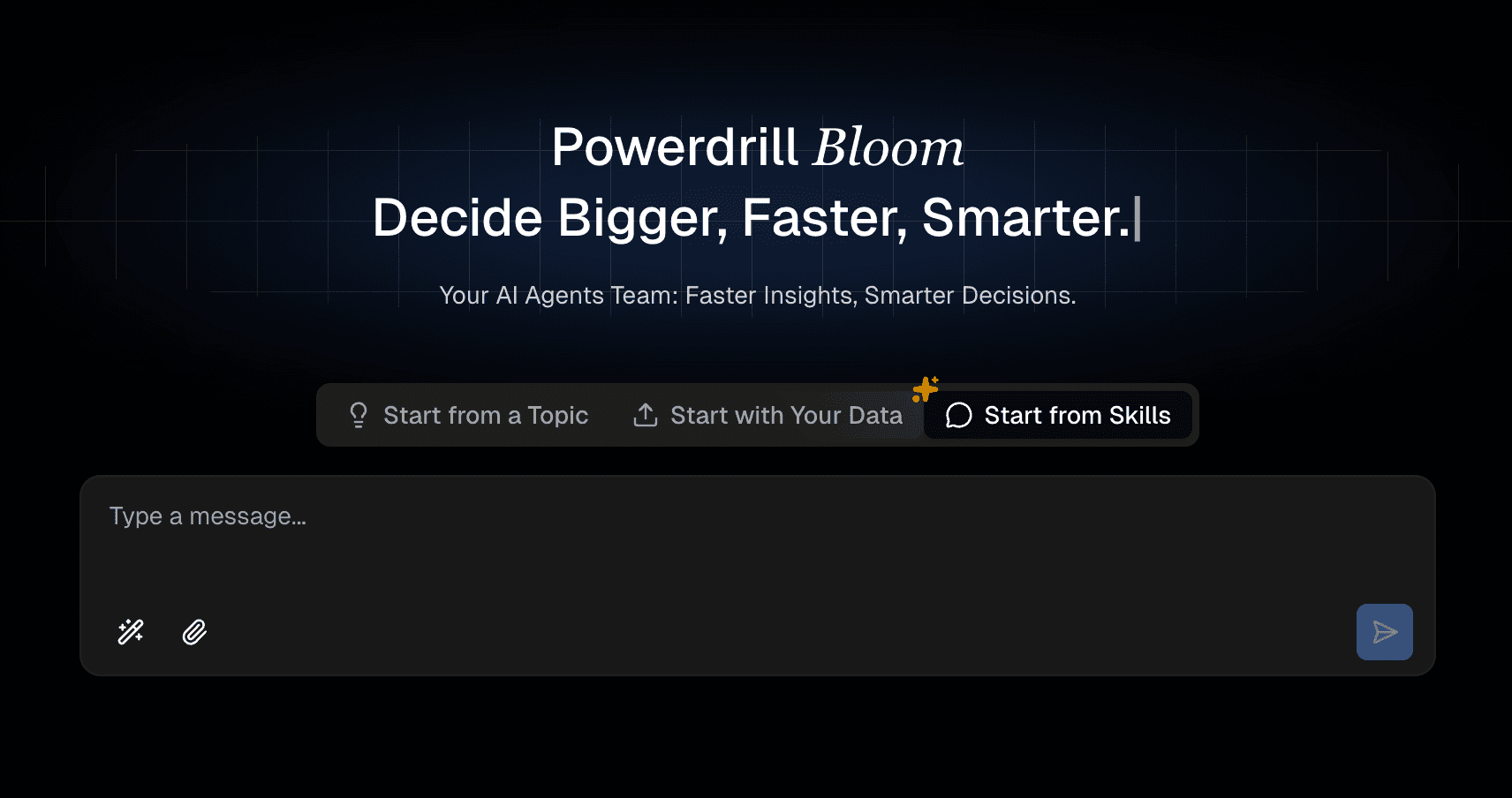
Step 1: Go to the homepage and switch to Start from Skills
Log into your Powerdrill Bloom workspace. By default, you might expect to see a standard chat input. Instead, navigate your dashboard and switch to the Start from Skills interface.
This step is critical. By choosing this entry point, you are actively deciding not to start from zero. You are entering a workflow-oriented workspace where complex, multi-step prompt chains have already been packaged into easy-to-use tools. For repetitive tasks like converting a topic to a PPT, this bypasses the trial-and-error of blank-canvas prompting.
Step 2: Choose ppt-master from Recommended Skills or Manage Skills
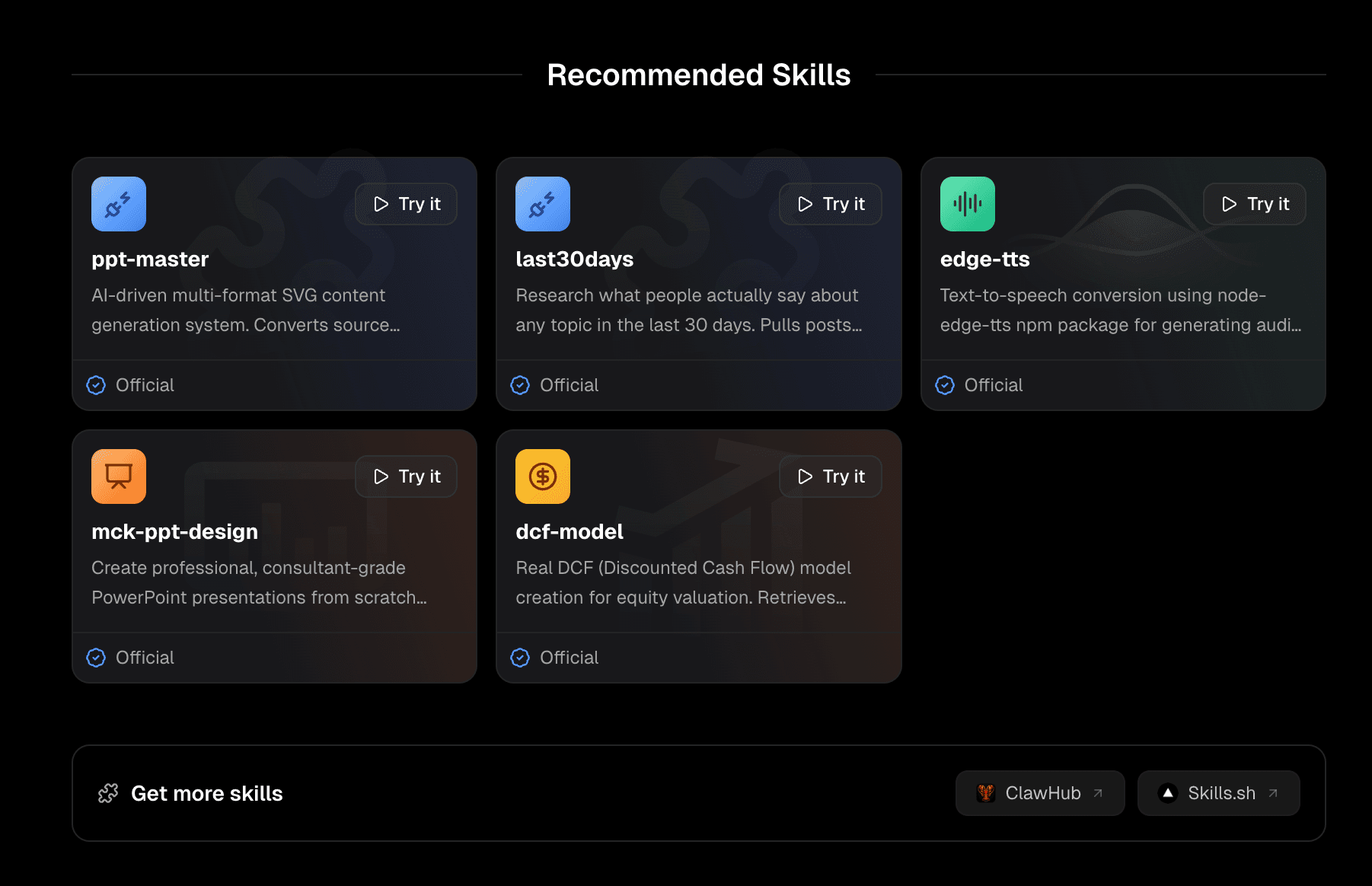
Once you are in the skill library, look through the Recommended Skills or use the Manage Skills directory to locate and select ppt-master.
Why choose ppt-master? Because transforming a topic into a presentation requires specific constraints. The ppt-master skill is specifically optimized for structured slide generation. It knows how to break down a broad topic into an executive summary, an agenda, core content slides, and a conclusion. It represents a complete presentation-generation workflow rather than just a basic text-summarization tool.
Step 3: Enter a natural-language instruction to start the work
With the skill activated, you don't need a complex prompt. You simply need to provide clear, natural-language instructions detailing what you want the skill to produce.
For example, you can type:
"Use ppt-master to generate a complete business PPT about Microsoft company analysis, with 20 pages, corporate minimalist style."
Because you are using a skill-based workflow, this natural language input is highly effective. You don't have to explain how to write a slide; you only have to explain what the slide is about. To get the best results, your instruction should specify:
The Topic: (e.g., Microsoft company analysis)
The Scope: (e.g., 20 pages)
The Tone/Style: (e.g., corporate minimalist)
The Audience: (e.g., for potential investors or internal stakeholders)
Step 4: Preview and download the result
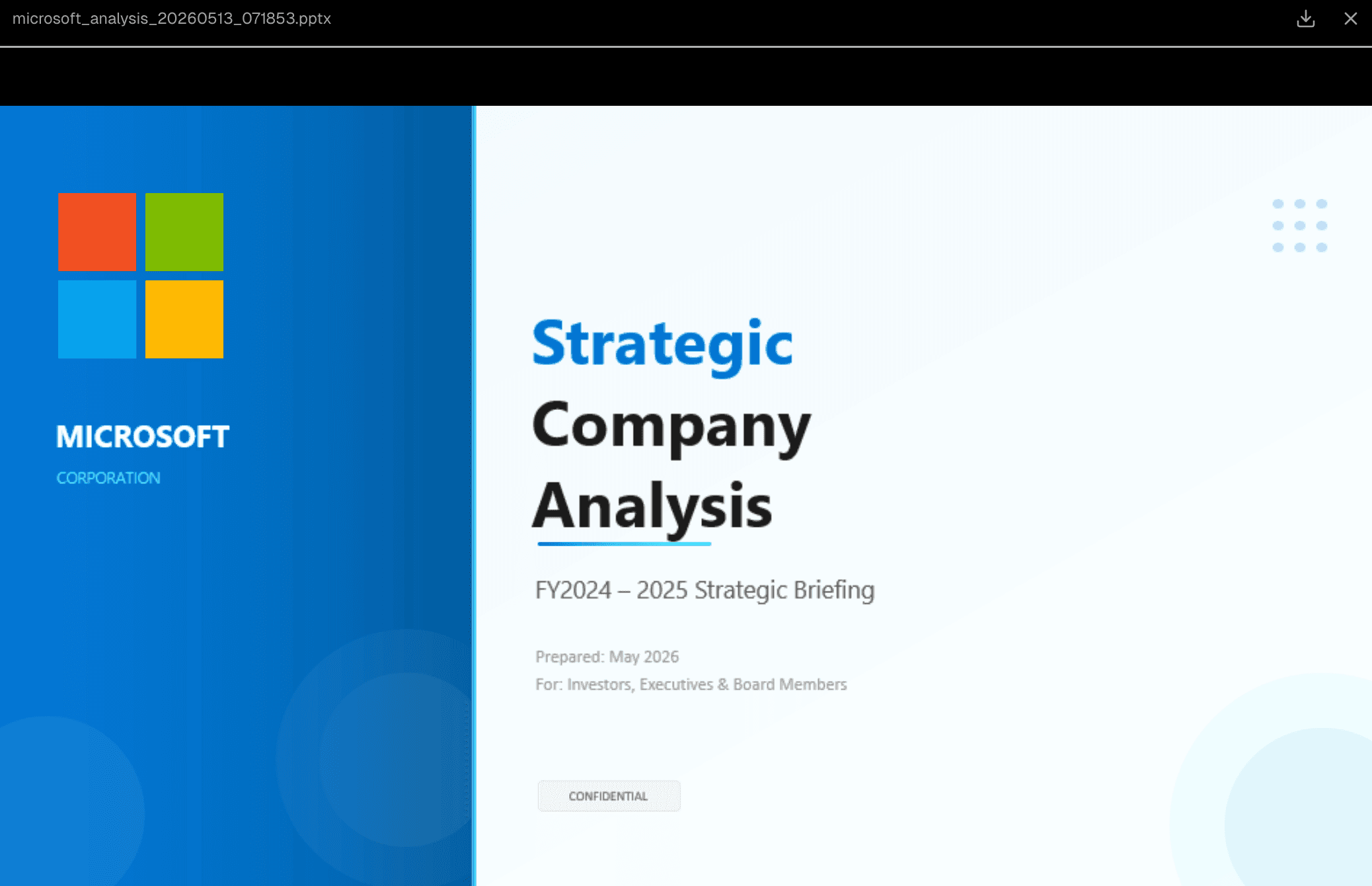
Once the AI processes your request, Powerdrill Bloom will generate the presentation structure. Crucially, the platform supports the ability to preview and download the result.
This is where the workflow bridges the gap between AI generation and real-world utility. You aren't just reading text on a screen; you are reviewing a deliverable. Previewing allows you to check the narrative flow, verify that the 20 pages are logically distributed, and ensure the corporate tone is met. Once satisfied, you can download the file, giving you a tangible, presentation-ready asset that you can immediately open, tweak, or share with your team.
What Makes a Good Prompt for Topic-to-PPT Workflows
Even within a skill-based system, the quality of your output depends on your input. When using an AI slide deck generator workflow, keep your natural-language instructions focused on these elements:
Objective: What is the goal of the deck? (e.g., "to persuade the board to approve Q3 budget," or "to educate new hires on security protocols").
Data Sources (if applicable): If your topic is based on specific data, mention it (e.g., "focusing on the Q2 revenue growth in the APAC region").
Structural Preferences: Mention if you need specific sections (e.g., "include an executive summary, a 3-page market analysis, and a strict timeline slide").
Example Prompt Variation:
"Generate a 10-slide pitch deck for a new B2B SaaS product focused on automated HR onboarding. The tone should be energetic and persuasive, aimed at HR Directors. Ensure there is a clear problem/solution slide early in the deck."
Best Use Cases for This Workflow
The Start from Skills approach with ppt-master shines in environments where structure and speed are paramount:
Business PPT Generation: Quarterly business reviews (QBRs), company overviews, and competitor analysis decks.
Educational Materials: Turning a syllabus or a complex textbook chapter into a digestible lecture deck.
Sales & Pitch Decks: Rapidly prototyping a client-specific pitch by feeding the AI the prospect's company details and your value proposition.
Project Proposals: Converting a long-form project charter document into a high-level executive presentation.
Powerdrill Bloom vs. Starting from a Blank Prompt
Feature | Blank AI Prompt | Powerdrill Bloom (Start from Skills) |
Setup Time | High (Requires writing structuring rules) | Low (Pre-configured workflow) |
Output Stability | Variable (Prone to hallucinating formats) | High (Strict adherence to slide structure) |
Repeatability | Low (Hard to replicate exact style later) | High (Reusable skill parameters) |
Deliverability | Usually plain text or markdown | Previewable and downloadable files |
Best Practices
Iterate on the Input: If the first preview isn't perfect, refine your natural language instruction rather than manually editing everything. Add constraints like "make the slides less text-heavy" and re-run.
Keep Scope Realistic: AI is powerful, but asking for a 100-slide highly technical engineering deck from a one-sentence prompt will yield shallow results. Break massive decks into smaller, logical sections if necessary.
Treat it as a Draft: The generated deck is a highly advanced first draft. Always plan to add your unique human insights, specific company data, or proprietary graphics before presenting.
Common Mistakes to Avoid
Being Too Vague: Asking to "make a presentation about marketing" gives the AI zero direction. Specify the angle, audience, and length.
Ignoring the "Start from Skills" Entry: Trying to force a standard chat interface to build a complex downloadable file often breaks. Always use the dedicated skill entry point for these tasks.
Skipping the Preview: Always review the flow in the preview stage before downloading. It is easier to adjust the prompt and regenerate than to manually delete and rearrange dozens of downloaded slides.
Conclusion
The era of writing overly complex prompts just to get a basic slide outline is ending. When your goal is to move efficiently from a raw idea to a presentation-ready deliverable, a skill-based workflow is significantly faster, more reliable, and much easier to scale across a team.
By utilizing the Start from Skills architecture and tools like ppt-master, you eliminate the friction of formatting and structure. You simply define your topic, set your parameters in natural language, and let the AI handle the heavy lifting of deck generation.
If your team frequently needs to convert ideas, research, or business topics into structured presentations, and you are tired of starting from a blank canvas every time, evaluating a workflow-oriented AI workspace is a logical next step. Powerdrill Bloom offers a practical, skill-based system designed precisely for these kinds of reusable, best-practice workflows. Give it a try, select your first skill, and see how quickly your next topic becomes a finished presentation.
Frequently Asked Questions
What are Claude Skills for PPT creation?
They are specialized AI capabilities optimized for structuring, formatting, and generating presentation content. Instead of generating standard conversational text, these skills are programmed to output data in a slide-by-slide format with clear titles, bullet points, and speaker notes.
What is Start from Skills in Powerdrill Bloom?
"Start from Skills" is a workflow feature in Powerdrill Bloom that allows users to bypass blank prompts and launch directly into pre-configured, reusable AI tasks. It turns the platform into a workflow-oriented agent workspace rather than just a chatbot.
How do you turn a topic into a PowerPoint with AI?
You turn a topic into a PowerPoint by using an AI presentation workflow. Simply select a dedicated skill (like ppt-master), provide a natural language prompt defining your topic, length, and audience, and let the AI generate a structured deck that you can preview and download.
How does ppt-master work?
The ppt-master skill takes your raw topic or document and applies presentation best practices to it. It automatically divides the content into logical sections (intro, body, conclusion), formats the text for readability on a screen, and generates a downloadable file.
Is it better to use a skill instead of a blank prompt?
Yes, especially for repetitive or highly structured tasks like business PPT generation. A reusable AI workflow ensures stable, consistent results and saves you from having to engineer a complex prompt every single time.
Can I preview and download the generated PPT?
Yes, when using workflows like ppt-master in Powerdrill Bloom, you can preview the generated slide structure directly in the interface and download the final file to your local device for final editing.