How to Write a Post-Presentation Recap with AI: Step by Step
A post-presentation recap is the short written record you send after you have finished presenting. Its job is to carry the figures, the decisions, and the owners to people who were not in the room. This guide covers what your meeting platform already produces, where that stops, and three steps to write the rest from your source file.
What a recap is for after a data presentation
You presented a deck. Ten minutes later, someone who missed the call asks what was decided.
That question is not answered by the deck. A deck is built to be talked over, and the slide that landed on screen had a chart and four words. It is also not fully answered by a recording, because nobody watches forty minutes to find one number.
A short written note sits between them. It is skimmable, and it survives being forwarded to a third person who has no context at all.
Three things make it worth writing. The figures that were on screen, the decisions that were reached, and who owns what next. Everything else is optional.
That is a narrower brief than most people assume, and the narrowness is the point. A page that tries to be a full record of the session gets skimmed and then ignored.
What your meeting platform already gives you
Modern meeting tools produce a recap object automatically, and it is more complete than most people realise.
According to Microsoft's documentation, recaps are available after Teams events "including meetings, town halls, webinars, and calls, that were recorded or transcribed." Inside one, Microsoft says "you can find the event recording, transcript, shared files, notes, custom summary, agenda, and follow-up tasks."
Sharing is built in. You open it, select Share, then "add recipient names, emails, groups, or tags."
There are stated boundaries on the automatic parts. Microsoft notes that "recap notifications, notes, and content aren't currently available for ad-hoc events," so an unscheduled call may not produce one. AI summaries need a supported transcription language, and "the event must also be five minutes or longer in duration."
The richer features sit behind licensing. Intelligent recap is described as part of Teams Premium, "an add-on license." Microsoft says it is also available with a Copilot licence. Timeline markers, including screen share markers that "show when someone shared their screen," are listed under the same tier.
Where the platform recap stops
The limit is not quality. It is the source material.
Microsoft states it directly: "AI-generated content is based on the event transcript and is powered by GPT and other AI models." Microsoft also warns that "some AI-generated content might be inaccurate, incomplete, or inappropriate."
A transcript contains what people said. After a data presentation, most of the content was not said, it was shown. The transcript has "revenue is up in the second half" where the slide had a chart with twelve monthly figures and a segment split.
Shared files do travel with it, which is genuinely useful. What the documentation does not describe is computing figures from those attachments and writing them into the summary.
So the numbers still have to be lifted out by a person, or generated from the file separately. That is a small job on one chart and a long one on a twenty-slide deck.
That gap is the whole job of a written recap, and it is small enough to do in one pass.
How to write a post-presentation recap with AI
Work from the file the deck was built from, not from the deck or the transcript. Then the recap and the slides agree by construction.
Step 1: Upload the source file, not the recording
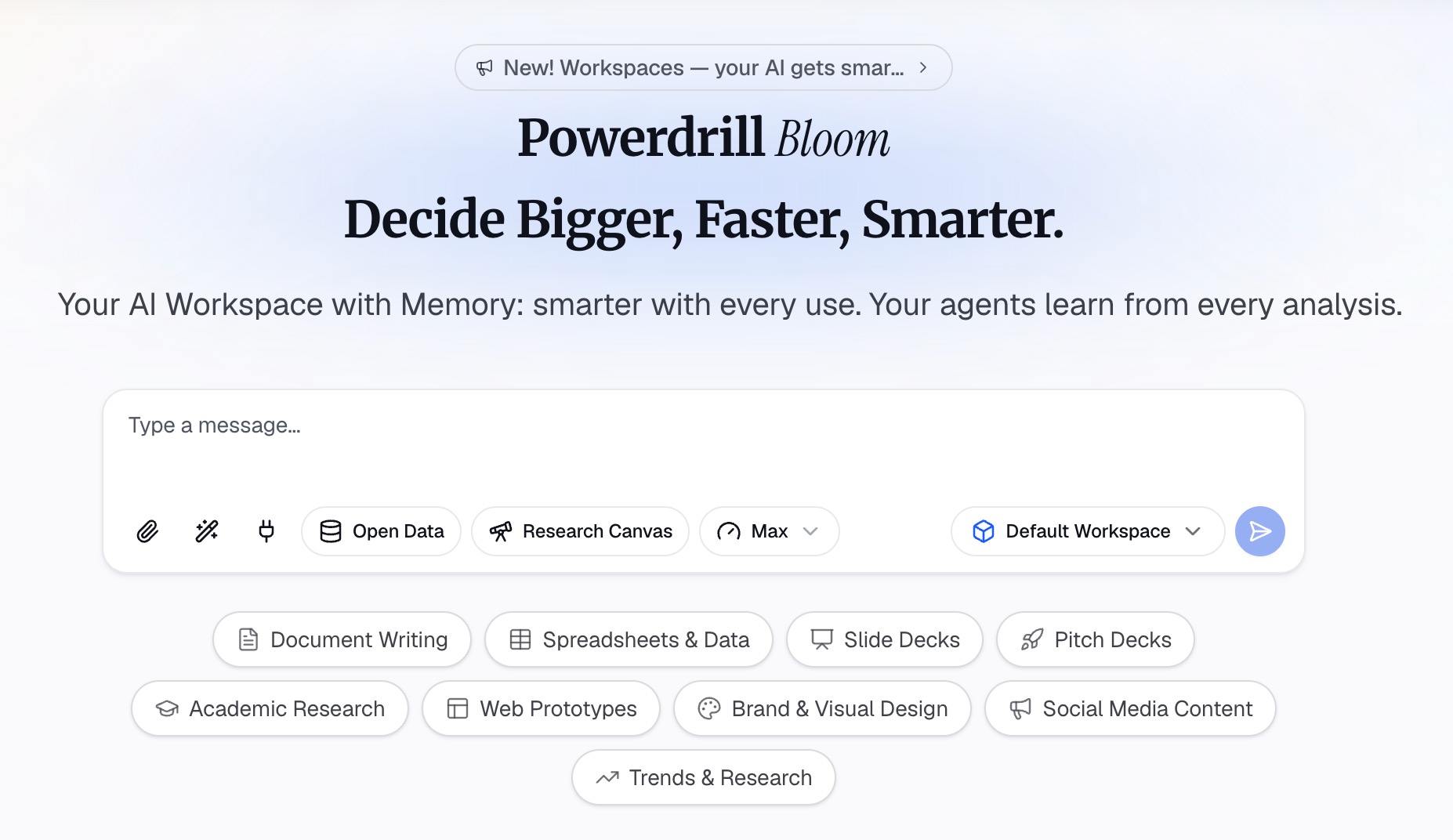
Sign in to Powerdrill Bloom and upload the export the charts came from. Excel, CSV, PDF, and docs are listed on the free plan.
If you also have the audio, add it. Uploads for audio are listed on the speech to text page, which produces transcripts, summaries, and main points.
Step 2: Describe the audience and the decision
Say who is reading, in natural language. The people who attended, the ones who missed it, or an executive who will read only the first paragraph. Then name the decision that was on the table.
Ask for the figures to be stated with the column they came from. That single instruction is what makes a recap checkable instead of merely readable.
Step 3: Ask for one page with owners and dates
Request a single page in four blocks: what was decided, the numbers behind each decision, open questions, and who does what by when.
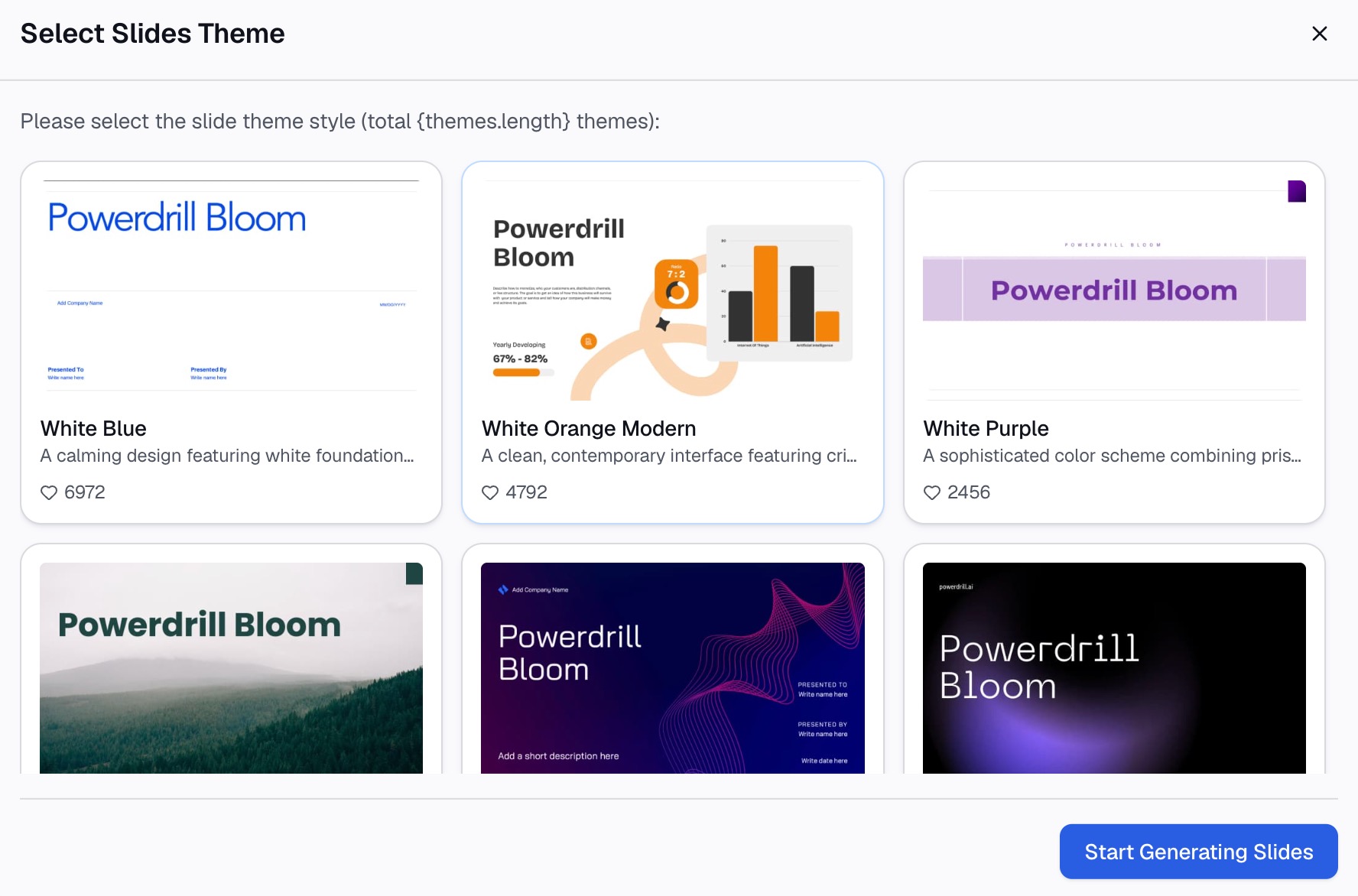
Keep it to one page on purpose. On Pro, output includes Office documents, so the same content can go out as an attachment rather than pasted into an email body.
If the audience is a chat channel rather than an inbox, ask for a three-line version as well. Decision, number, owner. That is usually all a channel will read.
What belongs in the recap
| Element | Include it? | Why |
|---|---|---|
| Decisions reached | Yes | This is the reason anyone opens the message |
| The figures behind each decision | Yes | They were on the slide, not in the transcript |
| Owners and dates | Yes | Without them the recap is just news |
| Open questions | Yes | They are the agenda for the next session |
| Full transcript | No | Already stored and searchable in the platform |
| Every slide, restated | No | Duplicates the deck you are attaching anyway |
The transcript row is the one people get wrong. It is already stored and searchable inside the meeting platform, so pasting it in adds length without adding an answer.
The owners row is the one people skip. A decision with no name attached tends to come back as the first item of the next meeting.
When to send it
Same day, in the same message as the deck.
Sent a week later, it becomes an archive document that nobody acts on. Sent alongside the deck, it sets the reading order: summary first, slides for the detail.
Some write-ups repeat on a cycle rather than following a single session. For those, a stakeholder update is the better format, and it follows a different rhythm.
Common mistakes worth avoiding
Forwarding the AI summary untouched. It is generated from the transcript, so it reflects the conversation rather than the data. It is a good first draft of the discussion and a poor draft of the outcome.
Writing decisions without numbers. "We agreed to shift spend to the second channel" invites a follow-up asking by how much. Put the figure in the same sentence.
Leaving owners implied. If two people could each reasonably think the other has it, neither does.
Retyping figures from the slides. This is where recaps go wrong quietly, because a transcription error looks exactly like a real number. Generate from the source file instead.
Send the numbers, not just the notes
Your meeting platform has already solved storage. The recording, transcript, files, and tasks are collected and shareable without any effort from you.
What is left is the part only the source data can answer. What the figures actually were, and what the group decided to do about them. Working from the export rather than the deck removes the retyping and the risk in one move.
If the deck itself still has to be built, the Excel to PPT page covers that half. The AI report generator page covers longer written versions. To write your next recap from the file behind the slides, try Powerdrill Bloom.
Frequently asked questions
What is a post-presentation recap?
It is a short written record sent after you present. It covers what was decided, the figures behind those decisions, and who owns the next steps. It is written to be read without you in the room.
How is a recap different from meeting minutes?
Minutes aim to record the discussion in order. A recap records the outcome instead, so it leads with decisions and numbers and leaves most of the conversation out.
Does Microsoft Teams write the recap for me?
Teams produces a recap containing the recording, transcript, shared files, notes, custom summary, agenda, and follow-up tasks. The AI summary inside it is generated from the event transcript, and intelligent recap features require Teams Premium or a Copilot licence.
How long should a post-presentation recap be?
One page, or roughly the length of a short email. If it runs longer, the detail belongs in the attached deck instead.
When should I send it?
The same day, in the same message as the deck. Sending it later reduces it to a record, and the point is to move the next step forward.