How to Make an Infographic in PowerPoint: Step by Step
To make an infographic in PowerPoint, start with one message and three to six supporting facts. Build the layout with a SmartArt graphic, add icons and short labels, and insert a chart for any numbers. Then use Designer to test layouts, check the text, and save the slide as a PNG or JPEG image.
This guide walks through each step with the exact PowerPoint menus, an example, and the mistakes that make infographics hard to read. It also shows how to make an infographic in PowerPoint with AI when your facts sit in a spreadsheet or PDF.
What an infographic in PowerPoint is
An infographic is a visual summary that mixes short text, icons, shapes, and charts. It tells one story at a glance, such as a process, a comparison, or a set of key numbers.
PowerPoint is a practical place to build one. It already has the parts: SmartArt for layouts, a large icon library, charts linked to Excel, and design suggestions. You can present the result as a slide or save it as an image for a report, email, or social post.
Most business infographics fall into one of four types:
- Process. Steps in order, such as an onboarding flow or a sales funnel.
- Timeline. Events or milestones over time.
- Comparison. Two or three options side by side.
- Statistics. A few key numbers with icons and short labels.
Pick the type before you start your infographic in PowerPoint. It decides the layout.
Before you start: what you need
Gather these before you begin:
- One message. Write the headline in one sentence, such as "Customer support response time fell by half this year."
- Three to six supporting facts. More than six usually crowds the slide.
- The source data. Keep the spreadsheet or report that each number comes from.
- Brand colors and fonts. Use the colors your audience already knows.
- PowerPoint for Microsoft 365, 2021, or 2024. Icons and Designer work best in current versions.
Check every number against its source before you design. Fixing a figure after the layout is done often breaks the alignment.
Plan the story and the numbers
A good infographic starts on paper, not on the slide. Sketch three things.
The headline. It states the finding, not the topic. "Support response time fell 52%" is better than "Support metrics."
The reading order. Most readers scan from top left to bottom right. Put the headline first, the key number second, and the supporting facts after it.
The visual for each fact. Decide whether each fact needs an icon, a number, or a chart. A trend over time needs a chart. A single percentage can stand alone in large type.
Keep the text short. Aim for labels of three to eight words. If a fact needs a full sentence, it may belong in the speaker notes or the report, not the infographic.
Build the layout with SmartArt
SmartArt gives you a ready structure for process, timeline, and list infographics.
To start from scratch, select Insert > SmartArt. Microsoft's timeline guide notes that "you can also use almost any process-related SmartArt graphic" for steps and stages.
To convert text you already have, select it first. Microsoft says to go to the Home tab and "select Convert to SmartArt Graphic." Then pick the layout you want.
For an infographic with photos, Microsoft describes another route. "In the Choose a SmartArt Graphic dialog box, select Picture." Each shape then holds an image with a caption.
A few layout tips help:
- Process layouts suit steps and funnels.
- List layouts suit a set of key facts.
- Picture layouts suit people, products, or locations.
Once the SmartArt is in place, you can ungroup it later for full control. Do that last, because ungrouped shapes no longer resize together.
Add icons, shapes, and text
Icons make an infographic fast to scan. PowerPoint includes a library of them.
Microsoft's steps are short. "Select Insert > Icons." You can scroll through categories or search. To save time, "Insert multiple icons at the same time by choosing each of them before clicking Insert."
Icons are easy to restyle. Microsoft says you can "rotate, color, and resize them with no loss of image quality." To recolor one, right-click it and choose Fill. Microsoft adds that "These icons are free to use and there's no royalty or copyright to worry about."
Use shapes to group related items. A rounded rectangle behind an icon and a label makes one clear unit. Keep the same shape size and spacing for every unit.
For text, use one font in two or three sizes. Put the key numbers in the largest size and the labels in the smallest.
Add charts for the numbers
Use a chart when a fact involves change over time or a comparison of values. Keep it simple: one chart type, few gridlines, and a clear title.
Charts in PowerPoint are linked to Excel. Microsoft explains that "You can create a chart in Excel, Word, and PowerPoint." It adds: "However, the chart data is entered and saved in an Excel worksheet." When you insert a chart, "a new sheet is opened in Excel" for the data.
Three rules keep charts readable in an infographic:
- Show one point per chart. A line for a trend, a bar for a comparison.
- Label the data directly. Readers should not have to match colors to a legend.
- Match the brand colors. Use the same colors as your icons.
For more on readable data visuals, see our guide on making data slides easy to read.
Polish with Designer and save as an image
PowerPoint's Designer can suggest layouts for the content you added. Microsoft says "Designer improves slides for Microsoft 365 subscribers by automatically generating design ideas to choose from."
To use it, go to the Design tab and select Design Suggestions. Pick an idea from the pane on the right. If you do not like it, press Ctrl+Z to undo.
Before saving the image, check three things. Every number matches its source. Every icon means the same thing to a new reader. The headline still states the main finding.
Then save the slide as an image. Microsoft's steps are clear. Select the slide in the thumbnail pane. "Select File > Save As (or Save a Copy if your presentation is saved on OneDrive or SharePoint)." Choose PNG, JPEG, GIF, or SVG. When asked, "select Just This One to save your selected slide as an image."
Make your infographic in PowerPoint easy to reuse
Most infographics get updated. A quarterly version follows the first one, or another team asks for a copy with its own numbers. A little setup now saves hours later.
Save the slide as a template. Keep one clean copy of the slide with placeholder numbers. Next quarter, duplicate it and change only the figures and the headline.
Keep chart data in the linked sheet. Because charts store their data in an Excel worksheet, update the numbers there. The chart redraws itself, and the layout stays aligned.
Choose SVG for sharp scaling. PowerPoint can save a slide as an SVG file, along with PNG, JPEG, and GIF. SVG is a vector format, so it stays crisp when a designer enlarges it. Use PNG for email and chat, where SVG may not preview.
Add alternative text. Screen readers cannot read a picture of text. When you place an infographic in PowerPoint or in a document, add a short description of the main message and the key numbers.
Write the sources on the slide. A small footer with the data source and date travels with the image. Readers can then check a number without asking you.
Store the source file next to the deck. Put the spreadsheet or report in the same folder as the presentation. When someone asks where a figure came from, you can answer in seconds.
These habits matter most for an infographic in PowerPoint that goes to clients or the board. Those versions are copied, forwarded, and quoted long after the meeting.
How to make an infographic in PowerPoint with AI
Building an infographic by hand is quick when the facts are ready. It is slow when the facts still sit in a spreadsheet or a long PDF. An AI tool can find the key numbers and lay them out for you.
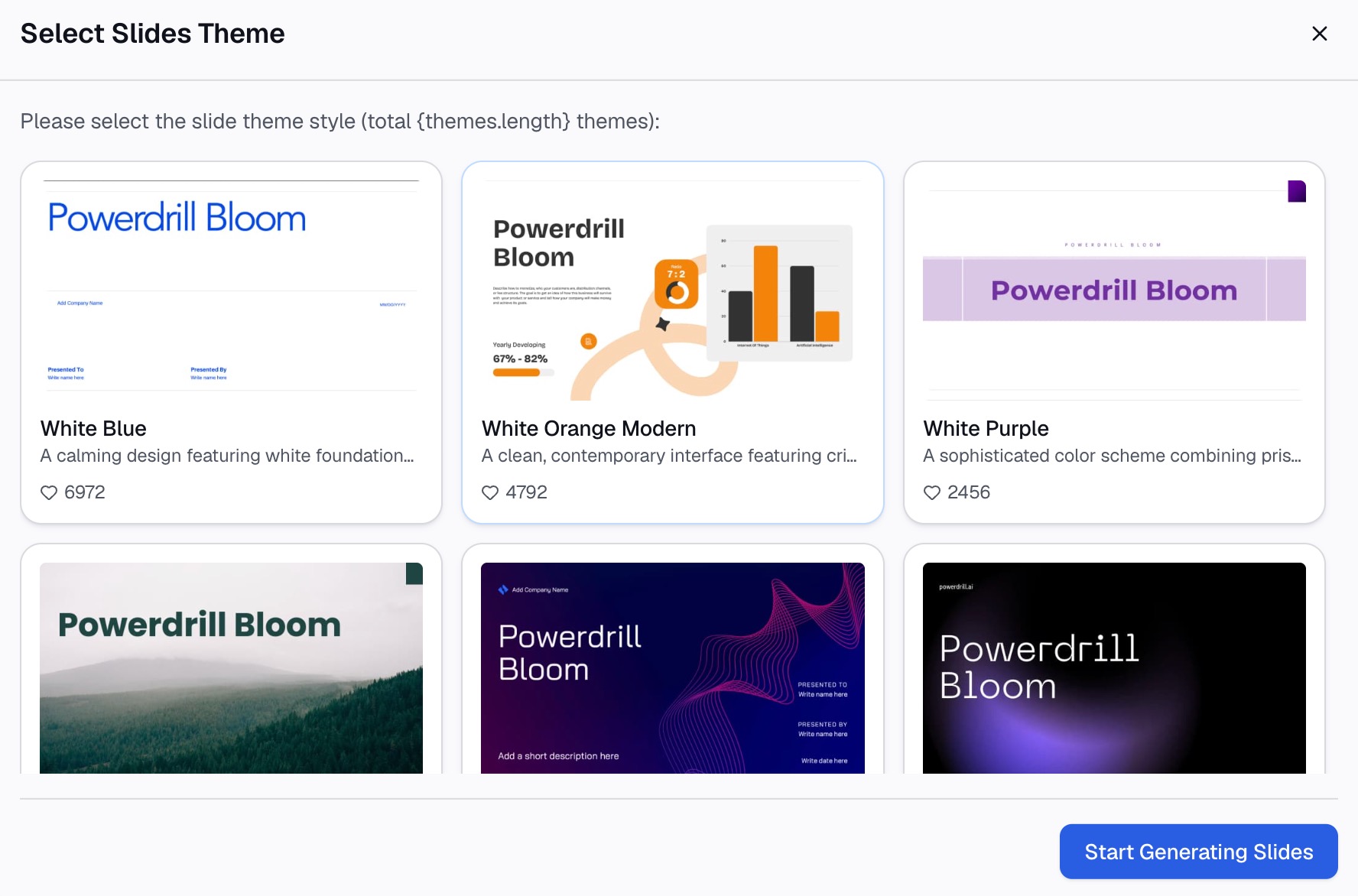
Here is the method in three steps, using Powerdrill Bloom.
Step 1: Upload your data or enter a topic
Start with the file that holds your facts. That might be a sales export in Excel, a survey in CSV, or an annual report in PDF.
The AI Infographic Generator says to "Upload your data or enter your topic." It then waits "for Bloom to complete its initial exploration." The Free plan lists "Upload Excel, CSV, PDF, and docs."

Step 2: Pick the insights and the visuals
Ask for the infographic in natural language. For example: "Make an infographic on support performance this year. Show response time, satisfaction, and ticket volume by quarter."
The infographic page lists the visuals it can combine. They include "pie charts to show proportions, line graphs to track trends, scatter plots to reveal correlations, and heatmaps to highlight intensity."
You then choose what goes in. The page says you "select the content to include in the infographic," then click Export. The Nano Banana Slides page also offers a "Data Infographic" style for slides.
Step 3: Check the figures and export to PowerPoint
Check each number against the source file. The homepage says "Every number comes back with the page, the row and the figure behind it," so you can trace each one.
Then export. The Excel to PPT tool says you can "export to PowerPoint in one click." Open the file in PowerPoint to adjust colors or add your logo, then save the slide as an image.
An infographic example
Here is a short example for an invented company, Harbor Home Services. All names and figures below are invented.
Headline: "Support got faster in 2026: response time fell 52%."
Layout: A four-step SmartArt process across the top, with one icon per step.
| Unit | Icon | Number | Label |
|---|---|---|---|
| 1 | Clock | 3.1 hours | Average first response, down from 6.5 |
| 2 | Smile | 92% | Customers satisfied after a reply |
| 3 | Inbox | 18,400 | Tickets handled this year |
| 4 | Chat | 41% | Tickets solved in the first reply |
Chart: A line chart below the units shows the average first response time for each quarter, with the target marked.
Footer: "Source: Harbor support desk export, January to September 2026."
Notice what the example does. One headline carries the story. Each unit has one icon, one number, and one short label. The chart shows the only fact that needs a trend.
Common infographic mistakes
Too much text. Labels turn into paragraphs, and the slide stops being visual. Cut each label to eight words or fewer.
No single message. Ten facts of equal size give the reader no place to start. Make one number the hero.
Decorative icons. An icon that does not match the fact confuses readers. Pick icons for meaning, not decoration.
Charts that need a legend. If readers must match colors to labels, label the data directly.
Numbers without sources. An infographic often travels without its report. Add a short source line at the bottom.
Saving at the wrong size. A slide saved as a small image blurs when enlarged. Test the image where it will be used before you send it.
For more ways to build one, see our guides on creating an infographic from Excel and creating an infographic from a PDF.
Want a first draft from your own data? Try Powerdrill Bloom with one spreadsheet, and ask for a four-fact infographic you can open in PowerPoint.
Frequently asked questions
Can you make an infographic in PowerPoint?
Yes. PowerPoint has the parts you need: SmartArt for layouts, a library of icons, charts linked to Excel, and Designer for layout ideas. You build the infographic on one slide, then present it or save it as a PNG or JPEG image.
What is the easiest way to make an infographic in PowerPoint?
Start with a SmartArt graphic. Type your facts as a short list, select the text, and choose Convert to SmartArt Graphic on the Home tab. Then add icons from Insert > Icons and use Design Suggestions to try layouts.
How do I save a PowerPoint slide as an infographic image?
Select the slide in the thumbnail pane, then choose File > Save As or Save a Copy. Pick PNG, JPEG, GIF, or SVG as the file type. When PowerPoint asks, select Just This One to save only that slide.
Are PowerPoint icons free to use in an infographic?
Microsoft says the icons in Microsoft 365 are free to use, with no royalty or copyright to worry about. You can rotate, recolor, and resize them without losing image quality. Check your company's brand rules before you mix them with other icon sets.
Can AI make an infographic for PowerPoint?
Yes. AI tools can read a spreadsheet, PDF, or topic, pick the key numbers, and lay them out with charts and icons. Powerdrill Bloom builds infographics and slides from Excel, CSV, or PDF files and exports to PowerPoint. Check every figure before you share it.
Sources: Microsoft Support, Create a SmartArt graphic from a list in PowerPoint · Microsoft Support, Create a timeline in PowerPoint · Microsoft Support, Insert icons in Microsoft 365 · Microsoft Support, Create a chart from start to finish · Microsoft Support, Create professional slide layouts with Designer · Microsoft Support, Save a slide as an image or as a separate presentation file. Details read on October 29, 2026.