How to Make a PowerPoint Portrait: A Full Guide

PowerPoint opens in landscape because slides were designed for projectors. Plenty of documents are not projected. A one-page handout, a poster, a printed report, a phone-first social post: all of those want portrait.
Changing the orientation takes four clicks. The complications come afterwards, and they are the reason this guide is longer than four clicks.
Here is what follows. First, how to switch orientation on Windows, Mac and the web. Then what the scaling prompt is actually asking you. Then what Microsoft says about holding both orientations in one file, and how printed notes carry a separate setting.
What portrait orientation actually changes
Microsoft's documentation states the default plainly. "PowerPoint slides are automatically set up in landscape (horizontal) layout, but you can change the slide orientation to portrait (vertical) layout."
The setting applies to the whole file rather than to a single slide. That is the fact behind most of the confusion around this topic.
Switching to portrait swaps the width and height of every slide at once. Content is scaled rather than rotated. A chart that was 10 inches wide is still 10 inches wide. The slide is now 7.5 inches across, so something has to give.
That is why PowerPoint asks you a question during the switch rather than just doing it.
One more consequence is easy to miss. Placeholders in your layouts were positioned for the old aspect ratio. After a switch to portrait they stay where they were, proportionally. That usually means a title box too wide for its line, and body text that runs short. Expect to revisit the slide master if the deck matters.
How to make a PowerPoint portrait on Windows
The path on Windows runs through the Design tab. Microsoft's support page gives it in four moves.
Open the Design tab of the ribbon. Near the end, choose Slide Size, then choose Custom Slide Size. In the Slide Size dialog box, select Portrait, then select OK.
A second dialog appears if your content no longer fits. That is the scaling prompt, and the next section covers what to choose.
Two details save time here. Do this before you build the deck rather than after, because re-fitting forty slides is the expensive part. And if your organisation has a template, change the orientation in the template rather than in each new file.
How to change orientation on Mac and on the web
The macOS route uses a different dialog with the same result. On the Design tab, select Slide Size, then click Page Setup. In the Page Setup dialog box, under Orientation, select the orientation you want.
The web version follows the Windows path. Select the Design tab of the ribbon, then near the right end select Slide Size. On the menu that appears, select Custom Slide Size, and the Slide Size dialog box opens. Select Portrait, then select OK.
Microsoft documents the same scaling prompt for the web version, with the same two choices. So the behaviour is consistent across all three platforms even though the menus differ.
One thing the macOS dialog exposes more clearly than the others is worth knowing about. Microsoft's page notes that "there are separate orientation settings for Slides (projected on-screen) and for Printed notes, handouts, and outlines." More on that below, because it solves a problem people often try to solve the hard way.
Maximize or Ensure Fit: which one to pick
When PowerPoint cannot rescale your content automatically, it offers two options. Microsoft defines both.
Maximize increases the size of your slide content when you are scaling to a larger slide size. The documentation adds a warning: "choosing this option could result in your content not fitting on the slide."
Ensure Fit decreases the size of your content when scaling to a smaller slide size. The trade-off is also stated: "this could make your content appear smaller, but you'll be able to see all content on your slide."
For a landscape-to-portrait switch, the slide gets narrower. Ensure Fit is almost always the right answer, because Maximize will push content off the edges you just made narrower.
There is one exception. If your slides are mostly a single centred image or a short headline, Maximize keeps them looking deliberate rather than shrunken. Check two or three slides either way before committing to the whole deck.
Whichever you choose, walk the deck afterwards. Neither option moves boxes intelligently; both just scale. Tables and charts are where the damage usually shows up first.
Can you mix portrait and landscape in one presentation?
This is the most-asked follow-up, and Microsoft answers it directly. Its support page states: "PowerPoint doesn't allow for the mixing of landscape and portrait slides in the same presentation, but we describe a workaround below."
So the answer is no within one file, and yes with two files.
Microsoft also offers a simpler dodge first. "You can put a portrait-oriented image or shape on a landscape slide. When projected on a screen, it will look the same on a landscape slide as it would on a portrait slide." For a single vertical chart or a phone screenshot, that is usually enough and costs nothing.
When you genuinely need full portrait slides inside a landscape talk, the documented workaround is to link two presentations. In Microsoft's words, you "link two presentations (one in landscape, and the other in portrait)." Together they display both orientations "in what appears to be one presentation."
The mechanics use action settings. In the first presentation, select the text or object you want to link from. On the Insert tab, in the Links group, click Action. In the Action Settings dialog, on either the Mouse Click or Mouse Over tab, click Hyperlink to, scroll down and select Other PowerPoint Presentation. Locate the second presentation, click OK, then choose the target slide in the Hyperlink to Slide dialog.
Then repeat the process in reverse so you can get back.
Microsoft attaches one practical tip that is easy to skip and painful to discover later. "Place both presentations in the same folder before you create links. That way, if the folder is copied to a CD or moved, the presentations will still link correctly."
If instead you want the two files permanently merged into one, that is a different operation. Our guide to combining PowerPoint presentations covers the trade-offs. Note that merging forces one orientation on everything, which is exactly what the linking workaround exists to avoid.
Printed notes and handouts have their own orientation
This is the detail that resolves a surprising number of portrait requests.
Microsoft's page states that "there are separate orientation settings for Slides (projected on-screen) and for Printed notes, handouts, and outlines." The two are independent.
If the real requirement is a printed leave-behind that reads like a document, you may not need portrait slides at all. Keep the slides landscape for the room, and set the printed notes and handouts to portrait for the page.
That combination is often what people actually wanted. The deck still projects correctly, and the printout still reads like something from a printer rather than something from a projector. Our guide to building a presentation handout goes further into what belongs on the printed version.
Slide sizes worth knowing
Orientation and size are set in the same dialog, so it is worth knowing what else is in there. Microsoft's slide size page lists predefined formats including Overhead, A3, A4, Banner, B4 and B5, alongside the two familiar aspect ratios.
| Setting | Where it comes from | Typical use |
|---|---|---|
| Widescreen (16:9) | The default for new presentations | On-screen and projected decks |
| Standard (4:3) | Legacy projector ratio | Older hardware and some print workflows |
| A4 portrait | Predefined in Custom Slide Size | Printed documents outside North America |
| Letter portrait | Predefined in Custom Slide Size | Printed documents in North America |
| Custom | Width and height entered manually | Posters, signage, social formats |
Microsoft confirms the default in writing: "the 16:9 widescreen setting is the default value for new presentations." So every deck starts landscape unless a template says otherwise.
If you are setting up a reusable starting point rather than a one-off file, do it once in a template. Our walkthrough on creating a PowerPoint template covers where the orientation setting lives in that workflow.
How to build a portrait deck from your content
Switching orientation is quick. Refilling a narrower slide is not, especially when the content came from a spreadsheet and every chart now needs resizing.
That rebuild is the part worth handing to an agent.
Step 1: Upload your source files and the existing deck
Open Powerdrill Bloom and create a workspace for the document. Upload the spreadsheet or PDF the content came from, plus the current landscape deck if one exists.
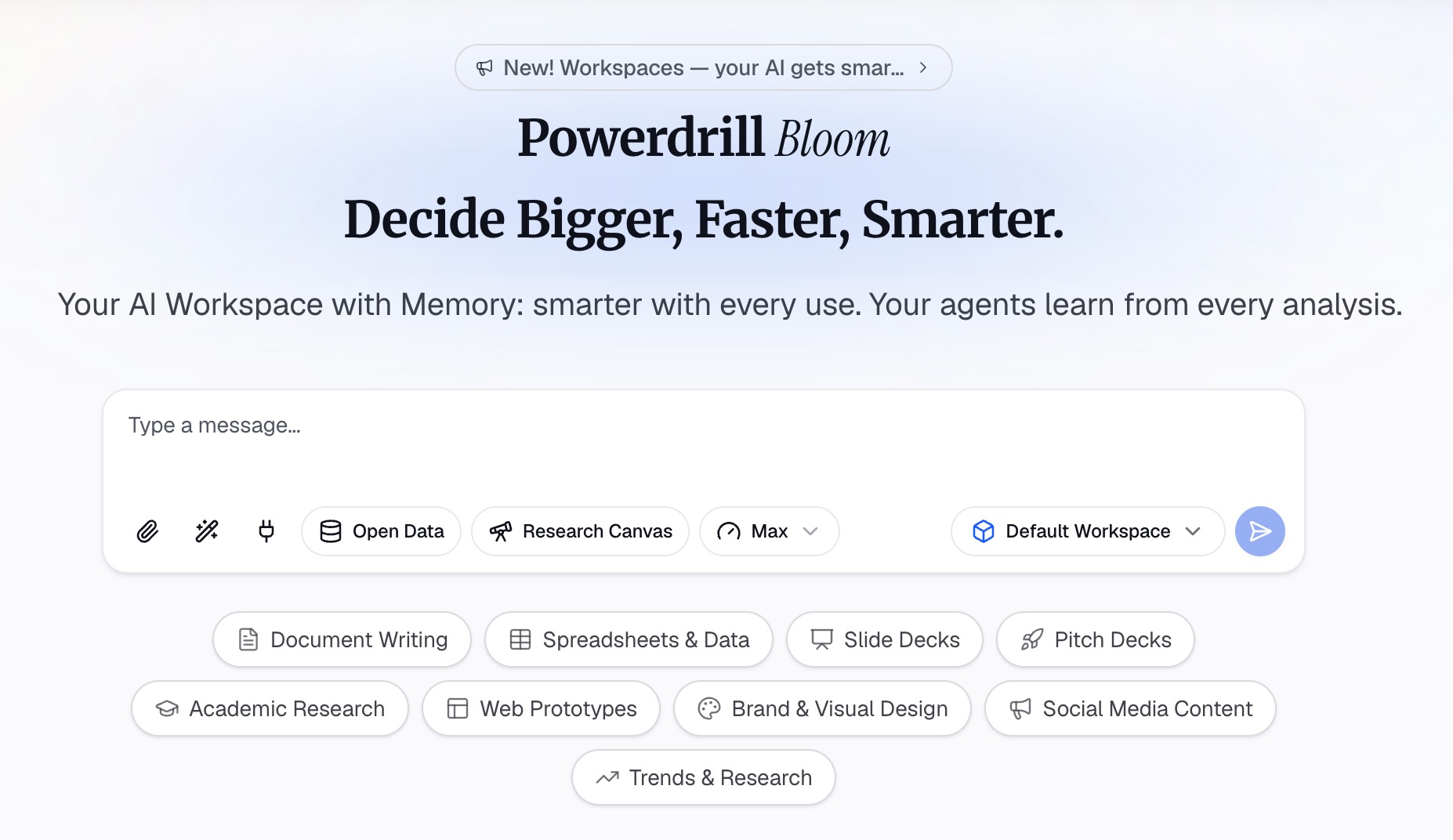
Uploading both matters. The deck tells the agent what the narrative is, and the source file lets every figure be regenerated at the new proportions rather than stretched.
Mixed formats are fine here. Numbers usually arrive as Excel or CSV, and the supporting material as PDF or documents.
Step 2: Describe the portrait layout you need
Ask for the deck in natural language, and say the orientation up front. Name the page size too, since A4 portrait and letter portrait differ enough to matter at the printer.
Be specific about what changes shape. Wide tables need fewer columns per slide or a split across two. Horizontal bar charts often read better than vertical ones in a narrow frame. Say which, rather than leaving it to chance.
Also state where the output is going. A deck meant for print wants tighter margins and larger type than one meant for a phone screen. Asking for both at once produces neither.
Step 3: Check the tight slides and export
Work through the slides that were densest in landscape first, because those are the ones a narrower frame breaks. Tables with more than five columns and charts with long axis labels are the usual suspects.
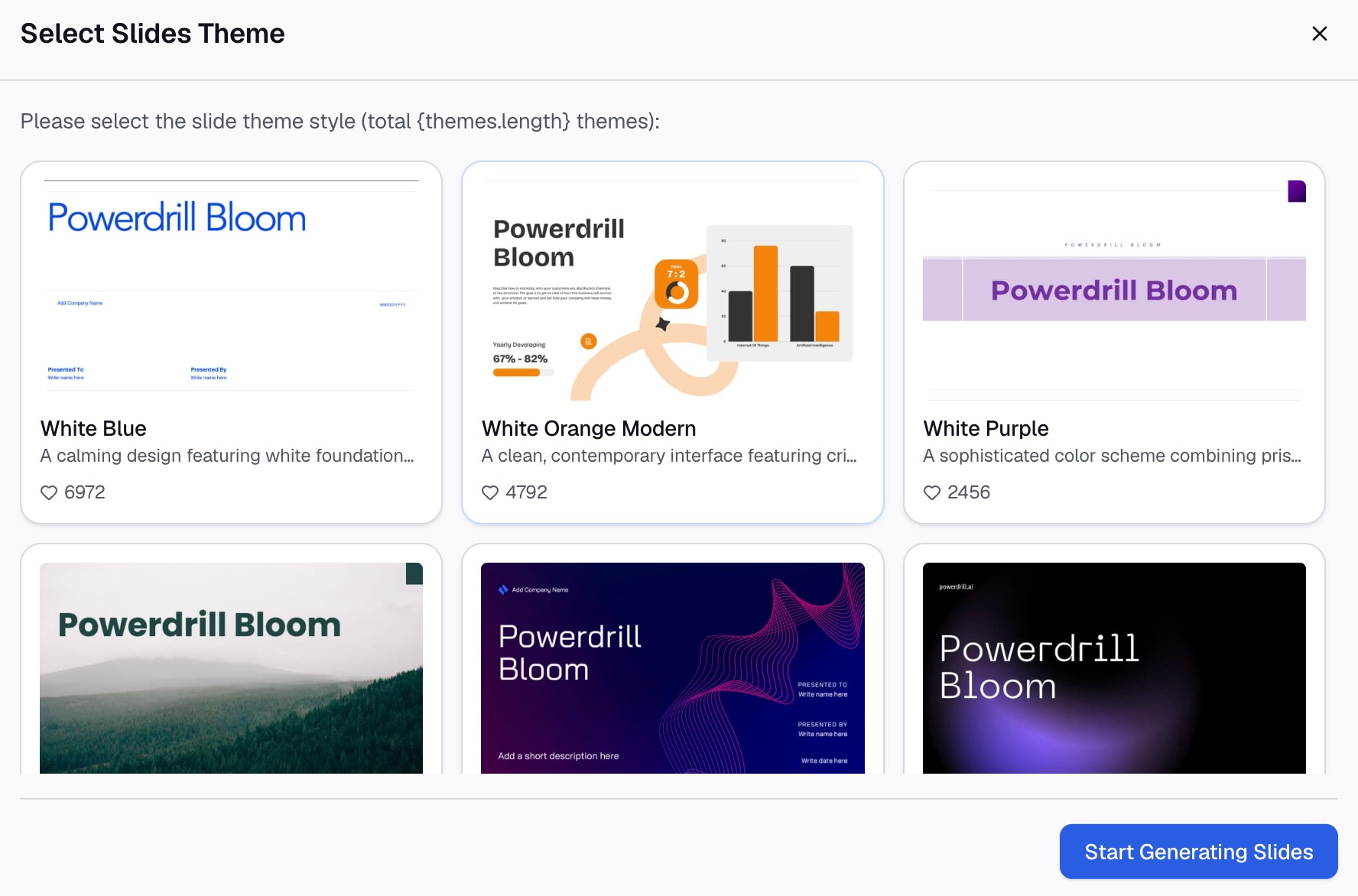
Check that every figure still traces to the source file rather than having been re-typed. Then export to PowerPoint and open the file to confirm the orientation survived the round trip.
If the deck is destined for print, run one page through the printer before running two hundred. Screen proportions and paper proportions are not the same thing, and that is cheaper to find out on page one.
Common mistakes
Switching orientation after the deck is finished. Every scaling decision then has to be reviewed forty times. Set the orientation first, even on a rough outline.
Choosing Maximize on a landscape-to-portrait switch. The slide got narrower, so enlarging the content pushes it off the edge. Ensure Fit is the default worth reaching for.
Trying to force two orientations into one file. Microsoft's documentation is explicit that mixing is not supported, and offers linking as the workaround. Fighting this costs an afternoon and produces a fragile deck.
Forgetting the handout setting. If the requirement was a printed page, the separate orientation setting for printed notes and handouts may solve it without touching the slides at all.
Leaving the slide master alone. Placeholders were positioned for the old ratio. A portrait deck with landscape placeholders looks subtly wrong on every slide and nobody can say why.
FAQs
How do I make a PowerPoint portrait? Open the Design tab, select Slide Size, then Custom Slide Size. In the Slide Size dialog box select Portrait and choose OK. On macOS the path is Design, Slide Size, Page Setup, then Orientation.
Can I have both portrait and landscape slides in one PowerPoint file? Microsoft's documentation states that PowerPoint does not allow mixing landscape and portrait slides in the same presentation. The documented workaround is to link two presentations using action settings, keeping both files in the same folder.
Should I choose Maximize or Ensure Fit? Ensure Fit is usually correct when moving from landscape to portrait, because the slide becomes narrower. Microsoft describes Maximize as increasing content size, which can push content off a smaller slide.
How do I make a portrait handout without changing my slides? Printed notes, handouts and outlines have their own orientation setting, separate from the slides themselves. Set that to portrait and leave the slides in landscape.
What size is A4 portrait in PowerPoint? A4 is one of the predefined options in the Custom Slide Size dialog, alongside Overhead, A3, Banner, B4 and B5. Selecting it sets the dimensions for you rather than requiring manual entry.
Conclusion
The orientation switch itself is trivial. What costs time is everything downstream. Content no longer fits, placeholders sit in the wrong place, and Microsoft documents one orientation per file.
Decide the orientation before you build, pick Ensure Fit when narrowing, and check whether the separate handout setting solves your actual problem. Those three habits remove most of the pain.
Say the deck is built from a spreadsheet and needs a full re-layout at a new aspect ratio. That is the slow part rather than the clicking. Try Powerdrill Bloom free and upload the source file with the deck you already have.
Sources (as of 2026-09-14): Change the page orientation in PowerPoint · Portrait and landscape in one presentation · Change the size of your slides