How to Make a Line Graph: 4 Easy Methods in 2026
A line graph shows how a value changes over time, with points joined by a line. To make one, put your time periods in the first column and your values in the next columns. Then select the data and insert a line chart in Excel, Google Sheets, or Word, or ask an AI tool to build it.
This guide covers what a line graph is, when to use one, and how to set up your data. It then walks through four methods: Excel, Google Sheets, Microsoft Word, and an AI method in three steps. The last sections cover graphs with more than one line and common mistakes.
What a line graph is
A line graph plots values against a scale and joins them with a line, so you can see the direction of change. The National Center for Education Statistics (NCES) puts it simply: "Line graphs can be used to show how something changes over time."
Microsoft describes the same idea for Excel. Its support page says line charts "are therefore ideal for showing trends in data at equal intervals or over time." Google's help for Sheets says "Use a line chart when you want to find trends in data over time."
Every line graph has the same parts. The NCES guide lists them:
- Title. It "offers a short explanation of what is in your graph."
- X-axis. It runs horizontally and usually shows time periods.
- Y-axis. It runs vertically and shows the amount being measured.
- Legend. It "tells what each line represents" when there is more than one line.
- Source. It "explains where you found the information that is in your graph."
The terms "line graph" and "line chart" mean the same thing. Excel and Google Sheets call it a line chart, while many textbooks call it a line graph.
When to use a line graph
Use a line graph when the x-axis is a sequence, such as days, months, quarters, or years. It is the right choice for questions like "how did sales change this year?" or "is the error rate going up?"
Other charts suit other questions:
| Question | Better chart |
|---|---|
| How did a value change over time? | Line graph |
| How do categories compare at one point in time? | Bar chart |
| How do two numeric variables relate? | Scatter plot |
| What share of a whole does each part take? | Pie chart |
Microsoft gives a useful test for the line versus scatter choice. It says "use a line chart if your data has non-numeric x values." For numeric x values, it adds, "it is usually better to use a scatter chart." Dates and month names count as categories for a line chart.
If your question is really about categories, our bar chart guide covers that choice. If it is about two numeric variables, see our guide to making a scatter plot with AI. Both use the same data layout as the one below.
The NCES guide adds that line graphs are "good for plotting data that has peaks (ups) and valleys (downs)." If your data has only two time points, consider a bar chart as well.
How to set up your data first
Every method below starts from the same table. Google's help for Sheets gives the layout:
- First column. Labels that describe the data. Google says "Labels from the first column show up on the horizontal axis."
- First row. Optional category names, which "show up as labels in the legend."
- Other columns. Numeric data, one column per line.
Here is an example table you can copy. The numbers are invented.
| Month | Website visits | Newsletter signups |
|---|---|---|
| January | 4,200 | 310 |
| February | 4,650 | 335 |
| March | 5,100 | 360 |
| April | 4,900 | 410 |
| May | 5,600 | 455 |
| June | 6,050 | 490 |
Before you build the graph, check three things. The time periods should be in order. Each period should cover the same length of time. And each column should use one unit, without text mixed into the numbers.
Missing values need a decision too. A blank cell leaves a gap in the line, while a zero pulls the line down to the axis. If a month has no data, leave it blank and say so in a note under the chart.
Method 1: Make a line graph in Excel
Excel builds a line chart in a few clicks. Microsoft's support page describes the steps:
- Select the data that you want to plot, including the month labels and column headers.
- Select the Insert tab, then select Insert Line or Area Chart.
- Select Line with Markers, or another line type.
- Select the chart to show the Chart Design and Format tabs.
- On the Chart Design tab, choose a chart style.
Then add the labels. Microsoft says to select the chart title "and type the text you want." For axis titles, select Add Chart Element, then Axis Titles, and choose the horizontal or vertical title.
A few Excel options are worth knowing:
- Legend. Add it from Add Chart Element, then Legend, and pick a position.
- Secondary axis. Microsoft notes you can plot one data series along a secondary vertical axis. Use this when two lines use very different scales.
- Recommended charts. If you are unsure which chart fits, Microsoft's chart guide says recommended charts give suggestions based on your data.
Excel is the natural choice when the data already lives in a workbook. The chart updates when you change the numbers in the cells.
Method 2: Make a line graph in Google Sheets
Google Sheets works the same way in a browser. Google's help describes the steps:
- Open a spreadsheet in Google Sheets.
- Select the cells you want to include in your chart.
- Click Insert, then Chart.
Sheets may pick a different chart type first. To change it, double-click the chart and click Setup. Under "Chart type," click the Down arrow and choose a line chart from the list.
To style the graph, click Customize in the same panel. Google's line chart help lists the options:
- Chart & axis titles. Edit or format title text.
- Series. Change line colors, add data labels, or add a trendline.
- Legend. Change the legend position and text.
- Vertical axis. Set a min or max value, or use a log scale.
- Gridlines. Add and edit gridlines.
If the lines come out wrong, the rows and columns may be swapped. Google's help points to a "switch rows and columns" option for this case.
Google Sheets suits shared work. Teammates can edit the same sheet, and the chart updates for everyone.
Method 3: Make a line graph in Microsoft Word
Word can add a chart without a separate Excel file. Microsoft's support page describes embedding a chart:
- In your Word document, select Insert, then Chart.
- Select a line chart type, then select OK.
- Enter your data into the spreadsheet grid that opens with the chart.
Microsoft explains what embedding means: "Embedding creates a chart whose data is stored directly inside your Word document." It adds that the chart "won't update if the original Excel file changes." To change the numbers later, select the chart and choose Chart Design, then Edit Data.
There is a second option. You can build the chart in Excel and paste a linked copy into Word. Microsoft notes that "When a chart is linked, information can be updated if the external Excel worksheet is modified."
Choose embedding for a one-off report. Choose linking when the numbers will change and the document must keep up.
Method 4: Make a line graph with AI
The first three methods assume the data is already clean and in one table. Often it is not. It may sit in a CSV export with extra columns, or in several files that need joining first. An AI tool can do that preparation and draw the graph in one pass.
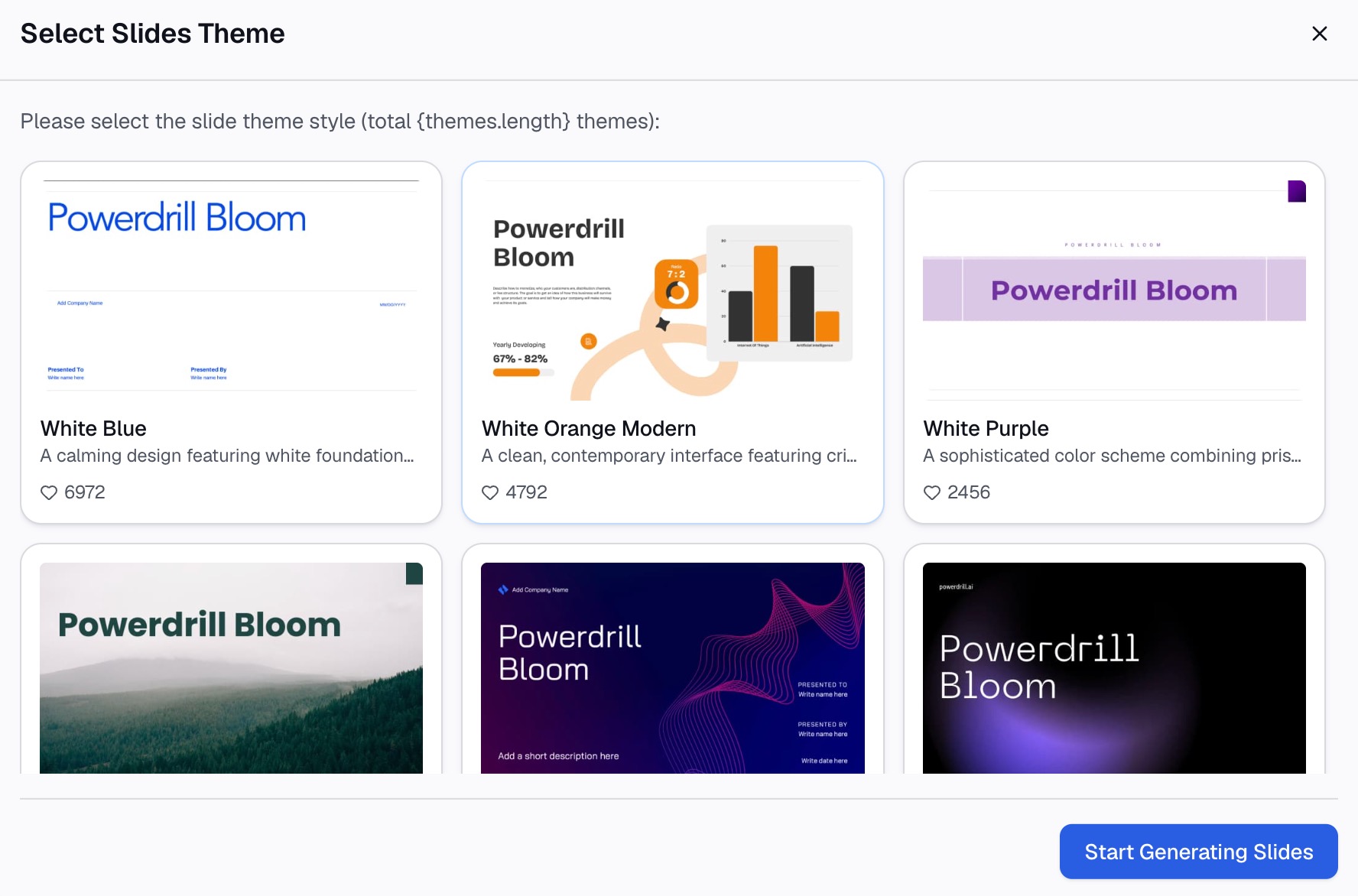
Here is the method in three steps, using Powerdrill Bloom.
Step 1: Upload your data file
Start with the file that holds your numbers. Powerdrill Bloom's Line Graph Creator page says it "Accepts various formats like CSV and Excel." The Free plan lists "Upload Excel, CSV, PDF, and docs."
Upload the raw export rather than a hand-edited copy. If the file has more than one sheet, name the sheet that holds the time series in your first request.

Step 2: Ask for the line graph in natural language
Describe the graph you want in one sentence. For example: "Make a line graph of monthly website visits and newsletter signups from January to June, with one line per metric."
Add the details that matter for your audience. You can ask for a second vertical axis when the two lines use different scales. You can also ask for a title that states the finding, such as "Signups grew faster than visits in the second quarter."
Then ask a follow-up about the trend. "Which month had the largest increase, and by how much?" turns the graph into an answer. The Line Graph Creator page says that when an analysis finds trends or patterns, it "automatically generates a clear, clean line graph alongside the response."
Step 3: Check the graph and download it
Before you use the graph, check the numbers against the source. The Powerdrill Bloom homepage says "Every number comes back with the page, the row and the figure behind it." Open the source rows for any point that looks surprising.
Then download the result. The Line Graph Creator page says the finished chart is "Available in the PNG format." For a meeting, you can also ask for the graph inside a short deck. The AI Graph Maker page covers other chart types from the same data.
How to make a line graph with multiple lines
Search suggestions for this topic often ask about graphs with more than one line, or with two data sets. All four methods handle this the same way: each column of numbers becomes its own line.
A few rules keep a multi-line graph readable:
- Limit the lines. Each extra line adds another color to tell apart. When lines cross often, consider splitting the graph.
- Use a legend or direct labels. The NCES guide notes that the legend "tells what each line represents." Labels at the end of each line work too.
- Use a second axis for different scales. If one series is in thousands and another in hundreds, a second vertical axis keeps both visible.
- Use contrasting colors. Pick colors that stay distinct when printed in grayscale.
If the lines measure the same thing for different groups, such as sales by region, a single axis is better. Readers can then compare the lines directly.
Line graph mistakes to avoid
Watch for these mistakes before you share a line graph.
- Uneven time periods. Mixing weeks and months on one axis distorts the slope. Keep every interval the same length.
- A misleading y-axis. The NCES guide says the y-axis "usually starts counting at 0." Starting higher can make small changes look large, so label the axis clearly if you do.
- Missing labels. A graph without axis titles or units makes readers guess. Add both.
- Too many lines. Split a crowded graph into two graphs, or highlight one line and gray out the rest.
- No source. The NCES guide says the source matters because "It is important to give credit to those who collected your data!"
- A line for unordered categories. Joining categories like product names with a line implies a sequence that does not exist. Use a bar chart instead.
Want to skip the formatting? Try Powerdrill Bloom with one monthly CSV export and ask for a line graph of the trend.
Frequently asked questions
How do I make a line graph in Excel?
Select your data, including the labels and headers. Select the Insert tab, then Insert Line or Area Chart, and pick a line type such as Line with Markers. Then use the Chart Design tab to add a title, axis titles, and a legend.
How do I make a line graph in Google Sheets?
Open your spreadsheet, select the cells you want to include, and click Insert, then Chart. If Sheets picks another type, double-click the chart, click Setup, and choose a line chart. Use Customize to add titles, change colors, and edit the axes.
How do I make a line graph with multiple lines?
Put each data series in its own column, with the time periods in the first column. When you insert the line chart, each column becomes a separate line. Add a legend, and use a second vertical axis if the series have very different scales.
When should you use a line graph?
Use a line graph to show how a value changes over time, such as monthly sales or yearly costs. Microsoft says line charts suit trends at equal intervals. For comparing categories at one point in time, a bar chart is usually clearer.
Can AI make a line graph for me?
Yes. AI tools can read a CSV or Excel file and build a line graph from a request in natural language. Powerdrill Bloom's Line Graph Creator accepts CSV and Excel files and offers the finished chart as a PNG download. Check the plotted values against your source data before you share the graph.
Sources: NCES Kids' Zone, Learning Line Graphs · Microsoft Support, Present your data in a scatter chart or a line chart · Microsoft Support, Create a chart from start to finish · Microsoft Support, Present data in a chart · Google Docs Editors Help, Line charts · Google Docs Editors Help, Add and edit a chart or graph.