10 Best AI Tools for Document Analysis in 2026 (Free & Paid)
The best AI tools for document analysis in 2026 fall into three groups. ChatGPT, Claude, and Gemini Notebook are general AI assistants that read and reason over uploaded files. Adobe Acrobat AI Assistant, ChatPDF, Humata, AskYourPDF, UPDF AI, and PDF.ai are built mainly around PDFs. Powerdrill Bloom turns documents and data into reports, charts, and slides.
This list is ordered for reading rather than ranked by score. A tool appearing above another says nothing about which suits your documents better. Nine of the ten tools have a free plan or free tier. Every price below was read from the vendor's own pages or its US App Store listing on November 18, 2026. Always check AI answers against the original document before you rely on them.
Quick answer: the best AI tools for document analysis
AI tools for document analysis are software that use AI to read documents, answer questions about them, and summarize or compare them. Most accept PDFs, and many also accept Word files, spreadsheets, and slides. Here is how the ten tools split:
- Best for long documents with charts and images: Claude.
- Best for creating files from what you analyze: ChatGPT.
- Best for answers grounded only in your sources: Gemini Notebook.
- Best for PDF users already in Acrobat: Adobe Acrobat AI Assistant.
- Best free PDF chat for students: ChatPDF.
- Best for teams with large document sets: Humata.
- Best for a website chatbot trained on documents: AskYourPDF.
- Best for PDF editing plus AI in one app: UPDF AI.
- Best for developers who need structured data: PDF.ai.
- Best for turning documents into reports and slides: Powerdrill Bloom.
10 best AI tools for document analysis at a glance
| Tool | Best for | Starting paid price (billing basis) | Free plan | Key AI feature |
|---|---|---|---|---|
| Powerdrill Bloom | Reports, charts, and slides from documents and data | Pro $13.27/mo | Yes | Document summaries and analysis in one workspace |
| ChatGPT | Analyzing files and creating new ones | Go $8/month | Yes | Work with documents, spreadsheets, and PDFs |
| Claude | Long PDFs with charts and images | Pro $17/month billed annually, or $20 monthly | Yes | Visual PDF analysis up to 100 pages |
| Gemini Notebook | Answers grounded in your sources | Google AI Plus $4.99/mo | Yes | Source-grounded chat and summaries |
| Adobe Acrobat AI Assistant | Acrobat users | AI Assistant for Acrobat $6.99 in the App Store | Free Reader app | Summaries, podcasts, and interactive visuals |
| ChatPDF | Quick PDF chat | Monthly Plus $14.99 in the App Store | Yes | Cited answers from PDFs |
| Humata | Teams with many documents | Expert $9.99/month | Yes, 60 pages | Answers with highlighted citations |
| AskYourPDF | Document chat and website chatbots | Premium $11.99 per month billed yearly | Yes | Chat with PDF, PPT, and EPUB files |
| UPDF AI | PDF editing plus AI | AI Assistant renews at US$69.00/year | Yes | Summaries, mind maps, and translation |
| PDF.ai | Developers and PDF chat | Pro $10/mo billed yearly | Yes | Parse and extract fields from PDFs |
1. Powerdrill Bloom
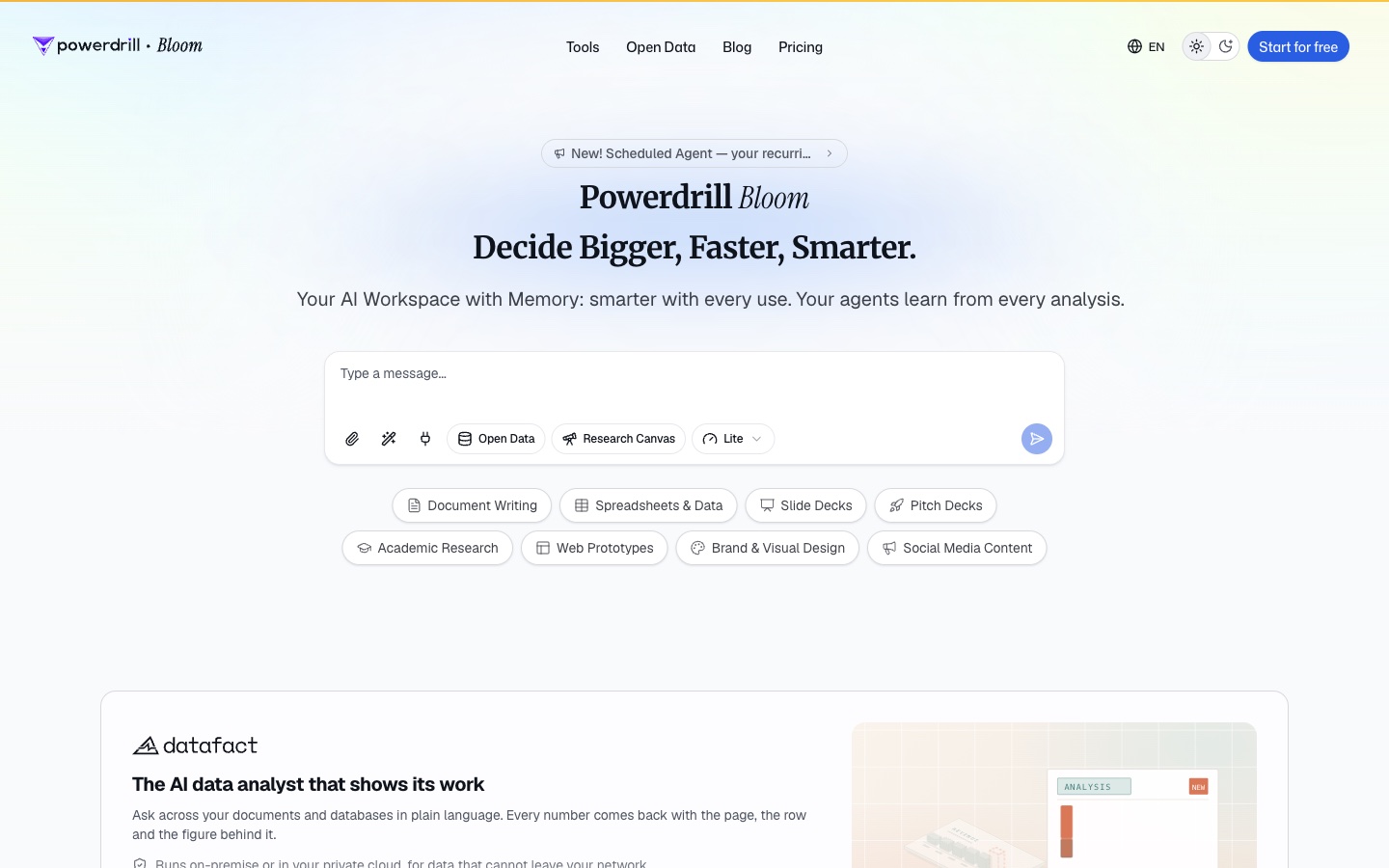
Best for: Analysts, managers, and researchers who need findings from documents turned into reports, charts, and slides.
Powerdrill Bloom is an AI workspace that turns files and data into reports, charts, dashboards, and slides. You upload PDFs, Word files, spreadsheets, or slides, and ask for the analysis in natural language.
Its AI Document Summarizer and ChatPDF feature handle reading and summarizing. The same workspace then turns the findings into a report or a deck, together with any numbers you upload.
Key features
- Document summaries. Summarize long documents and ask follow-up questions.
- Documents plus data. Combine PDFs with Excel and CSV files in one analysis.
- Reports and slides. The AI Report Generator builds reports from your files.
- Workspaces. The changelog says workspaces "give your AI a persistent, memory-powered home."
Pros
- Goes from documents to a report or deck in one workspace.
- Combines document text with spreadsheet data.
- A Free plan covers uploads of Excel, CSV, PDF, and docs.
Cons
- Its pages focus on analysis and reporting rather than PDF editing or e-signatures.
- Usage is credit-based, so long documents draw down the allowance faster.
Pricing
The pricing page lists a Free plan at $0.00 and Pro at $13.27/mo. The Free plan includes 1,000 daily refreshed credits and lists "Upload Excel, CSV, PDF, and docs."
2. ChatGPT
Best for: People who want to analyze documents and create new files from the results.
ChatGPT reads files you attach and can create new documents, presentations, spreadsheets, and PDFs. OpenAI's docs describe the web workflow. In ChatGPT Work, you can "attach source files or ask ChatGPT to create a document, presentation, spreadsheet, or PDF."
The desktop app previews generated files next to the chat. Annotations let you point at part of a file and ask for a change. One example from the docs is to "Highlight a claim in an investment thesis and ask for its source."
Key features
- File uploads. Attach documents and ask questions about them.
- File creation. Create documents, slides, spreadsheets, and PDFs.
- Previews. The desktop app previews generated files beside the chat.
- Annotations. Point at a part of a file and request a focused revision.
Pros
- Analyzes and creates files in the same chat.
- Annotations make targeted edits easy.
- A Free plan to start.
Cons
- Previews and annotations depend on which ChatGPT app you use, per the docs.
- Heavy use needs a paid plan.
Pricing
OpenAI's pricing docs list Free at $0, Go at $8, Plus at $20, and Pro at $100, $200, or $500 per month. Business is $20 per user per month billed annually, or $25 monthly.
3. Claude
Best for: Long PDFs where charts, tables, and images matter.
Claude is Anthropic's AI assistant. Its help center lists the document types it can read: PDF, DOCX, CSV, TXT, HTML, ODT, RTF, EPUB, JSON, and XLSX.
The help center says "Claude analyzes both text and visual elements (like images, charts, and graphics) in PDFs of 100 pages or fewer." For longer PDFs up to 1,000 pages, it processes text only.
Key features
- Visual PDF analysis. Reads charts and images in PDFs up to 100 pages.
- Large uploads. Up to 500MB per file and up to 20 files per chat.
- Projects. Upload files to a project for "persistent reference across conversations."
- File creation. The Free plan lists "Search the web, create files, and run code."
Pros
- Reads charts and images inside PDFs.
- Handles PDFs up to 1,000 pages.
- Projects keep documents across conversations.
Cons
- Visual analysis stops at 100 pages; longer PDFs are text only.
- XLSX uploads need code execution and file creation turned on.
Pricing
Claude's pricing page lists Free at $0. Pro is $17 per month with an annual subscription ($200 billed up front), or $20 billed monthly. Max is $100 per month.
4. Gemini Notebook
Best for: Students and researchers who want answers grounded only in sources they choose.
Gemini Notebook is Google's research notebook, formerly called NotebookLM. Its help center says you can "Easily upload PDFs, websites, YouTube videos, audio files, Google Docs, or Google Slides or discover new sources."
Answers stay grounded in the sources you add. The notebook can also turn sources into study formats and audio overviews.
Key features
- Many source types. PDFs, websites, YouTube videos, audio, Google Docs, and Slides.
- Grounded answers. Responses come from the sources in the notebook.
- Summaries and overviews. Turn sources into summaries and audio overviews.
- Google integration. Works with Google Docs and Slides directly.
Pros
- Answers grounded in your own sources.
- Accepts many source types, not only PDFs.
- A free tier through a Google account.
Cons
- Its homepage did not load for our script, so details come from the help center.
- Higher usage limits need a paid Google AI plan.
Pricing
Gemini Notebook has a free tier. The Google AI plans page lists Google AI Plus at $4.99/mo and Google AI Pro at $19.99/mo. Both add more access to Google's AI features.
5. Adobe Acrobat AI Assistant
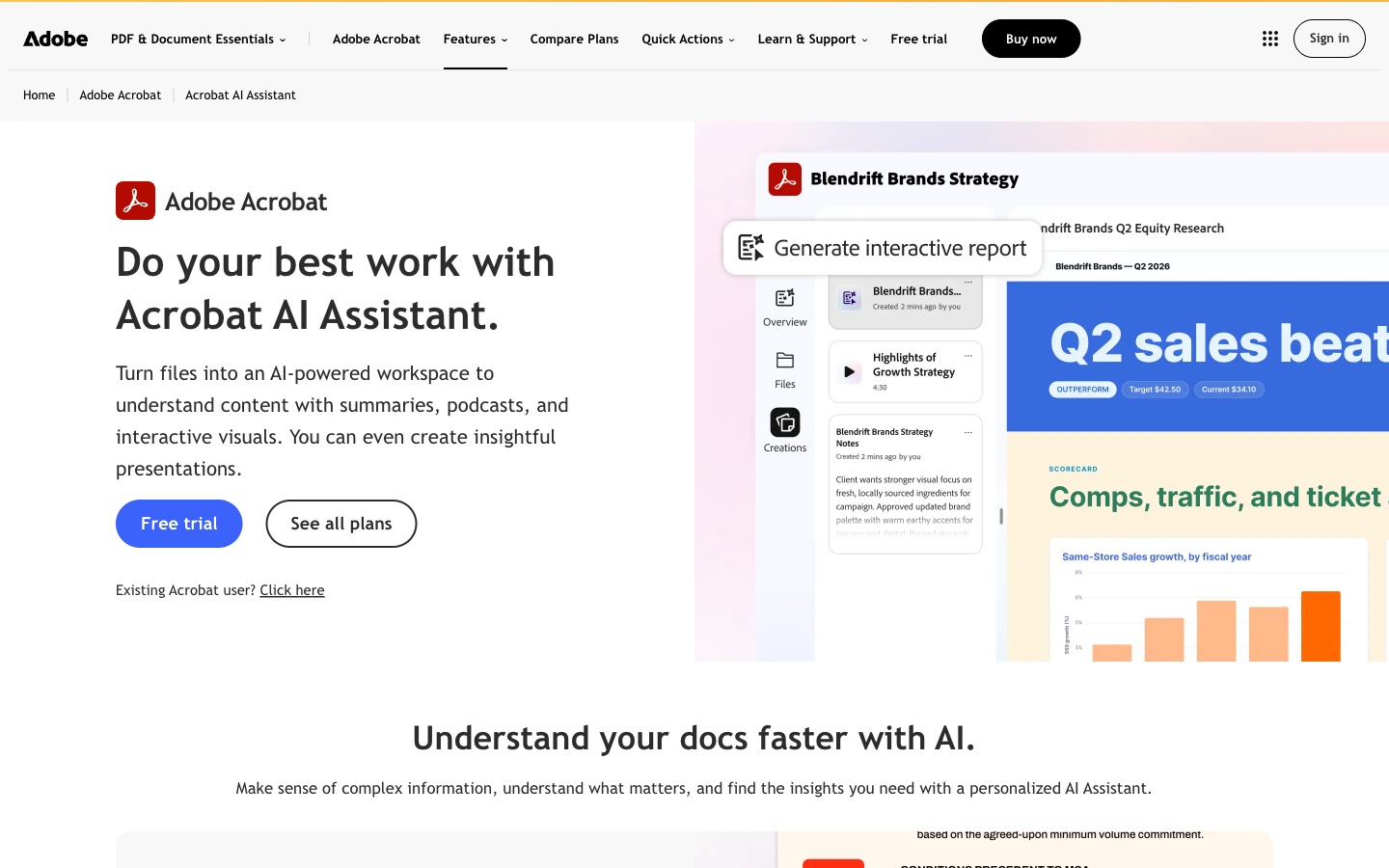
Best for: People who already use Adobe Acrobat for PDFs.
Adobe Acrobat AI Assistant adds AI to Acrobat. Adobe's page says it can "Turn files into an AI-powered workspace to understand content with summaries, podcasts, and interactive visuals."
It works inside the familiar Acrobat tools for editing, signing, and organizing PDFs. Adobe also lists "Chat with PDF" among its quick actions.
Key features
- Summaries. Get summaries of PDFs and other files.
- Podcasts. Turn documents into audio overviews.
- Interactive visuals. Create visual reports from documents.
- Acrobat tools. Edit, convert, sign, and organize PDFs in the same app.
Pros
- Works inside Acrobat, which many teams already use.
- Covers editing and signing as well as AI analysis.
- A free trial is available.
Cons
- Adobe's plans page showed prices in Japanese yen for our location, so amounts come from the App Store.
- AI Assistant is an add-on or part of higher plans, not the free Reader.
Pricing
The US App Store lists "AI Assistant for Acrobat" at $6.99 as an in-app purchase, without a stated billing period. It also lists Acrobat Premium plans at several prices, such as Acrobat Premium - Monthly at $14.99.
6. ChatPDF

Best for: Students and researchers who want quick, free PDF chat.
ChatPDF is one of the simplest ways to ask questions of a PDF. Its homepage calls it "Your PDF AI - like ChatGPT but for PDFs." It says it can "Summarize and answer questions for free."
The site lists uses for research papers, study materials, legal contracts, financial reports, and manuals. It also offers tools for summaries, flashcards, slides, and research.
Key features
- Chat with any file. Upload a PDF, or paste a video or website link.
- Cited sources. Answers point back to the document.
- Study tools. Summaries, flashcards, and slides.
- Apps. Web, Mac, and mobile apps.
Pros
- Very simple to start: drop a file on the homepage, and sign up later to save chat history.
- Free summaries and answers.
- Useful study tools for students.
Cons
- The website pricing page redirected to a Chinese version on our check, so prices come from the App Store.
- Focused on single-document chat more than large collections.
Pricing
The US App Store lists Monthly Plus Subscription at $14.99 and ChatPDF Yearly Plus Plan at $89.99. ChatPDF also has a free tier.
7. Humata
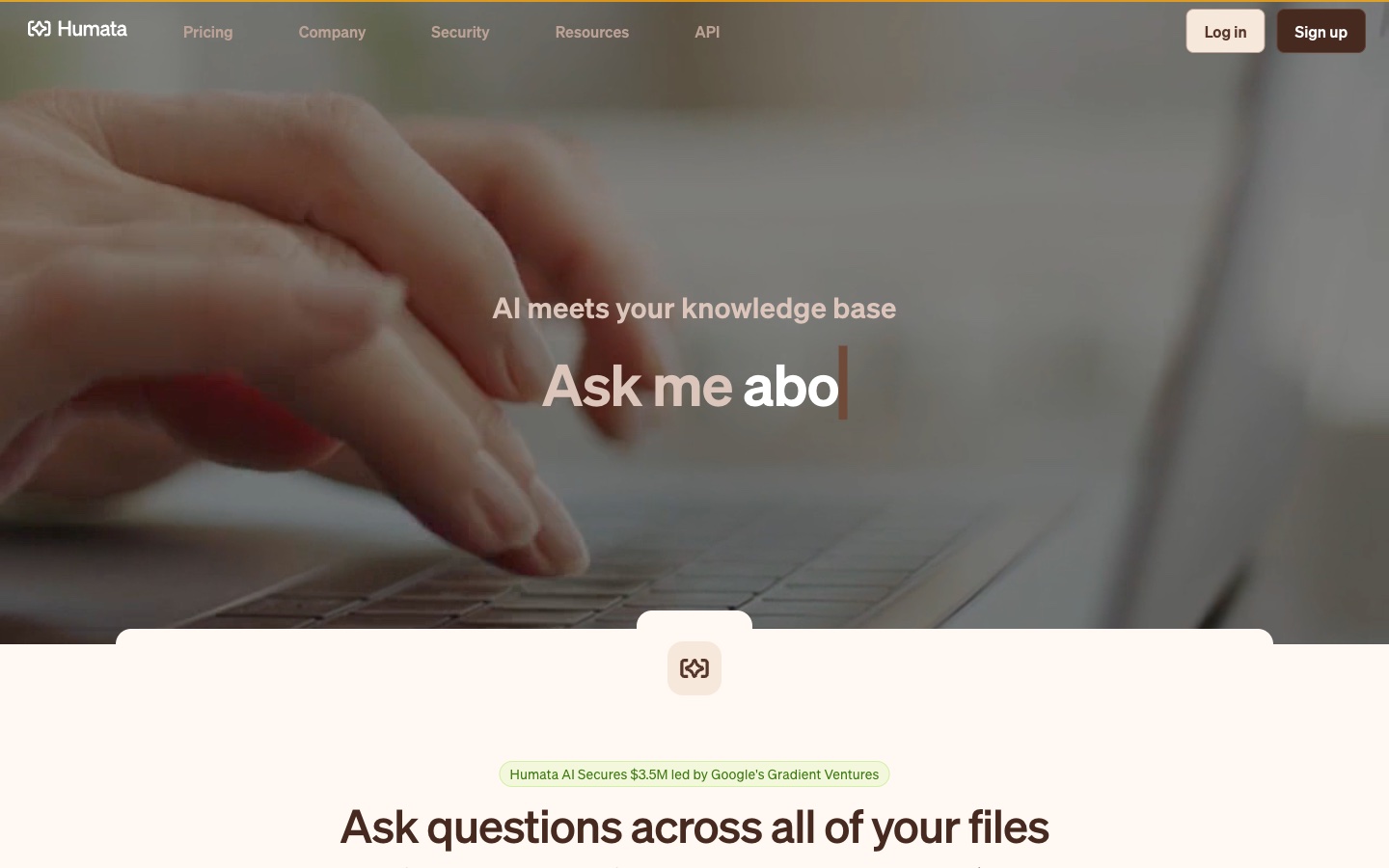
Best for: Teams that need answers across many documents with clear citations.
Humata calls itself "AI meets your knowledge base." The homepage says you can "Ask questions across all of your files." It adds that you can tell its AI to "summarize findings, compare documents, and search for answers."
Humata highlights citations so you can trace each answer to the source. It can also embed a document chat in any webpage.
Key features
- Unlimited files. Upload as many documents as you want, per the homepage.
- Highlighted citations. Answers link back to the source text.
- Compare documents. Ask for comparisons across files.
- Web embed. Add document chat to a webpage.
Pros
- Built for large document collections.
- Citations make answers easy to check.
- A free plan to start.
Cons
- The Free plan covers up to 60 pages.
- Extra pages cost $0.01 to $0.02 each, depending on the plan.
Pricing
Humata's pricing page lists Free at $0, with basic features for up to 60 pages. Expert is $9.99/month. Team is $49 per user per month. Enterprise is custom.
8. AskYourPDF
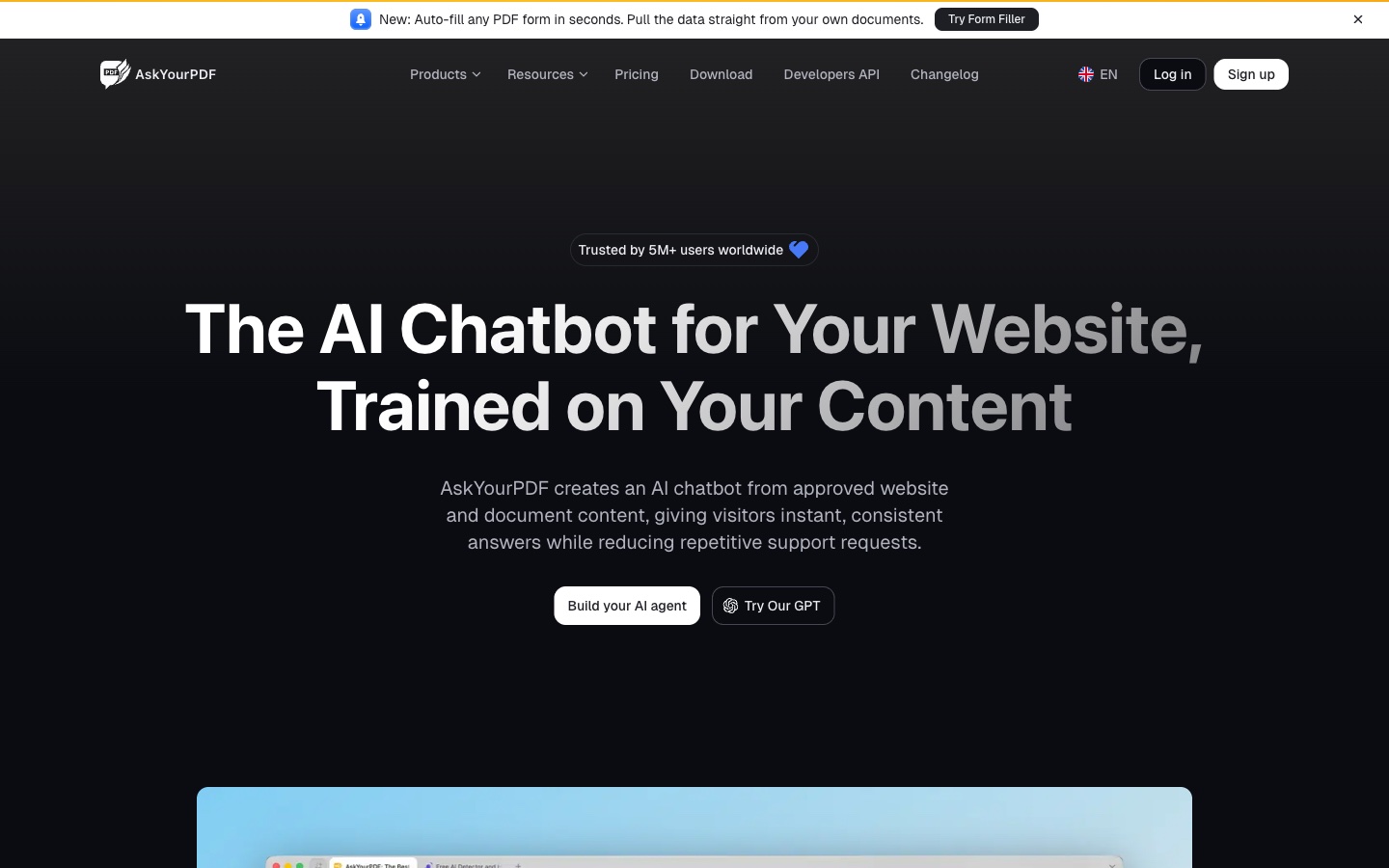
Best for: People who want document chat plus a chatbot for their website.
AskYourPDF started as a PDF chat tool. Its homepage now leads with "The AI Chatbot for Your Website, Trained on Your Content." It still offers Conversation, which lets you "Chat directly with your documents."
Supported formats include PDF, PPT, TXT, PPTX, EPUB, and RTF. The site also lists a summarizer, a literature review writer, and a PDF form filler.
Key features
- Conversation. Chat directly with PDF, PPT, TXT, PPTX, EPUB, and RTF files.
- Summarise. Brief summaries with key points.
- AI Agent. Train a chatbot on your documents or website.
- Form Filler. Fill PDF forms from your own data.
Pros
- Many document formats.
- A free plan for first PDFs.
- Website chatbot built in.
Cons
- The Free plan allows 1 document a day and 50 questions a day.
- The homepage now centers on website chatbots rather than document analysis.
Pricing
AskYourPDF's pricing page lists Free at $0. Premium is $11.99 per month billed yearly, and Pro is $14.99 per month billed yearly.
9. UPDF AI
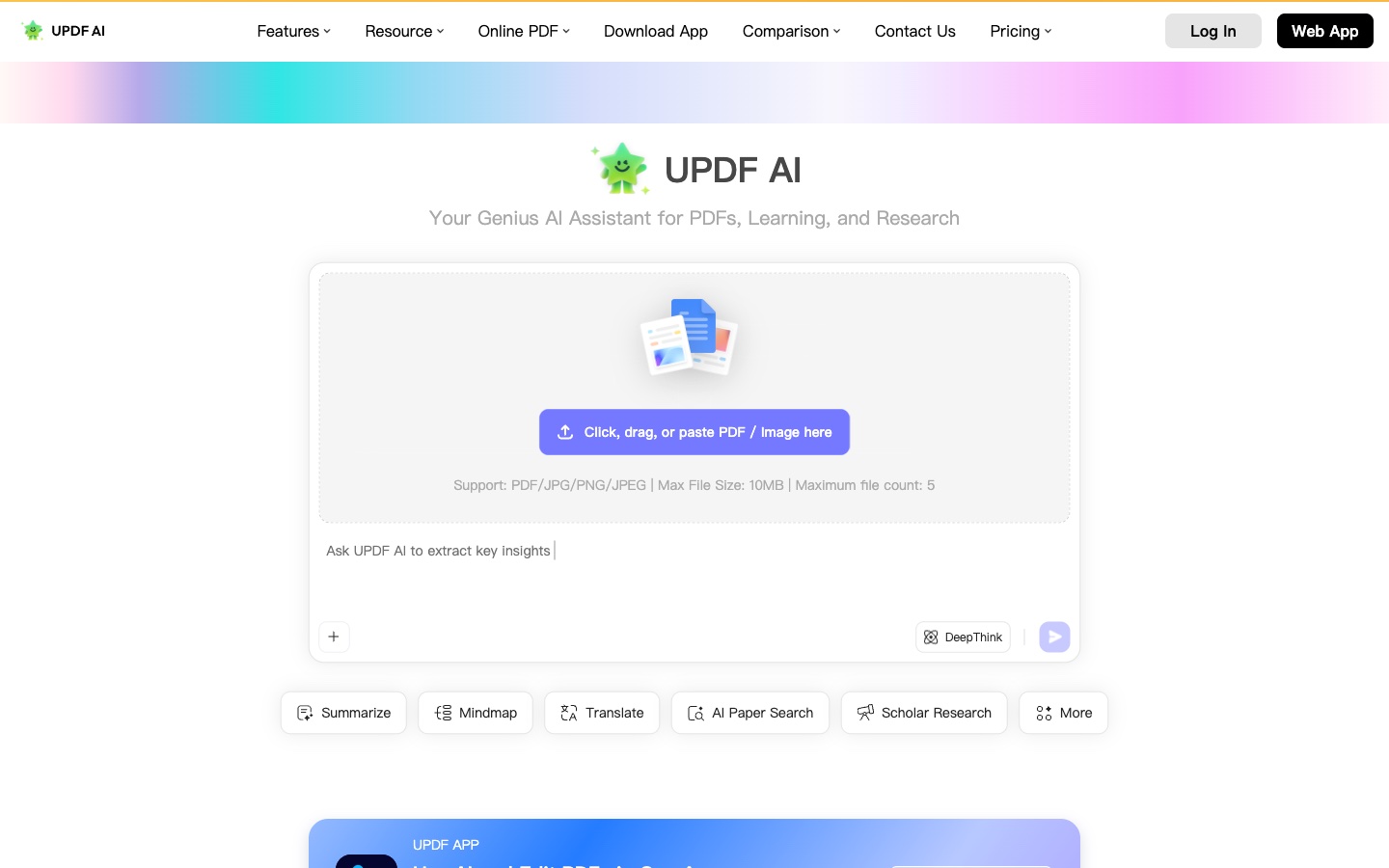
Best for: People who want PDF editing and AI analysis in one app.
UPDF AI is the AI side of the UPDF PDF editor. Its page calls it "Your Genius AI Assistant for PDFs, Learning, and Research." You can summarize, translate, and chat with PDFs, and turn them into mind maps.
The full UPDF app adds PDF editing, OCR, conversion, and file organization. Newer features include paper search and multi-file chat.
Key features
- Summarize and chat. Ask questions about PDFs and images.
- PDF to Mind Map. Turn documents into mind maps.
- Translation. Translate PDFs.
- Multi-file chat. Chat across several PDFs, listed as new.
Pros
- Combines a PDF editor with AI.
- A free plan to try the AI.
- Mind maps and translation built in.
Cons
- The free plan limits uploads to 5 PDFs of 10MB and 100 pages each.
- The page showed a seasonal sale on our check, so sale prices are not quoted.
Pricing
UPDF AI's page lists a Free plan at US$0. UPDF's pricing page says AI Assistant "renews at US$69.00/year" after a 7-day trial. Quarterly AI plans were shown at sale prices on the day of review.
10. PDF.ai
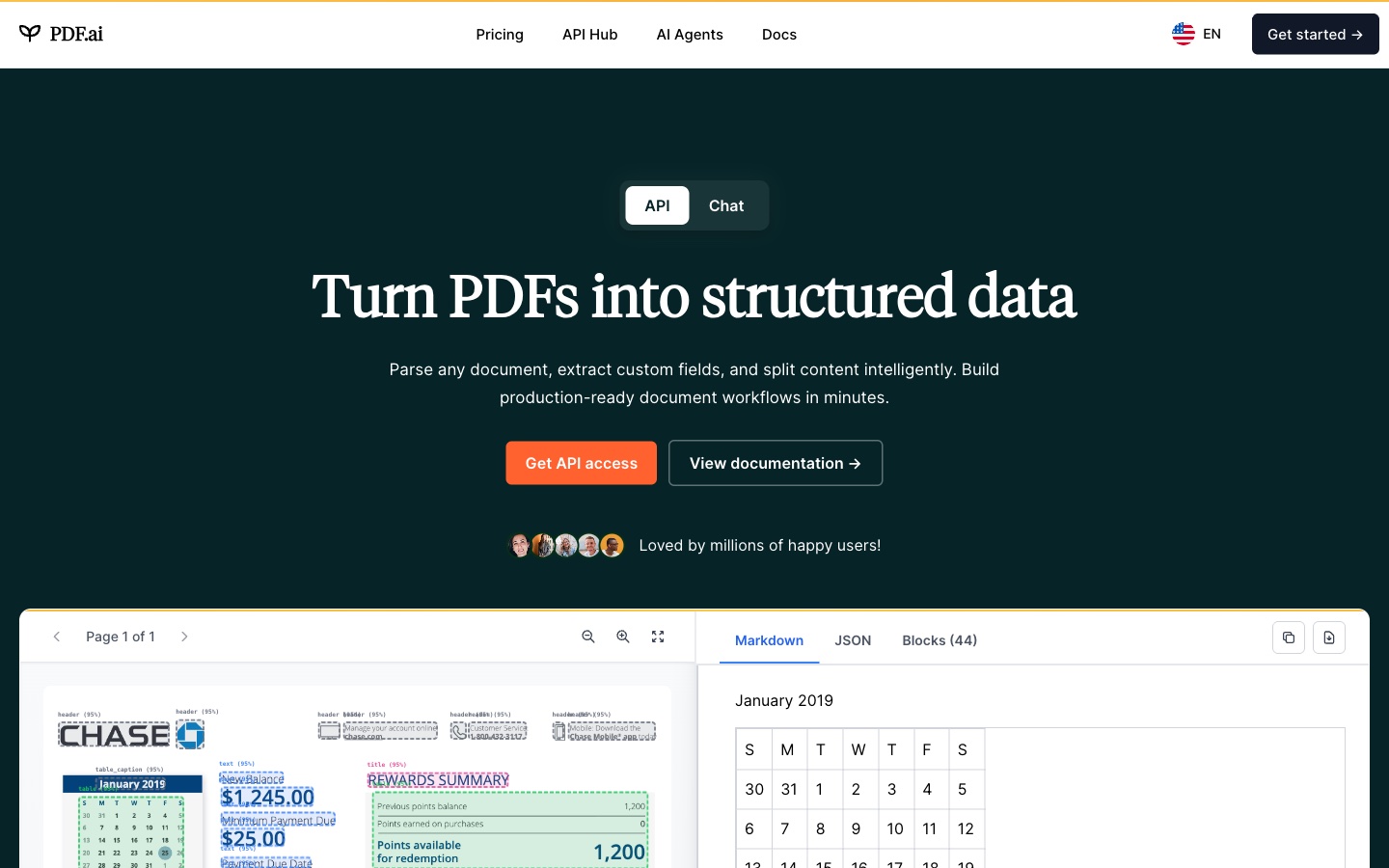
Best for: Developers who need structured data from PDFs, and users who want simple PDF chat.
PDF.ai has two sides. Its homepage leads with an API to "Turn PDFs into structured data." It says you can "Parse any document, extract custom fields, and split content intelligently." A Chat tab offers PDF chat for everyday users.
The API returns JSON with headings, paragraphs, tables, and figures. It also extracts fields like names, dates, and amounts with custom prompts.
Key features
- Parse documents. OCR and layout detection into structured JSON.
- Extract fields. Pull names, dates, amounts, and more.
- Split documents. Separate PDFs into sections automatically.
- PDF chat. Chat with PDFs on consumer plans.
Pros
- Strong option for developers building document workflows.
- Structured output for tables and figures.
- A free Hobby plan.
Cons
- The homepage now centers on the developer API.
- API pricing is separate from chat plans.
Pricing
PDF.ai's pricing page lists Hobby at $0. Pro is $10/mo billed yearly. Ultimate is $20 per user/mo billed yearly, and Enterprise is $30 per user/mo billed yearly. API plans start at $50/mo for 1,000 credits.
How we chose these tools
Eleven tools were assessed. One was removed. Ten made the list. Each tool had to pass three checks:
- Document work. Do its pages describe reading, summarizing, or answering questions about documents?
- AI features. Do its pages describe AI inside the product, such as chat, summaries, or extraction?
- A working product page. Could we open a live product page or App Store listing on the day of review?
No third-party ratings or review scores were used. Prices are written the way each vendor shows them. Where a page showed only sale prices, the entry says so instead of quoting them. A missing price did not remove a tool. Time-bound offers and percentage labels were left out.
The one removal was outside the scope of this list:
- Docsumo. Its homepage describes "One platform to classify, extract, check and route documents" for lending, insurance, and other industries. It is built for automated extraction pipelines rather than reading and analyzing documents. Our list of AI tools for PDF data extraction covers that category.
Why Powerdrill Bloom is recommended for document analysis
Powerdrill Bloom passed the same checks as every other tool here. It is recommended for document analysis work that ends in a report, a chart, or a deck. That covers board report reviews, research summaries, and contract comparisons that need a written output.
The AI Document Summarizer summarizes long files, and the same workspace combines them with spreadsheet data. A Free plan is available, and Pro is $13.27/mo.
Its pages focus on analysis and reporting. People who need PDF editing or e-signatures should pair it with Adobe Acrobat AI Assistant or UPDF AI from this list. For pure question-and-answer document analysis on one PDF, ChatPDF or Claude may be quicker.
Which tool fits which document task
Document analysis covers several kinds of work, and most people mix two tools. The right tool depends on the task.
Reading one long document. Claude handles PDFs up to 1,000 pages and reads charts in the first 100 pages. ChatPDF is the fastest way to ask questions of a single file.
Comparing many documents. Humata is built for large collections with citations. Gemini Notebook keeps answers grounded in a chosen set of sources.
Studying. ChatPDF and UPDF AI add flashcards, mind maps, and translation.
Working inside PDFs. Adobe Acrobat AI Assistant and UPDF AI combine editing with AI.
Building software. PDF.ai's API turns PDFs into structured data for your own apps.
Producing a report or deck. ChatGPT creates new files from what it reads. Powerdrill Bloom turns documents and spreadsheet data into reports, charts, and slides.
PDF chat tools vs. AI assistants vs. AI workspaces
These three groups often get compared, but they solve different problems.
For document analysis, the three groups split like this.
PDF chat tools include ChatPDF, Humata, AskYourPDF, UPDF AI, PDF.ai, and Adobe Acrobat AI Assistant. They focus on PDFs and make it easy to ask questions with citations. They suit students, researchers, and anyone who reads many PDFs.
AI assistants include ChatGPT, Claude, and Gemini Notebook. They read many file types and can reason across them. They suit complex questions and long, mixed documents.
AI workspaces include Powerdrill Bloom. They combine documents with data and produce a finished output, such as a report or a deck. They suit teams that need to share the result.
Privacy matters in document analysis more than in most AI tasks. Contracts, financial reports, and medical files often hold sensitive data. Check each vendor's data terms before you upload, and remove details you do not need to share.
A simple document analysis test helps before you choose. Pick a document you know well, such as a report you wrote. Ask two tools the same five questions. Keep the tool that answers correctly and cites the right pages.
Conclusion
AI tools now make document analysis much faster than reading every page by hand. PDF chat tools answer questions with citations. AI assistants reason across long and mixed files. Workspaces turn the findings into something you can share.
Start with your most common task. If you read single PDFs, try ChatPDF or Claude. If you manage large document sets, try Humata or Gemini Notebook. If you edit PDFs, try Adobe Acrobat AI Assistant or UPDF AI. If your analysis ends in a report or deck, a workspace saves the most time.
Good document analysis still needs a human check. Always compare AI answers with the source, especially for numbers, dates, and legal terms. Keep the page references so others can verify your findings.
When your documents need to become a report, a chart, or a deck, try Powerdrill Bloom with a document you know well.
Frequently asked questions
What is the best AI tool for document analysis?
It depends on your document analysis task. Claude is strong for long PDFs with charts. Humata suits large document sets. ChatPDF is the simplest for quick questions. Powerdrill Bloom suits turning documents into reports and slides.
Is there a free AI tool for document analysis?
Yes. Nine of the ten tools on this list have a free plan or tier. Only Adobe Acrobat AI Assistant needs a paid add-on or plan.
Can AI analyze PDFs with charts and tables?
Some can. Claude's help center says it analyzes text and visual elements, such as charts, in PDFs of 100 pages or fewer. PDF.ai's API extracts tables and figures as structured data.
Which AI tool is best for comparing documents?
Humata says you can tell its AI to compare documents. Gemini Notebook and Claude can also reason across several uploaded files at once.
Is it safe to upload confidential documents to AI tools?
It depends on the vendor and plan. Read each tool's data and privacy terms before you upload. Business plans often add controls, such as opting out of model training.
Sources: OpenAI, Work with files · OpenAI, Pricing · Claude Help, Upload files to Claude · Claude pricing · Gemini Notebook Help · Google AI plans · Adobe Acrobat AI Assistant · Adobe Acrobat Reader on the App Store · ChatPDF · ChatPDF on the App Store · Humata · Humata pricing · AskYourPDF · AskYourPDF pricing · UPDF AI · UPDF pricing · PDF.ai · PDF.ai pricing · Docsumo.